


Microsoft Office is more than just Word documents and Excel spreadsheets. With the right add-ins, you can turn it into a powerful productivity hub tailored to your exact needs. Whether you’re a student, business user, or content creator, learning how to use add-ins properly can save time, reduce manual work, and improve accuracy.
This guide will walk you through everything you need to know to start using add-ins in Microsoft Office the easy way.
What Are Microsoft Office Add-ins?
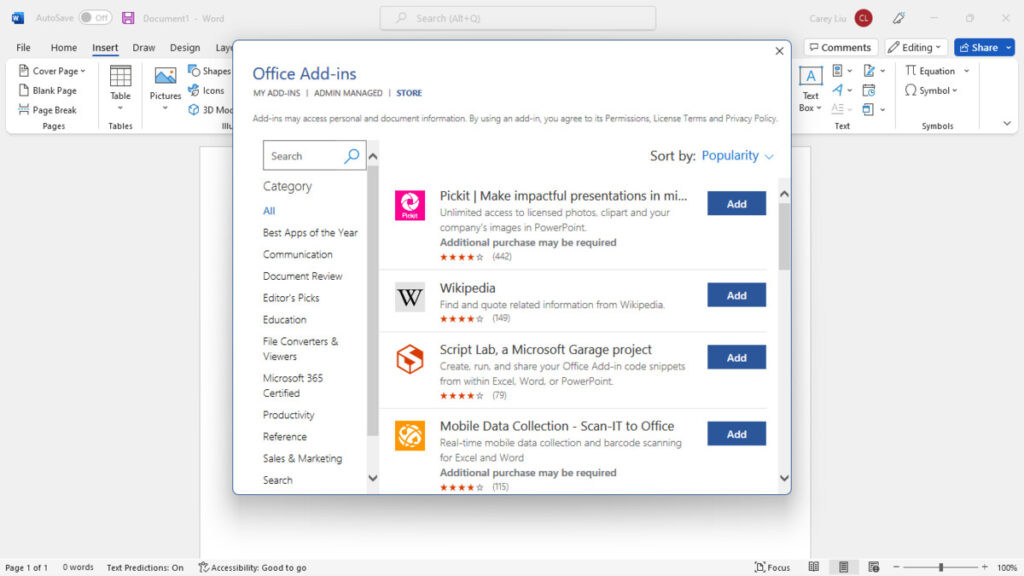
Add-ins are lightweight extensions that integrate directly into Office apps like Word, Excel, PowerPoint, and Outlook. They bring extra features that are not included by default, allowing you to expand functionality without installing separate software.
Some popular examples include tools for grammar checking, advanced data analysis, PDF conversion, translation, and project management integration. Instead of switching between multiple apps, add-ins let you work smarter inside one environment.
Why You Should Use Add-ins
Many users ignore add-ins, but they can significantly improve your workflow. Here’s why they matter:
- Save time by automating repetitive tasks
- Increase accuracy with specialized tools
- Improve collaboration through integrations with external platforms
- Enhance productivity without learning new software
If you use Microsoft Office daily, even one or two well-chosen add-ins can make a noticeable difference.
How to Install Add-ins in Microsoft Office
Installing add-ins is quick and beginner-friendly. Follow these steps:
- Open Word, Excel, or another Office app
- Click on the Insert tab in the top menu
- Select Get Add-ins or Office Add-ins
- Use the search bar to find what you need
- Click Add to install
Once installed, the add-in will appear in your interface, usually in a sidebar or toolbar.
How to Use Add-ins Step by Step
After installation, using add-ins is straightforward. Here’s how to get the most out of them:
1. Launch the Add-in
Go to the Insert tab and open My Add-ins. Click the tool you want to use. Most add-ins will open in a side panel.
2. Follow the Interface
Each add-in has its own layout, but most are user-friendly. You can usually drag, click, or input data directly into the panel.
3. Apply the Feature
Whether you’re checking grammar, inserting charts, or connecting to a service, simply follow the prompts provided by the add-in.
4. Save Your Work
Changes made through add-ins are typically applied instantly, but always double-check before saving your document.
Best Add-ins to Try First
If you’re just getting started, begin with essential tools that improve everyday tasks:
- Grammar and writing assistants for Word
- Data analysis tools for Excel
- Presentation enhancers for PowerPoint
- Email productivity tools for Outlook
These provide immediate value without a steep learning curve.
Tips for Using Add-ins Efficiently
To get the best experience, keep these tips in mind:
- Avoid installing too many add-ins at once to prevent clutter
- Update regularly to ensure compatibility and security
- Check permissions before installing any add-in
- Remove unused tools to keep Office running smoothly
A clean setup helps maintain performance and keeps your workspace organized.
Common Problems and Fixes
Sometimes add-ins may not work as expected. Here are quick solutions:
- Add-in not showing: Restart the Office app
- Slow performance: Disable unused add-ins
- Compatibility issues: Make sure your Office version is up to date
- Login problems: Reconnect your account inside the add-in
Most issues are easy to fix and do not require technical knowledge.







