

If your PC is running slow, freezing, or showing unexpected errors, the first instinct for many users is to install paid optimization software. However, the reality is that Windows already includes powerful repair tools that are specifically designed to fix real system problems. These tools go beyond surface-level cleanup and target the root cause of issues, making them far more effective than most third-party solutions.
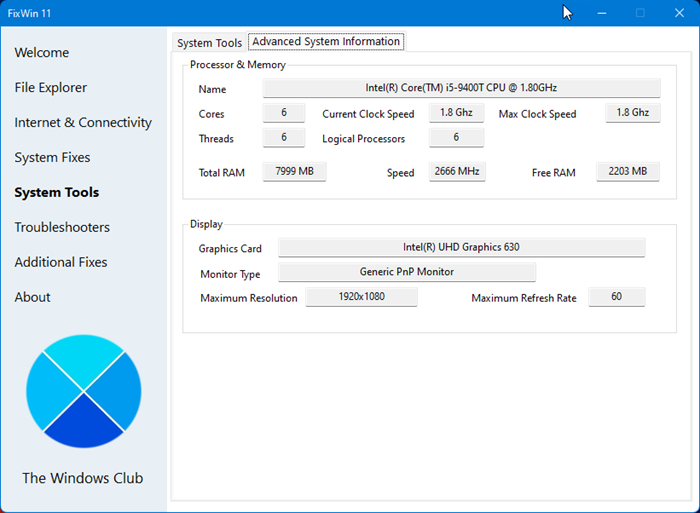
Why Built-In Windows Repair Tools Are Better
Many so-called “PC optimizer” programs focus on deleting temporary files or making minor registry changes. While this may create a short-term improvement, it rarely solves the underlying issue. Windows repair tools, on the other hand, are built to diagnose and repair system-level problems.
Key advantages include:
- Designed and maintained by Microsoft for full compatibility
- Safe to use without risking system instability
- Focused on repairing core Windows components
- No hidden costs or unnecessary background processes
- More reliable than third-party optimization tools
By using native tools, you avoid potential risks such as malware, aggressive ads, or unwanted system modifications.
Essential Windows Repair Tools You Should Use
Windows includes several powerful utilities that can resolve common and advanced issues. Understanding how they work can significantly improve your system performance.
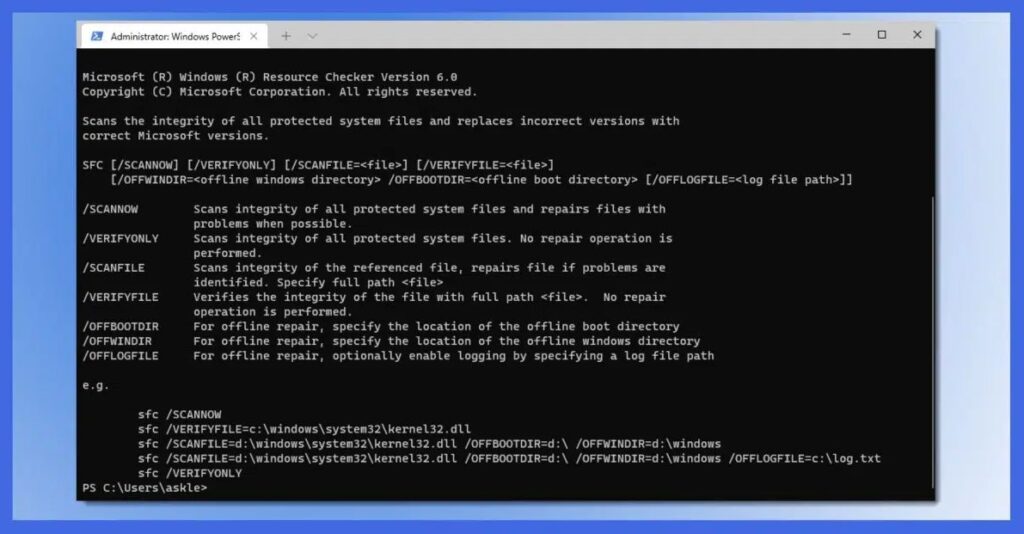
- System File Checker (SFC)
This tool scans your system for corrupted or missing files and replaces them with healthy versions. It is especially useful when you experience crashes, glitches, or unusual behavior. - DISM (Deployment Image Servicing and Management)
DISM works at a deeper level than SFC. It repairs the Windows system image, which is essential if errors persist even after running basic scans. - Startup Repair
If your computer fails to boot properly, Startup Repair can automatically detect and fix issues preventing Windows from loading. - Windows Troubleshooters
These built-in tools can quickly identify and resolve common problems related to internet connectivity, sound, printers, and Windows updates.
When Should You Use Windows Repair Tools
Knowing when to use these tools is just as important as knowing how to use them. You should consider running them if you notice:
- Frequent system crashes or blue screen errors
- Slow performance without a clear cause
- Applications not opening or responding properly
- Windows update failures
- Boot problems or system startup errors
Running these tools regularly can also help prevent future issues and maintain system stability.
Best Practices for Better Results
To get the most out of Windows repair tools, follow these simple practices:
- Run scans as an administrator for full access
- Use DISM before SFC for deeper repair accuracy
- Keep your system updated with the latest Windows updates
- Restart your PC after completing repairs
- Avoid installing unnecessary optimization software







