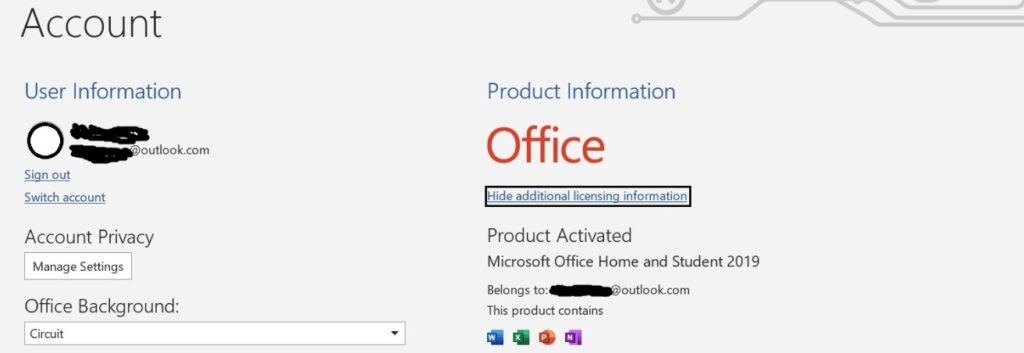
Installing and activating Office Home and Student is quick and easy when you follow the right steps. Whether you are setting it up for the first time or reinstalling it on a new computer, the process is almost the same for all versions.
This guide works for Office Home and Student 2016, 2019, 2021, and 2024.
Before you begin, make sure you have:
- A valid 25-character product key
- A Microsoft account
- A stable internet connection
Now let’s start.
Step 1: Redeem Your Office Product Key
Before installing Office, you must redeem your product key online.
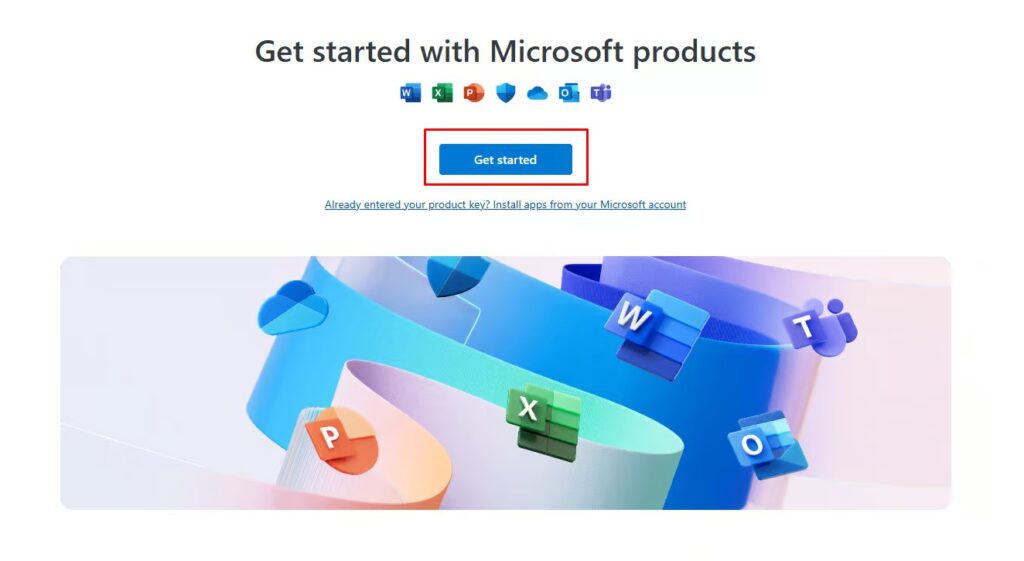
- Open your browser and go to setup.office.com
- Click Get Started.
- Sign in with your Microsoft account. If you do not have one, create it first.
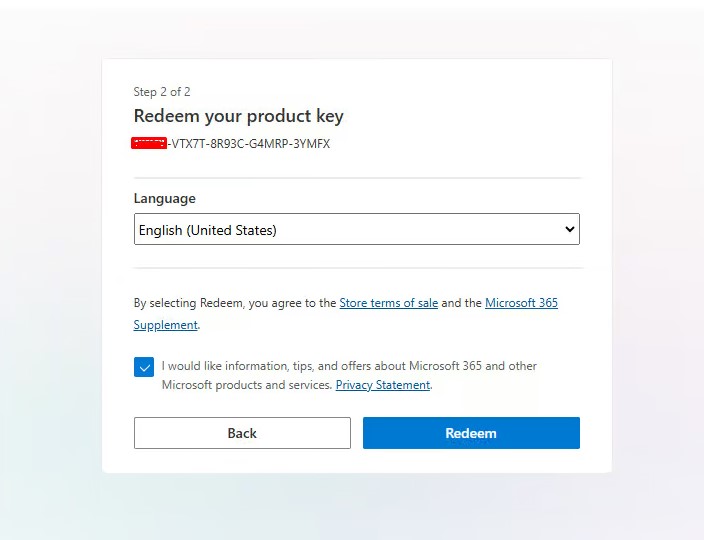
- Enter your 25-character product key.
- Click Next and wait while Microsoft verifies the key.
- Choose your language and confirm the redemption.
After completing these steps, Microsoft links the license to your account. Because of this, you will not need to enter the key again if you reinstall Office later.
If the download does not begin automatically, go to Services & Subscriptions in your Microsoft account and start the download manually.
Step 2: Download and Install Office Home and Student
Once you redeem the key, you can install the software.
- Log in to your Microsoft account dashboard.
- Click the Download button.
- Wait for the setup file to download to your device.
- Open the downloaded file to start the installer.
- Follow the on-screen instructions.
During installation, the system copies and installs Word, Excel, and PowerPoint. This process may take several minutes, depending on your internet speed.
When installation finishes, click Finish to complete the setup.
Step 3: Activate Office
After installation, activation is the final step.
- Open Word, Excel, or PowerPoint.
- The Activation Wizard will appear automatically.
- Select Activate over the Internet.
- Click Next.
- Sign in with the same Microsoft account you used earlier.
Office will activate within seconds. Once activated, all features become available.