


Adding a check mark in Microsoft Word is a simple but effective way to make your documents clearer and more professional. Whether you are creating task lists, forms, surveys, or reports, using tick symbols helps organize content and improve readability. Microsoft Word provides multiple ways to insert check marks, from basic symbols to fully interactive checkboxes.
Insert a Check Mark Using Symbols
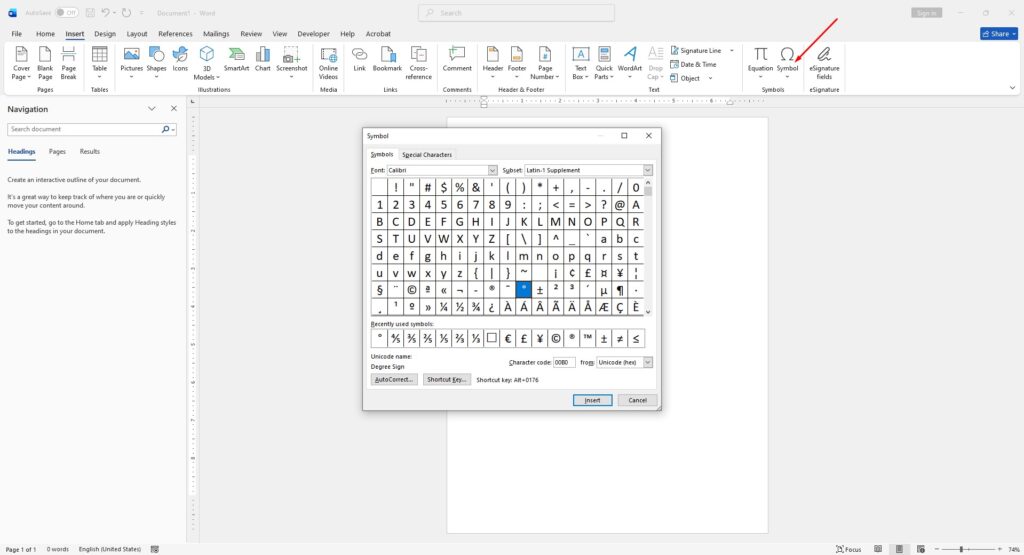
This is the most common and straightforward method.
- Open your document in Microsoft Word
- Click on the Insert tab
- Select Symbol, then click More Symbols
- In the font dropdown, choose Wingdings or Segoe UI Symbol
- Scroll to find a check mark or tick symbol
- Click Insert, then Close
This method is ideal for static documents where you only need a visual check mark.
Use Keyboard Shortcuts for Quick Access
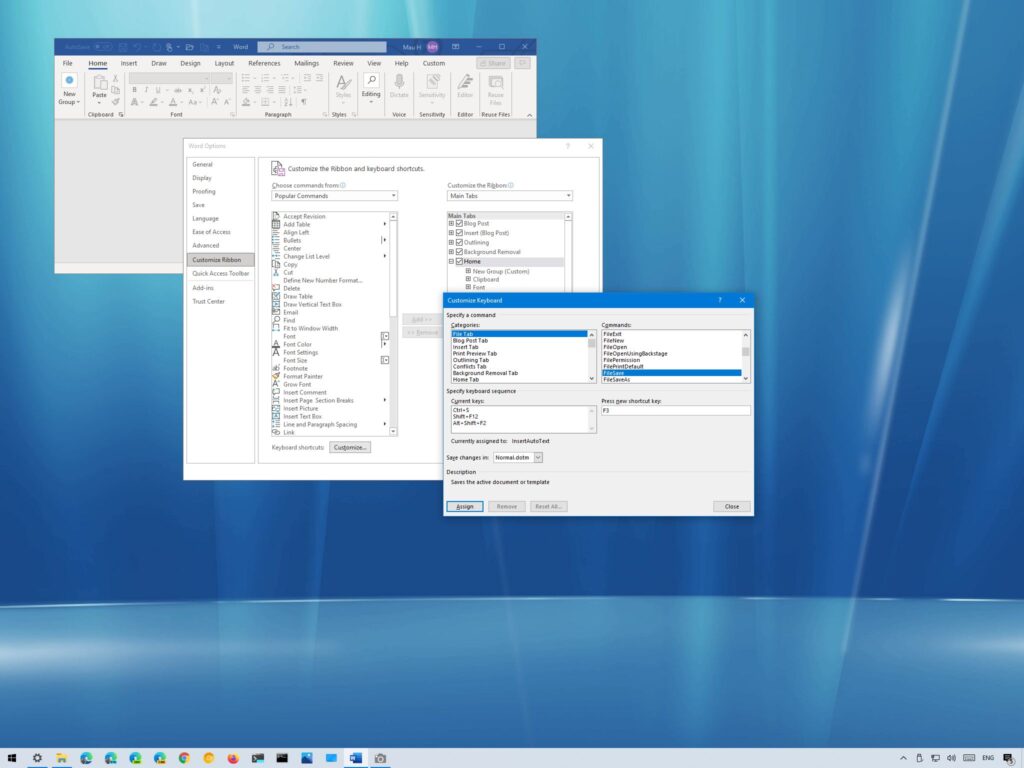
If you want a faster way to insert check marks, keyboard shortcuts are very useful.
- Type 2713, then press Alt + X to insert a standard check mark
- Type 2714, then press Alt + X for a bold check mark
- Ensure your cursor is placed correctly before using the shortcut
This method is perfect for users who frequently work with symbols and want to save time.
Add Check Marks as Bullet Points
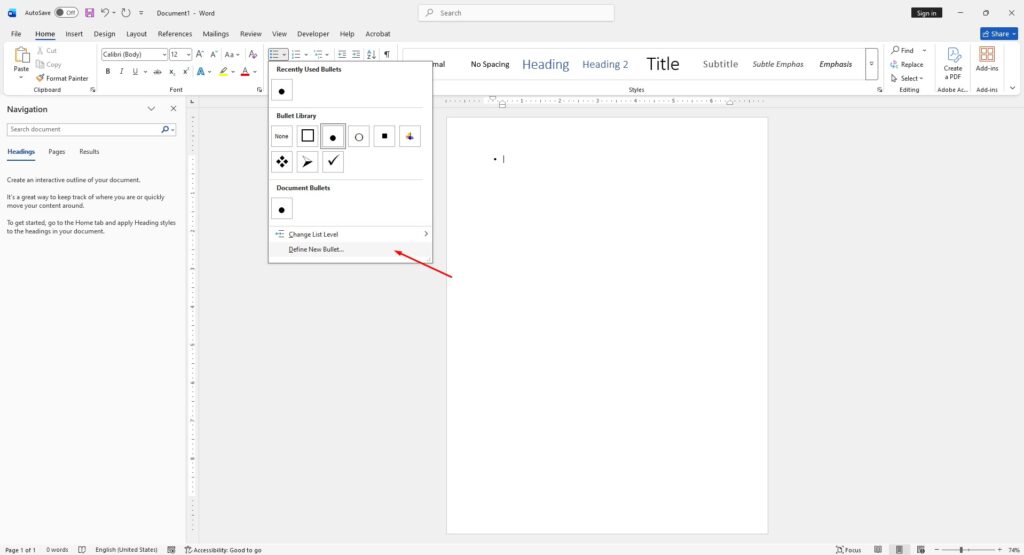
You can also use check marks to create stylish lists or checklists.
- Highlight your list items
- Go to Home > Bullets > Define New Bullet
- Click Symbol
- Choose a check mark from the available fonts
- Apply the changes
This approach works well for to-do lists, feature lists, or instructional documents.
Insert Clickable Checkboxes for Forms
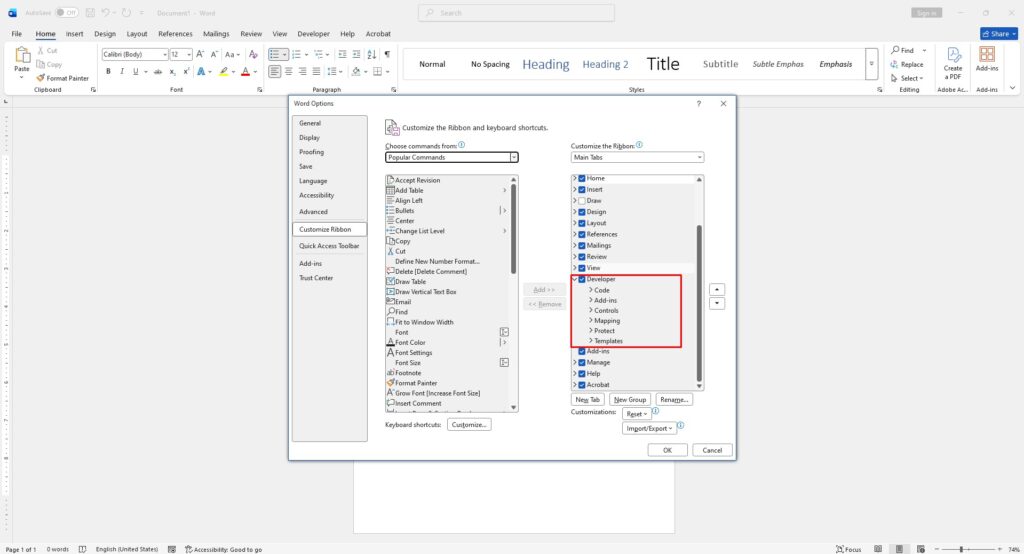
If you need interactive elements, Word allows you to add clickable checkboxes.
- Go to File > Options > Customize Ribbon
- Enable the Developer tab
- Click on the Developer tab
- Select Check Box Content Control
This option is best for forms, surveys, or documents that require user input.
Copy and Paste a Check Mark
Another quick solution is to copy and paste a check mark symbol:
- ✔
- ✓
- ☑
Simply copy one of these and paste it into your document where needed.
When to Use Each Method
- Use Symbols for simple documents
- Use Shortcuts for speed and efficiency
- Use Bullets for structured lists
- Use Checkboxes for interactive forms







