


Creating professional name tags in Microsoft Word is quick and simple. Whether preparing badges for conferences, school events, meetings, or business presentations, Word includes built-in label tools that make the entire process easy. With the right template and formatting, custom name tags can be designed and printed in just a few minutes.
Create Name Tags Using Word’s Built-In Label Feature
Microsoft Word includes a Labels feature designed for printing name badges, address labels, and stickers. This is one of the fastest ways to create clean and professional-looking name tags.
Step 1: Open a Blank Word Document
Launch Microsoft Word and create a new blank document.
Step 2: Open the Labels Tool
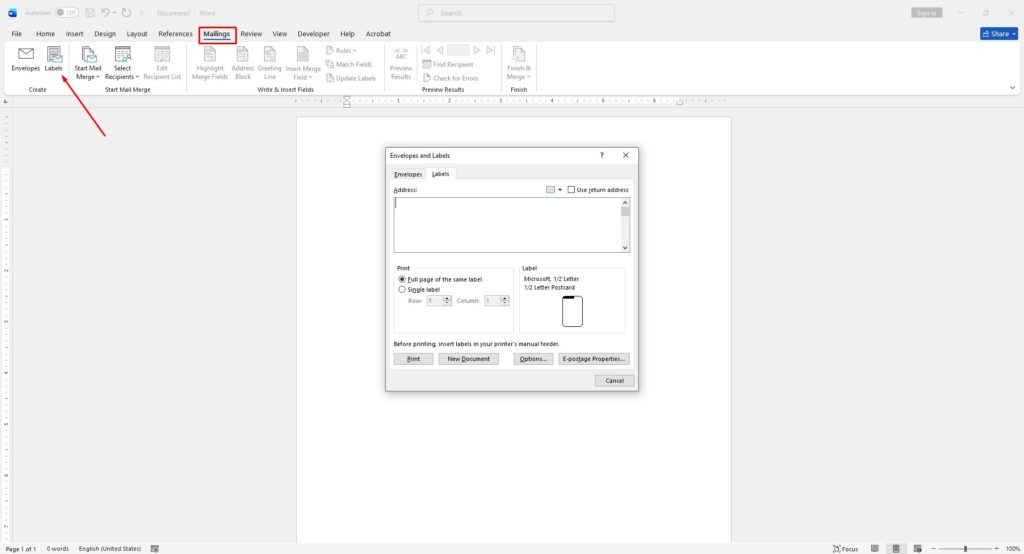
At the top of the screen, click the Mailings tab.
Then select Labels from the ribbon menu.
Step 3: Choose Label Options
In the Labels window, click Options.
From here:
- Select the label vendor
- Choose the correct product number
- Pick the size that matches the name tag paper being used
If the exact label type is unavailable, create a custom layout by selecting New Label.
Step 4: Generate the Name Tag Layout
Click New Document.
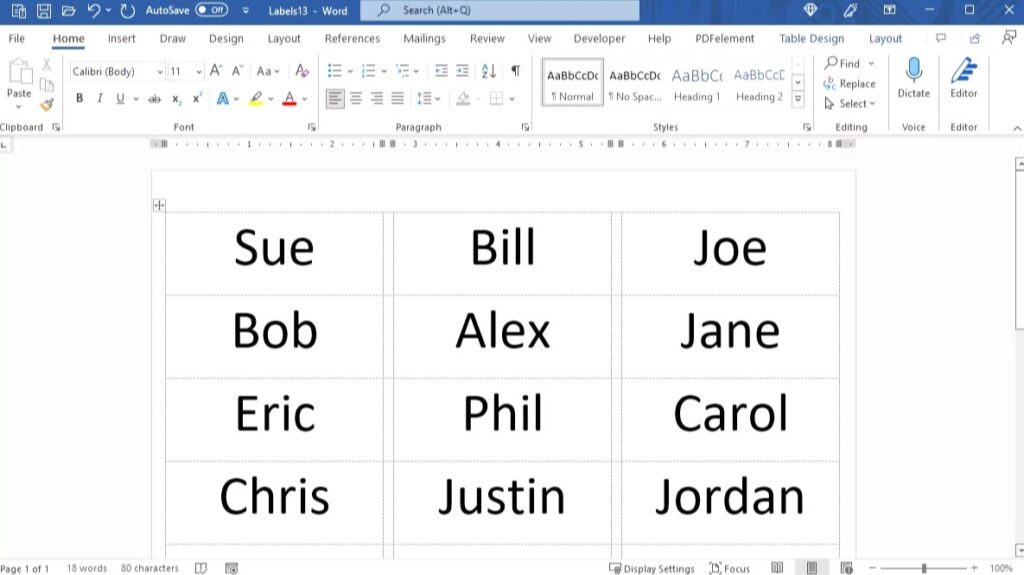
Word automatically creates a table layout matching the selected label sheet dimensions. Each box represents an individual name tag.
Step 5: Add Names and Design Elements
Type a different name into each label space.
Fonts, colors, logos, and shapes can also be added using the Home and Insert tabs.
For a cleaner and more professional appearance:
- Use bold text for names
- Center-align the content
- Add company logos or icons
- Use larger font sizes for readability
How to Add a Logo to Name Tags in Word
Custom logos can make name badges look more professional and branded.
To insert a logo:
- Click the Insert tab
- Select Pictures
- Choose the image file from the computer
- Resize and position the logo inside the name tag
For the best print quality, use PNG or high-resolution JPG files with at least 300 DPI.
Create Multiple Name Tags Quickly
Once the first name tag design is complete, copy and paste the formatting into the remaining labels. This keeps every badge consistent.
If additional pages are needed:
- Place the cursor inside the final label
- Press the Tab key until Word creates another sheet automatically
This method is ideal for events with large attendee lists.
Print Name Tags Correctly
Before printing on actual label sheets, always test the alignment first.
Recommended Printing Steps
- Go to File > Print
- Print a test page on regular paper
- Hold the test sheet behind the label paper to verify alignment
- Adjust margins if necessary
- Load the label sheet and print the final version
Testing first helps prevent wasted label sheets and alignment issues.
Use Word Templates for Faster Results
Another easy option is using ready-made name tag templates. Microsoft Word includes several built-in templates, while additional templates are available online.
Templates are useful because they:
- Save setup time
- Already include proper spacing
- Offer professional designs
- Work well for conferences, schools, and offices
Simply search “name tag” inside Word’s template library when creating a new document.
Create Name Tags From an Excel List
For larger events, Word can automatically generate hundreds of name tags using Excel data through Mail Merge.
This method is perfect for:
- Conferences
- Employee events
- School registrations
- Business seminars
Basic process:
- Create a spreadsheet with attendee names
- Save the Excel file
- In Word, go to Mailings
- Select Start Mail Merge
- Connect the Excel file
- Insert name fields into the label template
- Generate all badges automatically
Mail Merge saves significant time when printing large batches of personalized name tags.
Tips for Better Looking Name Tags
To make badges more professional:
- Use easy-to-read fonts like Arial or Calibri
- Keep designs simple and uncluttered
- Use contrasting colors for better visibility
- Leave enough white space around text
- Avoid overcrowding with too many graphics
For corporate events, matching the company’s branding colors creates a cleaner and more polished appearance.







