


If you want to deliver a confident and professional presentation, mastering speaker notes in Microsoft PowerPoint is a must. Speaker notes allow you to keep important talking points, reminders, and details visible to you without showing them to your audience.
This guide explains exactly how to use speaker notes in PowerPoint, step by step, with practical tips to improve your presentations.
What Are Speaker Notes in PowerPoint?
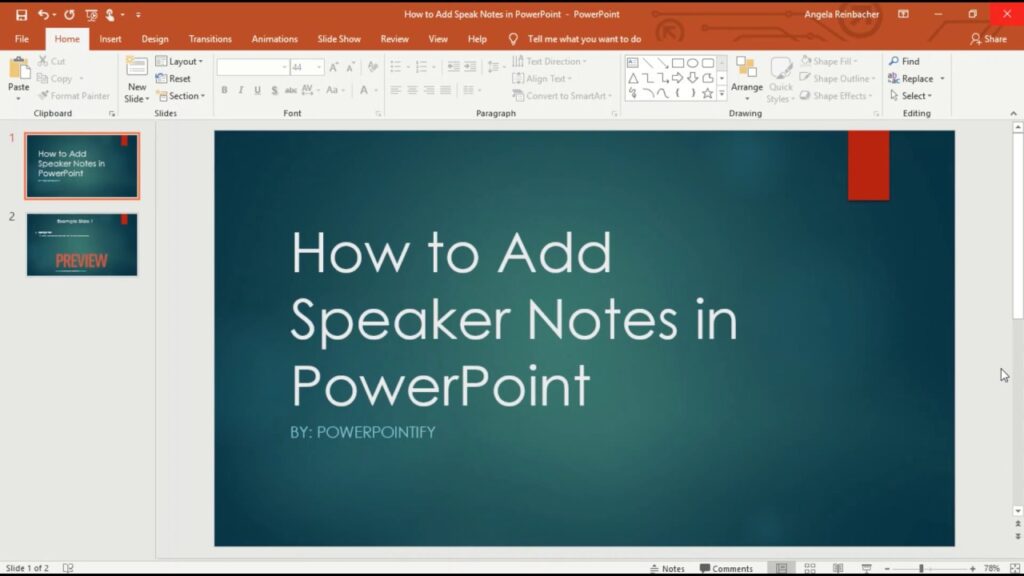
Speaker notes are private notes attached to each slide. They help you:
- Remember key points without overcrowding slides
- Stay on track during presentations
- Add extra context or explanations
- Deliver smoother, more natural presentations
Your audience only sees the slides, while you see the notes on your screen when using Presenter View.
How to Add Speaker Notes in PowerPoint
Adding notes is simple and takes only a few seconds.
Step-by-Step Instructions:
- Open your presentation in PowerPoint
- Select the slide you want to add notes to
- At the bottom of the screen, click Notes
- If you don’t see it, click View → Notes
- Type your notes in the notes pane
Repeat this for each slide where you need guidance.
How to View Speaker Notes While Presenting
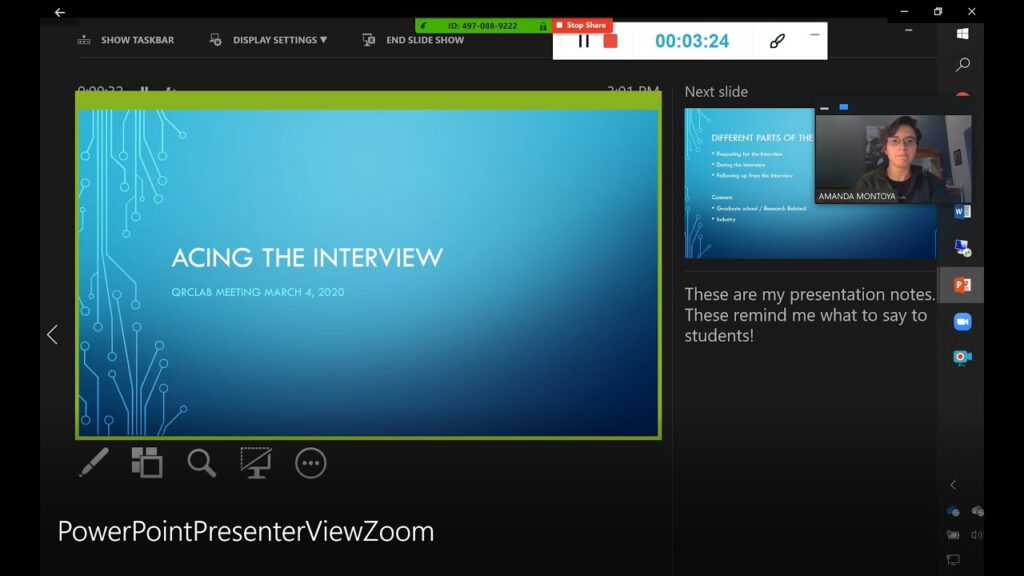
To use speaker notes effectively, you should enable Presenter View.
Steps:
- Go to the Slide Show tab
- Check Use Presenter View
- Start the presentation
Now you will see:
- Current slide
- Next slide preview
- Your speaker notes
- Timer and controls
Your audience will only see the full slide on the main screen.
How to Print Slides with Speaker Notes
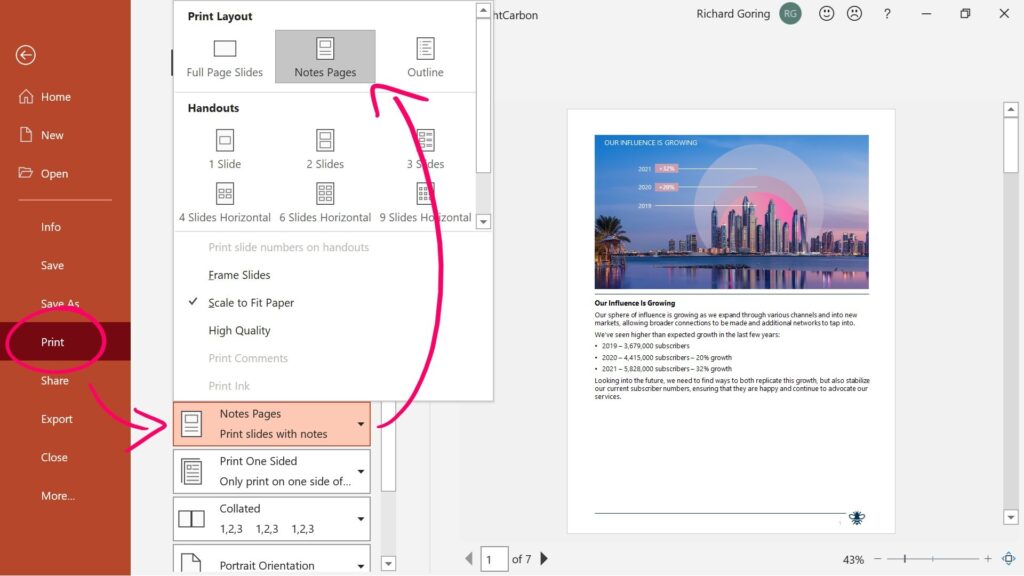
If you prefer having a physical copy:
- Click File → Print
- Under Settings, choose Notes Pages
- Print your document
Each page will include one slide with its notes underneath.
How to Edit and Format Speaker Notes
You can format notes just like regular text:
- Change font size and style
- Add bullet points for clarity
- Highlight important reminders
Tip: Keep notes short and easy to scan while speaking.
Best Practices for Using Speaker Notes
To get the most out of speaker notes:
- Use bullet points instead of long paragraphs
- Include keywords, not full scripts
- Add cues like “pause,” “emphasize,” or “ask question”
- Practice with notes before presenting
- Avoid reading directly from notes
Speaker notes should guide you, not replace your presentation skills.
Common Mistakes to Avoid
- Writing too much text in notes
- Relying on notes instead of practicing
- Forgetting to enable Presenter View
- Not checking how notes appear before presenting
When Should You Use Speaker Notes?
Speaker notes are especially useful for:
- Business presentations
- School or university projects
- Public speaking events
- Online meetings and webinars
They help you stay organized and reduce stress during your presentation.







