


Changing the case of text in your presentation is a small detail that makes a big visual impact. Whether you want to standardize headings, fix formatting errors, or create a consistent style across slides, Microsoft PowerPoint provides simple and effective tools to handle text case instantly.
In this guide, you will learn how to change text case in PowerPoint using built-in features, keyboard shortcuts, and practical formatting tips to keep your slides clean and professional.
Why Text Case Matters in PowerPoint
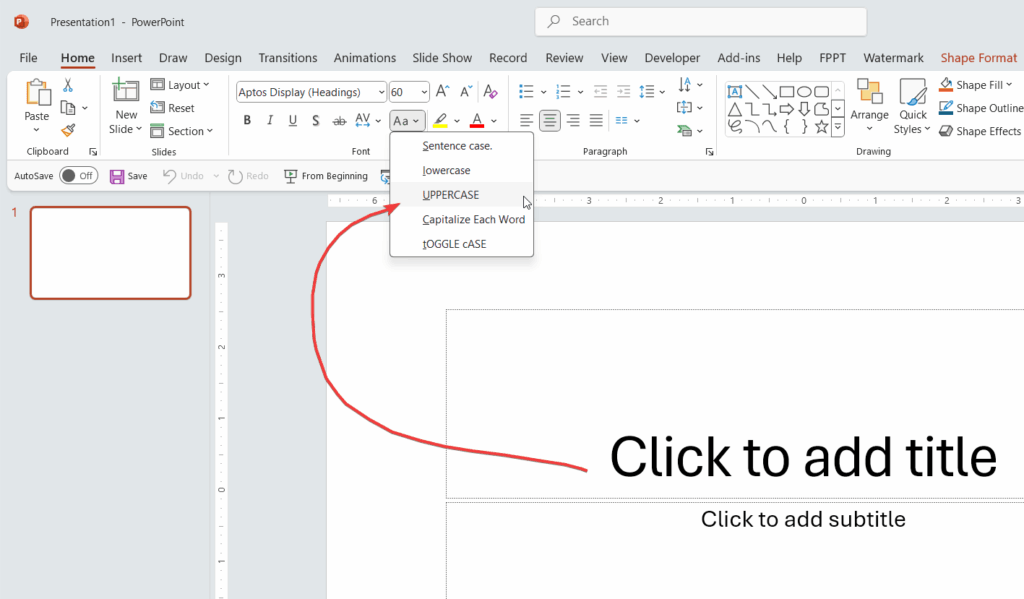
Text case affects readability, clarity, and the overall design of your slides. Consistent capitalization ensures your presentation looks polished and easier to follow. For example:
- Uppercase headings grab attention
- Sentence case improves readability
- Title case adds a professional tone
If your slides look inconsistent, adjusting the case is one of the quickest ways to improve them.
Method 1: Change Text Case Using the Ribbon
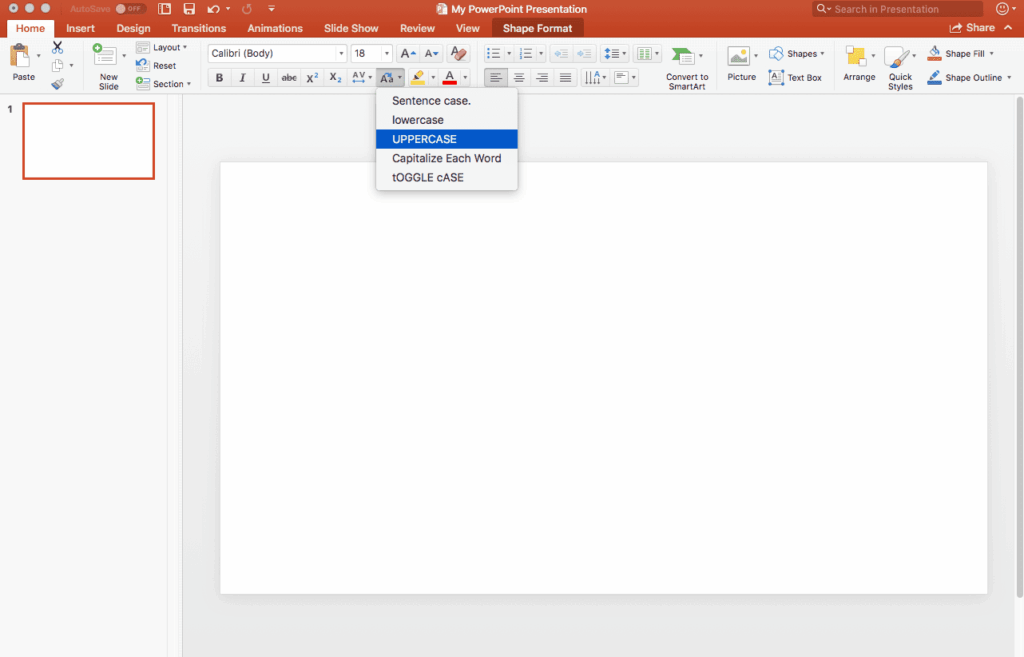
The easiest way to change text case in PowerPoint is through the built-in formatting option.
Steps:
- Open your presentation in Microsoft PowerPoint
- Select the text you want to modify
- Go to the Home tab
- Click on the Aa (Change Case) button in the Font group
- Choose one of the following options:
- Sentence case – Capitalizes the first letter of each sentence
- lowercase – Converts all text to small letters
- UPPERCASE – Converts all text to capital letters
- Capitalize Each Word – Makes every word start with a capital letter
- tOGGLE cASE – Reverses the current capitalization
This method is fast and works for both short text and large sections.
Method 2: Use Keyboard Shortcut (Faster Way)
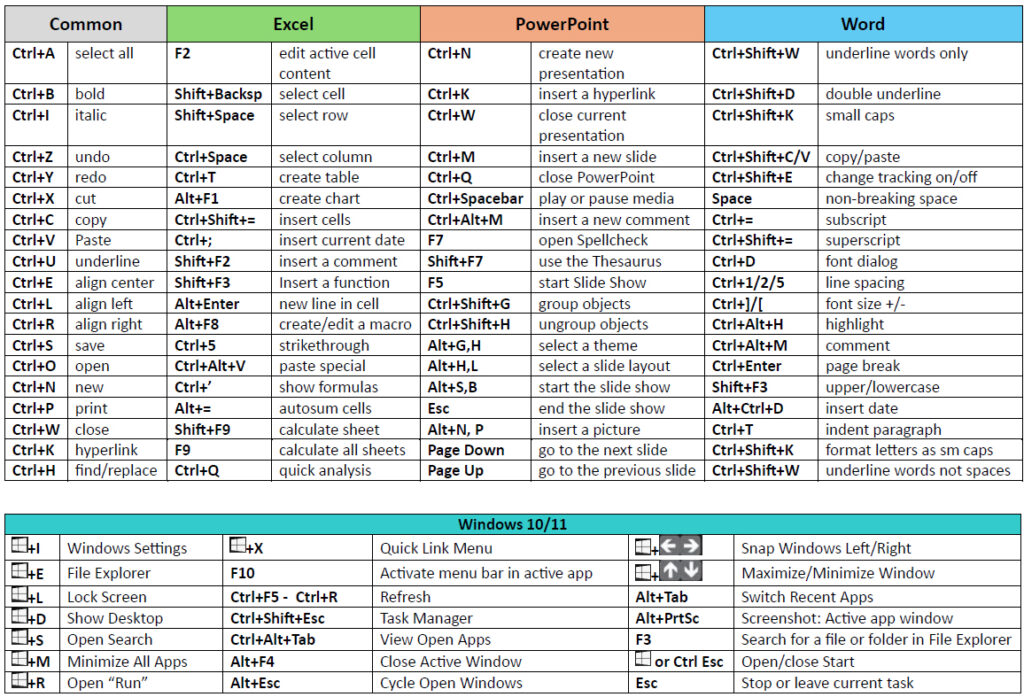
If you want a quicker workflow, PowerPoint supports a keyboard shortcut to cycle through text case options.
Shortcut:
- Select your text
- Press Shift + F3
Each press cycles between:
- lowercase
- UPPERCASE
- Capitalize Each Word
This is especially useful when editing large presentations or making quick corrections during design.
Method 3: Fix Case Issues After Pasting Text
When you paste text from emails, documents, or websites, the formatting may not match your slide style.
To fix this:
- Paste your text into PowerPoint
- Highlight the pasted content
- Use the Change Case (Aa) option
- Apply your preferred format
This ensures consistency across all slides without retyping content.
Best Practices for Text Case in Presentations
To keep your slides professional and easy to read, follow these guidelines:
1. Use Consistent Case for Titles
Stick to one format, such as:
- Title Case for headings
- Sentence case for content
2. Avoid Overusing UPPERCASE
All caps can feel aggressive and harder to read in long sentences.
3. Keep Body Text Simple
Sentence case is the most readable option for paragraphs and bullet points.
4. Match Your Branding
If your presentation is for business or marketing, align text case with your brand guidelines.
Common Mistakes to Avoid
- Mixing multiple case styles on the same slide
- Using ALL CAPS for long paragraphs
- Forgetting to fix formatting after copying text
- Ignoring readability for visual style
Fixing these small issues can significantly improve your presentation quality.
When Should You Change Text Case?
You should adjust text case when:
- Slides look inconsistent
- You imported content from other sources
- You want to improve readability
- You are preparing a professional or business presentation
Even small formatting changes can make your slides look more refined and impactful.







