


Looping a presentation is essential when you want your slides to play continuously without manual control. Whether you are setting up a display for an event, running a slideshow at a kiosk, or showcasing content on a screen, Microsoft PowerPoint makes it simple to create a seamless loop.
This guide explains exactly how to loop a PowerPoint presentation, along with useful tips to make it run smoothly and professionally.
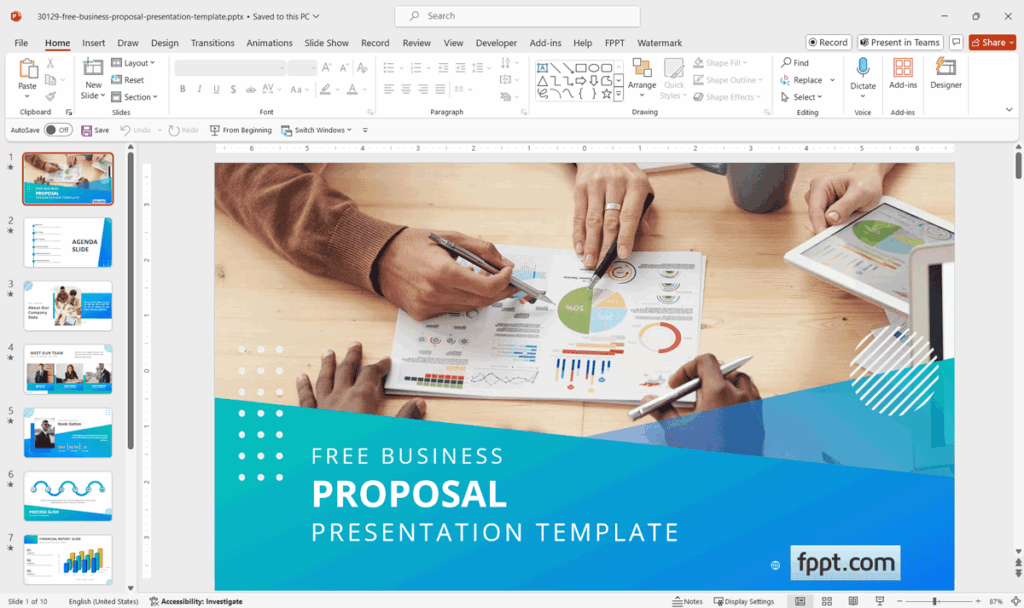
What Does Looping a PowerPoint Mean?
Looping means your slideshow will automatically restart after the last slide instead of stopping. This is perfect for:
- Business presentations at exhibitions
- Digital signage displays
- Waiting room screens
- Product showcases
- Event or wedding slideshows
Instead of restarting the presentation manually, PowerPoint handles everything for you.
Method 1: Enable Looping in PowerPoint
The built-in loop feature is the fastest and most reliable method.
Steps:
- Open your presentation in Microsoft PowerPoint
- Click on the Slide Show tab
- Select Set Up Slide Show
- In the window, check Loop continuously until ‘Esc’
- Click OK
Your presentation is now set to repeat automatically.
Method 2: Set Automatic Slide Transitions
Looping only works properly if slides advance automatically.
Steps:
- Go to the Transitions tab
- In the Timing section:
- Uncheck On Mouse Click
- Check After and set a time (for example: 5 seconds)
- Click Apply to All
Now each slide will move forward on its own, allowing the loop to continue without interruption.
Method 3: Start the Looping Slideshow
After enabling looping and transitions:
- Press F5 to start from the beginning
- Or go to Slide Show > From Beginning
Your presentation will now run continuously until you press Esc.
Best Practices for Looping Presentations
To make your looping slideshow look professional, follow these tips:
1. Keep Timing Balanced
Avoid slides that are too fast or too slow. Test your timing to match the content.
2. Use Simple Animations
Heavy animations can distract viewers in a looping display. Keep it clean and smooth.
3. Avoid Manual Actions
Remove clickable elements that require user interaction.
4. Optimize for Screens
If your presentation runs on a TV or monitor, check resolution and aspect ratio.
5. Test Before Publishing
Always run the full loop at least once to ensure there are no delays or errors.
Common Problems and Fixes
Slideshow Stops After One Loop
- Make sure Loop continuously until ‘Esc’ is enabled
Slides Don’t Advance Automatically
- Check that After timing is enabled in transitions
Presentation Pauses on Certain Slides
- Remove animations that require clicks
When Should You Use Looping?
Looping is ideal when:
- You are presenting without a speaker
- You need continuous playback at an event
- You want to display information on repeat
- You are running a promotional slideshow
It saves time and ensures your content is always visible.







