


The UNIQUE function in Microsoft Excel is one of the most powerful tools for modern data analysis. If you work with large datasets, duplicate entries, or need quick insights without complex formulas or manual filtering, mastering this function can significantly improve your productivity. Introduced with dynamic arrays, UNIQUE simplifies tasks that once required advanced formulas or pivot tables.
In this guide, you will learn exactly how to use the Microsoft Excel UNIQUE function, understand its syntax, explore practical examples, and apply it in real-world scenarios.
What Is the UNIQUE Function in Excel?
The UNIQUE function extracts distinct values from a range or array, returning a list without duplicates. It automatically updates when your data changes, thanks to Excel’s dynamic array engine.
Instead of manually removing duplicates or using the “Remove Duplicates” tool, UNIQUE creates a live, formula-based result that updates instantly.
UNIQUE Function Syntax
Here is the structure of the UNIQUE function:
=UNIQUE(array, [by_col], [exactly_once])
Parameters explained:
- array – The range or array from which you want unique values
- by_col (optional) – TRUE if comparing columns instead of rows
- exactly_once (optional) – TRUE to return only values that appear once
Basic Example: Extract Unique Values
Imagine you have a list of customer names with duplicates.
=UNIQUE(A2:A20)
This formula will return a clean list of unique names without repetition.
Why this matters:
- Saves time compared to manual filtering
- Automatically updates when new data is added
- Reduces human error
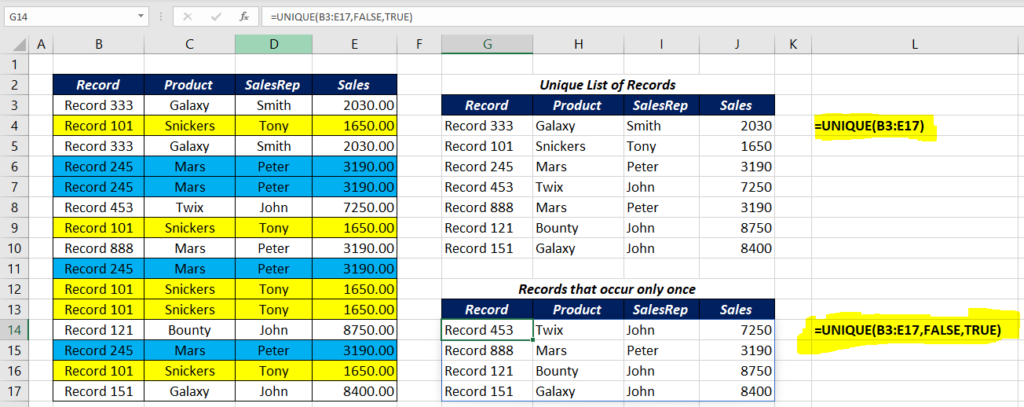
Advanced Example: Unique Values That Appear Only Once
Sometimes you need to find values that occur only a single time in your dataset.
=UNIQUE(A2:A20, FALSE, TRUE)
This version filters out all repeated entries and returns only those that appear once.
Use cases:
- Identifying one-time customers
- Detecting anomalies in datasets
- Cleaning data for reporting
Using UNIQUE Across Columns
If your data is arranged horizontally, you can set the function to compare columns instead of rows:
=UNIQUE(A1:F1, TRUE)
This extracts unique values across columns instead of down rows.
Combine UNIQUE with Other Functions
The real power of UNIQUE appears when combined with other Excel functions:
UNIQUE + SORT
=SORT(UNIQUE(A2:A20))
Returns a sorted list of unique values.
UNIQUE + FILTER
=UNIQUE(FILTER(A2:A20, B2:B20="Completed"))
Extracts unique values based on a condition.
Practical Use Cases
1. Removing duplicates dynamically
Perfect for reports where data updates frequently.
2. Creating dropdown lists
Use UNIQUE results as a source for clean dropdown menus.
3. Data validation and cleaning
Quickly identify inconsistencies in large datasets.
4. Dashboard building
Feed clean, unique data into charts and summaries.
Common Mistakes to Avoid
- Using older Excel versions
UNIQUE is only available in Excel 365 and Excel 2021+ - Forgetting dynamic array behavior
Results “spill” into adjacent cells automatically - Incorrect range selection
Always ensure your array includes all relevant data
Performance Tips
- Use structured tables for dynamic ranges
- Avoid entire column references for large datasets
- Combine with FILTER for precise outputs
Why UNIQUE Is Essential for Modern Excel Users
The UNIQUE function is not just a convenience tool. It represents a shift toward automated, dynamic data analysis in Excel. Whether you are working in finance, e-commerce, reporting, or data science, this function eliminates repetitive work and improves accuracy.
By integrating UNIQUE into your workflow, you reduce manual effort, speed up analysis, and ensure cleaner datasets across your projects.







