


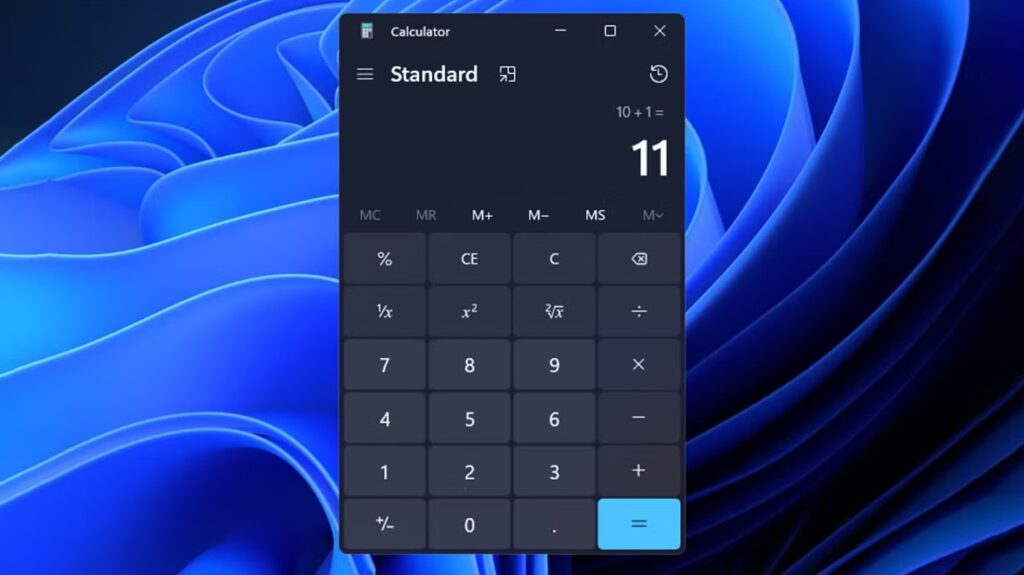
The Windows Calculator is one of the most underrated tools in the Windows ecosystem. Whether you need quick calculations, advanced scientific functions, or even unit conversions, it’s already built into your system. However, many users don’t know how to properly install, restore, or add it for quick access. This guide explains everything in a clear, professional way so you can get the Calculator working exactly how you need it.
Why the Windows Calculator Matters
Before jumping into installation, it’s important to understand why this tool is worth setting up properly. The Windows Calculator is not just a basic number tool. It includes:
- Standard calculations for everyday use
- Scientific mode for advanced math
- Programmer mode for developers
- Date and unit converters
- Currency conversion (with internet connection)
Because of this versatility, having quick access to it can save time in both personal and professional workflows.
Method 1: Open Calculator (Already Installed)
In most cases, the Calculator is already installed by default.
Steps:
- Click the Start Menu
- Type Calculator
- Select the app from the results
If it opens, you don’t need to install anything. You can proceed to pin or customize it.
Method 2: Install or Reinstall via Microsoft Store
If the Calculator is missing or not working properly, reinstalling it is the best solution.
Steps:
- Open Microsoft Store
- Search for Windows Calculator
- Click Install or Get
- Wait for the installation to complete
This method ensures you get the latest version directly from Microsoft, including updates and bug fixes.
Method 3: Add Calculator Using PowerShell (Advanced)
If the Microsoft Store method fails, you can reinstall the Calculator using PowerShell.
Steps:
- Right-click Start
- Select Windows Terminal (Admin) or PowerShell (Admin)
- Run the following command:
Get-AppxPackage *windowscalculator* | Remove-AppxPackage
Then reinstall with:
Get-AppxPackage -allusers Microsoft.WindowsCalculator | Foreach {Add-AppxPackage -DisableDevelopmentMode -Register "$($_.InstallLocation)\AppXManifest.xml"}
This method is useful for fixing corrupted installations or system errors.
Method 4: Pin Calculator for Quick Access
Once installed, you should make it easily accessible.
Pin to Taskbar:
- Open Calculator
- Right-click the icon in the taskbar
- Click Pin to taskbar
Pin to Start Menu:
- Search for Calculator
- Right-click → Pin to Start
This ensures you can launch it instantly without searching every time.
Method 5: Create a Desktop Shortcut
For users who prefer a classic desktop setup:
Steps:
- Right-click Desktop → New → Shortcut
- Enter:
calc.exe
- Click Next → Name it “Calculator”
- Finish
Now you have a one-click shortcut directly on your desktop.
Troubleshooting Common Issues
If the Calculator still doesn’t work, here are quick fixes:
- Reset the app:
Settings → Apps → Installed Apps → Calculator → Advanced Options → Reset - Update Windows:
Outdated systems can break built-in apps - Check system files:
Runsfc /scannowin Command Prompt
These steps usually resolve most problems quickly.
Pro Tips for Better Use
- Use Alt + 1 / 2 / 3 to switch modes quickly
- Enable Always on Top for multitasking
- Use keyboard input for faster calculations
- Try unit conversion instead of searching online
These small optimizations can significantly improve productivity.







