

Writing complex Excel formulas can seem intimidating at first. However, once you understand the right techniques and structure, creating advanced formulas becomes much easier. By planning your formulas properly and using the right tools, you can build powerful spreadsheets that automate calculations and improve accuracy.
In this guide, you’ll learn practical steps that will help you write complex Excel formulas efficiently and avoid common mistakes.
Plan Your Formula Before Writing
One of the biggest mistakes beginners make when creating advanced Excel formulas is jumping straight into writing them. Without proper planning, formulas quickly become confusing and prone to errors.
Instead, start by clearly defining the goal of your calculation and break the process into smaller steps.
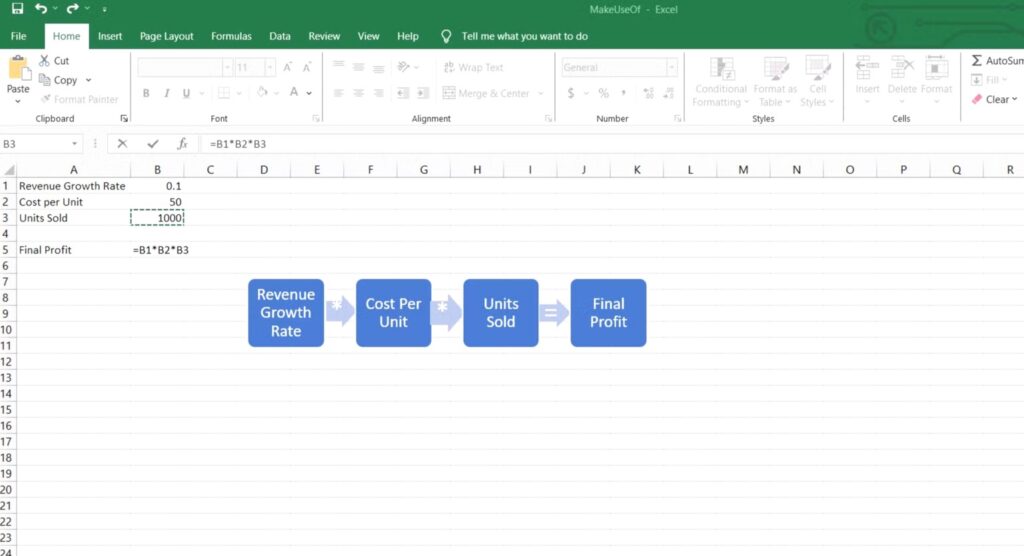
For example, when creating a budget forecast spreadsheet, separate the important components into different cells:
- Revenue growth rate
- Cost per unit
- Units sold
- Total expenses
Once each part of the calculation is placed in its own cell, you can combine them into a final formula for profit or revenue projections. This method makes formulas easier to troubleshoot and significantly reduces errors.
Break It Down
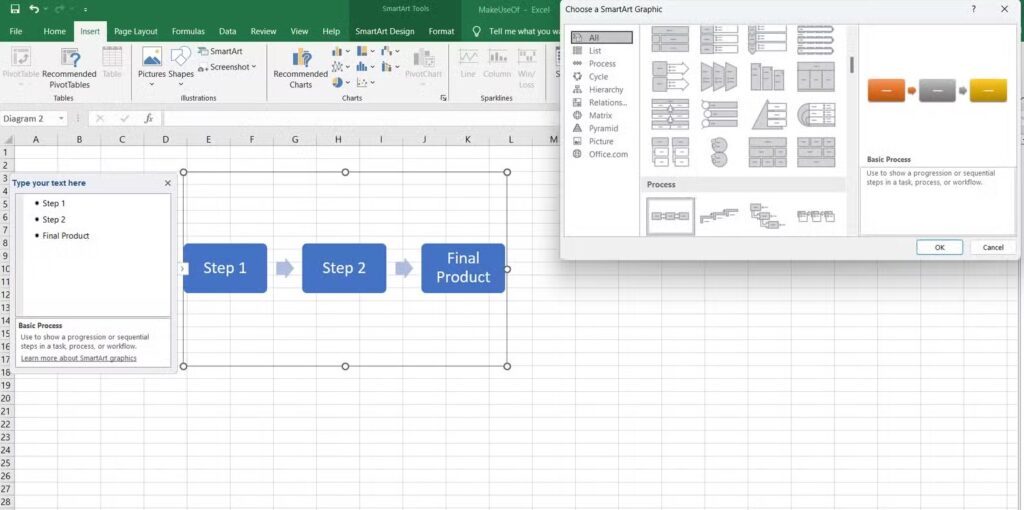
Avoid placing everything into a single, complicated formula. Instead, divide the calculation into smaller, manageable steps. Start by performing intermediate calculations in separate cells, and once each result is correct, combine them into the final formula.
For example, instead of calculating profit with one long formula, use individual cells to determine values such as revenue growth rate, cost per unit, and units sold. This method allows you to verify each step first, making the final calculation more accurate and easier to troubleshoot.
Define Objectives Clearly
Before creating a formula, clearly understand its purpose. Ask yourself what the formula needs to accomplish. Are you summarizing data, performing a lookup, or generating results based on specific conditions? Defining the objective in advance makes it much easier to choose the correct Excel functions.
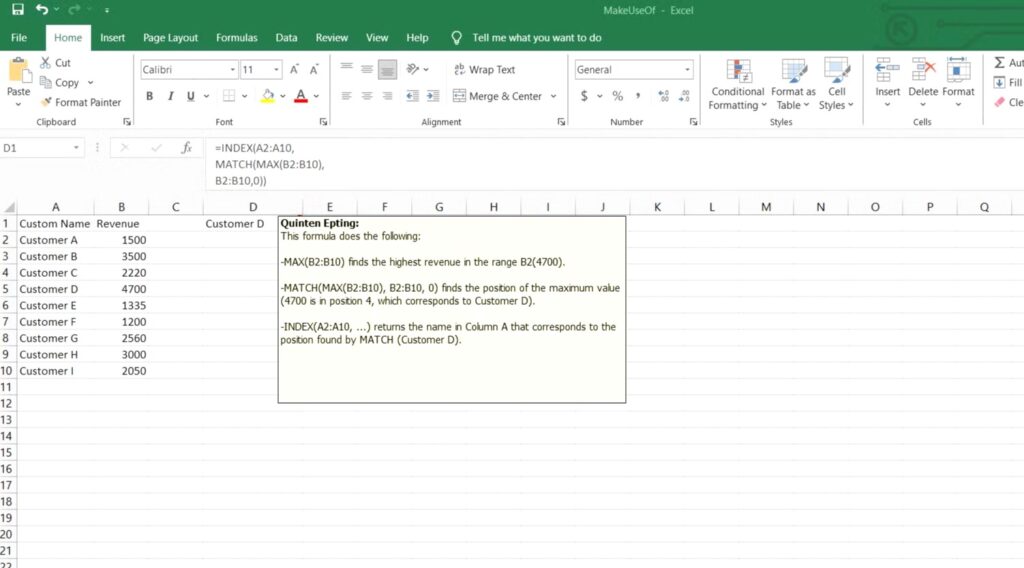
For example, if you want to find the customer with the highest revenue in a dataset, combining functions like INDEX, MATCH, and MAX can help you quickly return the correct result from your data.
Organize Data for Seamless Formula Writing
Efficient formulas begin with well-organized data. When your spreadsheet is clean and structured, writing and managing formulas becomes much easier. Using Excel tables and named ranges helps simplify formulas, making them easier to read and reducing the chance of errors. A properly organized worksheet creates a solid foundation for building reliable calculations.
To keep your data organized, remove unnecessary spaces, eliminate duplicate entries, and ensure that data types remain consistent throughout the sheet. Tools like Find & Replace can also help correct common formatting issues and data inconsistencies.
For example, using named ranges for values such as tax rates or product prices like =Price*TaxRate — is much clearer and easier to understand than using cell references such as =A2:A10*B2*B10.
Use Excel’s Formula Auditing Tools
Excel provides several formula auditing tools that make it easier to manage and troubleshoot complex calculations. One of the most useful features is Evaluate Formula, which allows you to review each step of a calculation and see how Excel processes the formula. This makes it easier to identify mistakes and understand how the final result is produced.
Another helpful tool is Error Checking, which automatically highlights issues such as missing references or invalid formulas. It can also detect when a formula is referencing empty or incorrect cells. These tools are particularly valuable when working with large spreadsheets or formulas that span multiple worksheets.
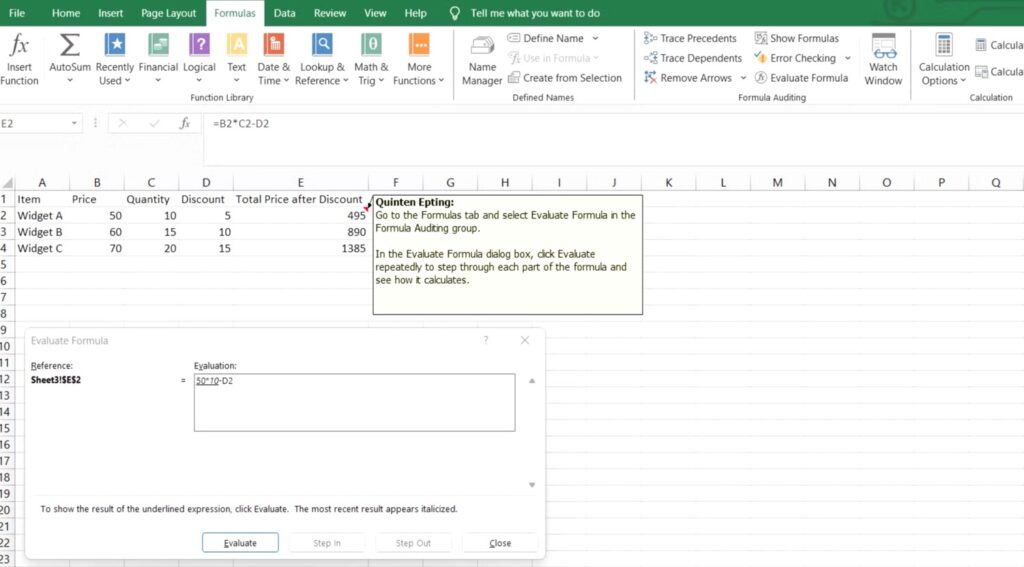
Excel’s Trace Precedents and Trace Dependents tools help you visualize how data flows through your formulas. Trace Precedents shows which cells feed into a selected formula, while Trace Dependents highlights which formulas rely on a particular cell.
Using these tools allows you to see how changes in one cell impact key metrics, ensuring data consistency and accuracy. This is especially useful when building complex spreadsheets or interactive dashboards, where multiple calculations are interconnected.
Leverage AI for Smarter Formula Generation
AI tools, such as ChatGPT, can simplify the process of writing complex Excel formulas. By simply describing the calculation you need, AI can generate formulas quickly and accurately, saving you time and reducing errors. Additionally, AI can suggest alternative approaches and help identify mistakes in your formulas, making it a powerful assistant for both beginners and advanced users.
Test and Validate Your Formulas
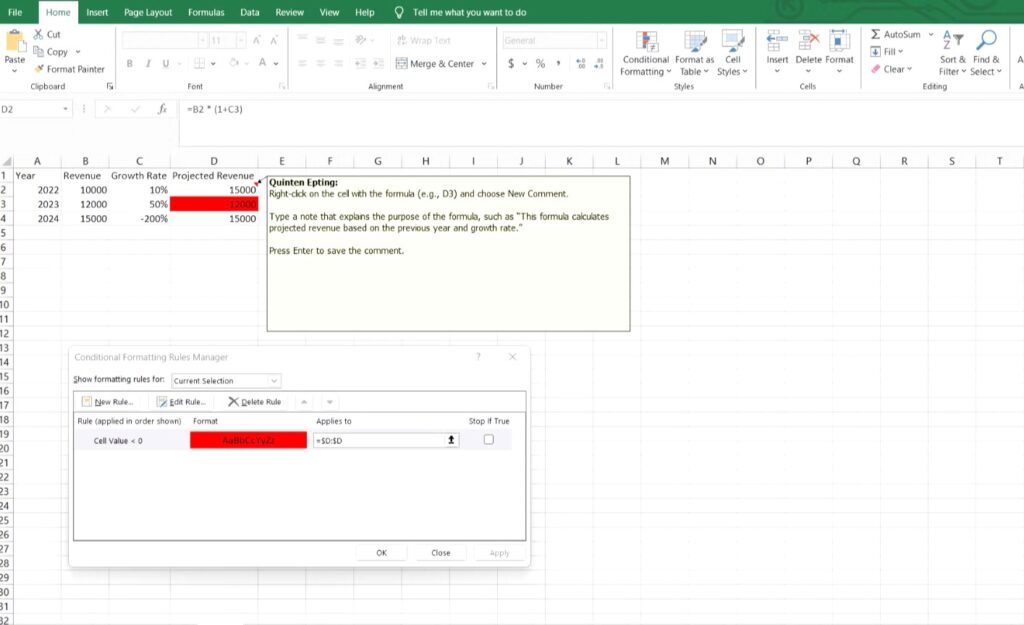
Testing your formulas is essential, especially for complex models. Run your formulas with edge-case inputs like unusually high growth rates to ensure they produce logical results. For example, in a financial model, inputting a 200% growth rate can help reveal any flaws or unexpected behavior in your calculations.
Excel’s Conditional Formatting is another helpful tool for validation. You can create rules to automatically flag anomalies, such as negative revenue projections, by highlighting them in red. This visual feedback allows you to quickly detect and correct errors before they affect your overall analysis.
By following these strategies, writing advanced Excel formulas becomes much more manageable. Mastery in Excel isn’t just about knowing functions, it’s about developing strong habits: planning your formulas, organizing your data, and leveraging the right tools.
With a structured approach, even the most complex calculations become simple, accurate, and efficient, allowing you to build powerful spreadsheets with confidence.







