Create a New Folder in Microsoft Outlook
By default, Microsoft Outlook includes standard folders such as Drafts, Sent Items, and Archive. Creating additional folders helps organize emails more efficiently and keeps the inbox structured.
To create a new folder:
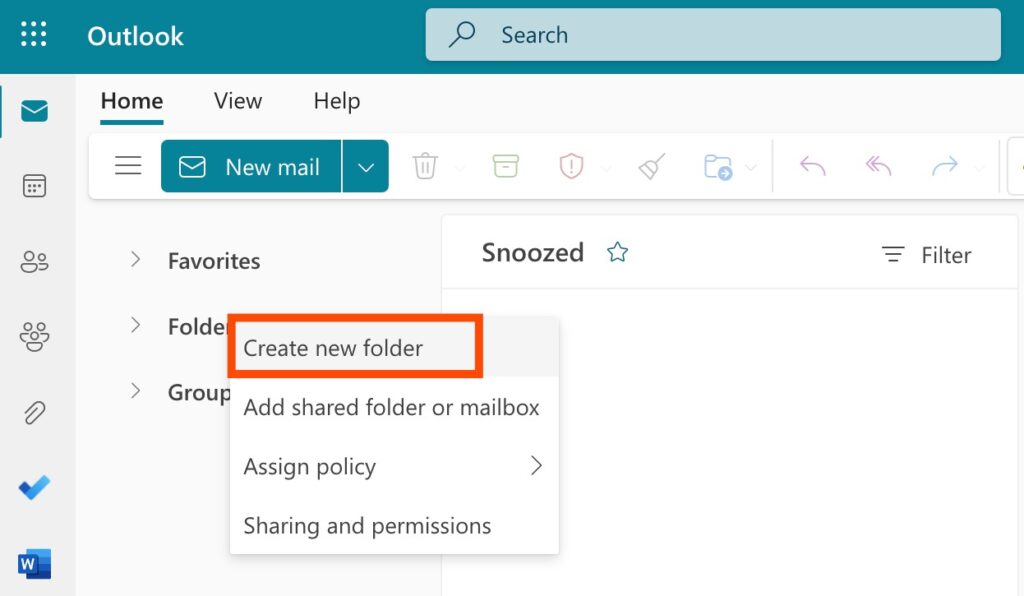
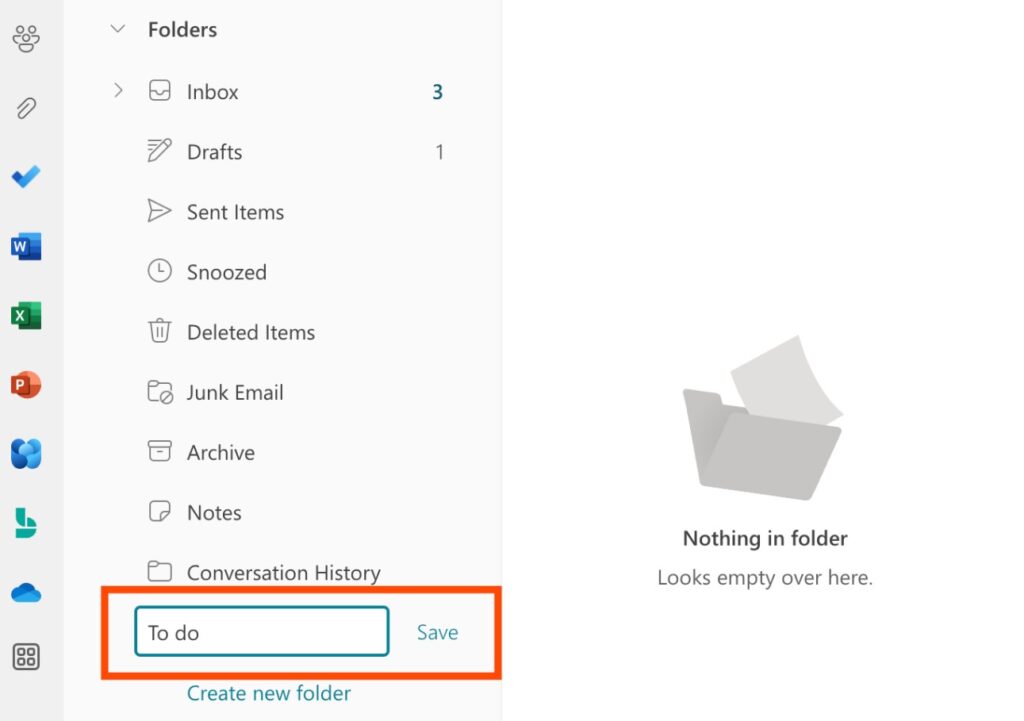
- In the navigation pane, right-click on Folders and select Create New Folder.
- Alternatively, click Folders to expand the menu, then choose Create New Folder.
- Enter a name for the new folder.
- Press Enter or click Save to confirm.
The new folder will appear in the folder list and can be used immediately to sort and manage emails.
How to Create a Subfolder in Microsoft Outlook
Creating a subfolder in Microsoft Outlook helps organize emails into more specific categories within existing folders.
Follow these steps:
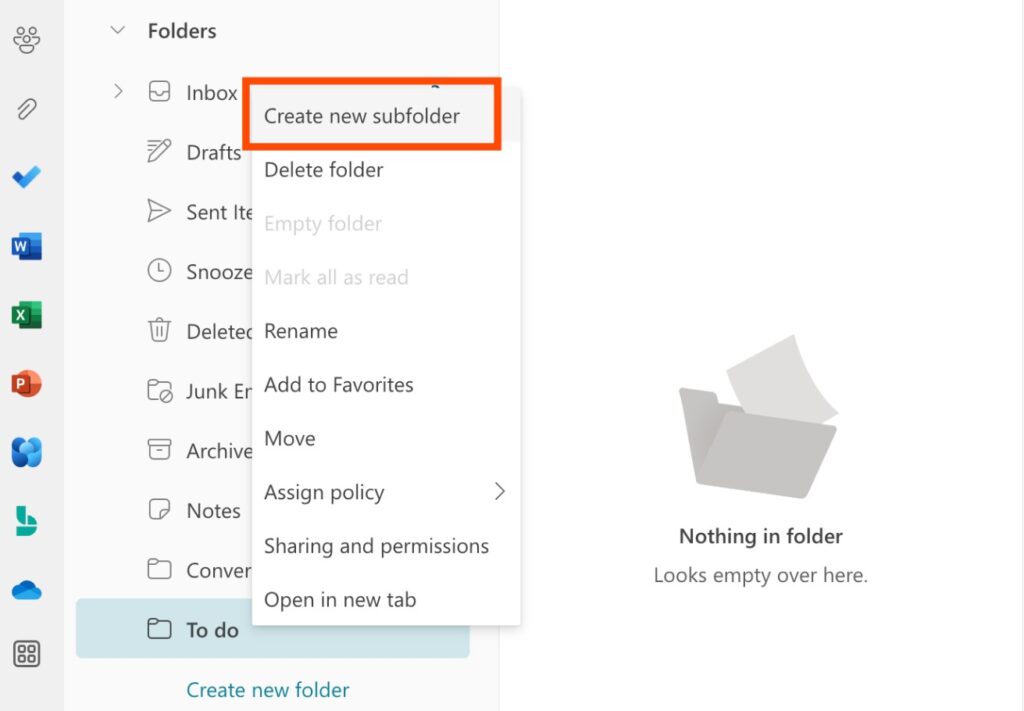
- Right-click the parent folder where the subfolder will be created.
- Select Create New Subfolder.
- Enter a name for the subfolder.
- Press Enter or click Save to confirm.
The subfolder will appear under the selected parent folder and can be used immediately. Emails can be dragged and dropped into the subfolder to keep the inbox organized.
For advanced organization, automation tools like Zapier can connect Microsoft Outlook with apps such as Microsoft OneDrive, Notion, or task management platforms to automatically process emails based on folder rules.
How to Create Rules in Microsoft Outlook
Email rules in Microsoft Outlook automate inbox management by sorting, organizing, and processing messages based on defined conditions.
Follow these steps to create a rule from an email:
- Right-click the email.
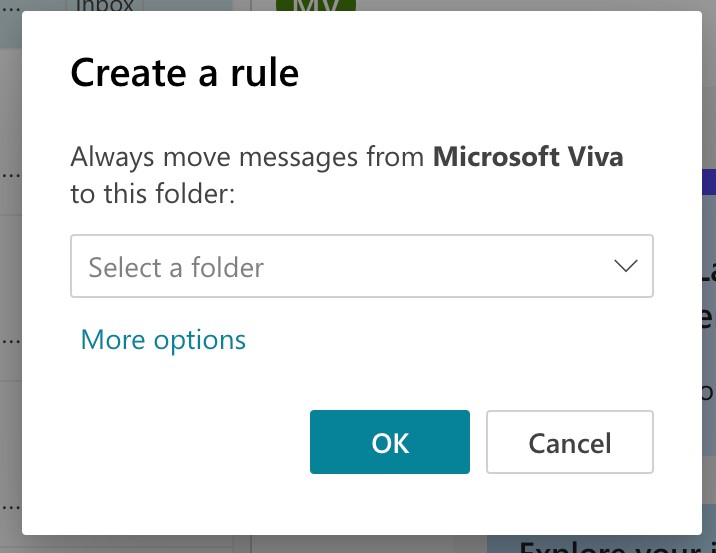
- Select Advanced Actions > Rules > Create Rule.
- Choose a destination folder if prompted, then click OK.
To customize the rule further:
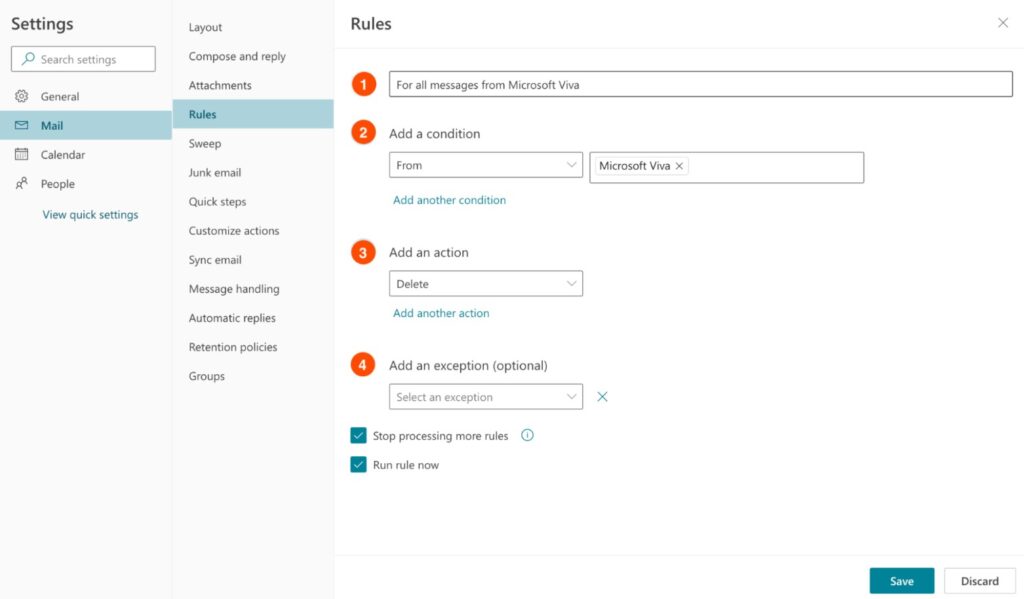
- Click More Options in the rule creation window.
- Configure the following settings:
- Rule Name: Assign a clear, descriptive name for easy identification.
- Conditions: Define when the rule should apply (e.g., specific sender, subject keywords, or email content).
- Actions: Choose what happens when conditions are met. Options include organizing emails, marking messages, or routing them to folders.
- Exceptions (optional): Exclude specific emails from the rule based on defined criteria.
- Stop Processing More Rules (optional): Prevent other rules from applying after this one runs.
- Select Run Rule Now to apply it immediately (optional).
- Click Save to activate the rule.
Once enabled, rules automatically handle incoming emails, improving organization and reducing manual effort.
How to Pin an Email in Microsoft Outlook
Pinning emails in Microsoft Outlook keeps important messages at the top of the inbox for quick and easy access.
Follow these steps:
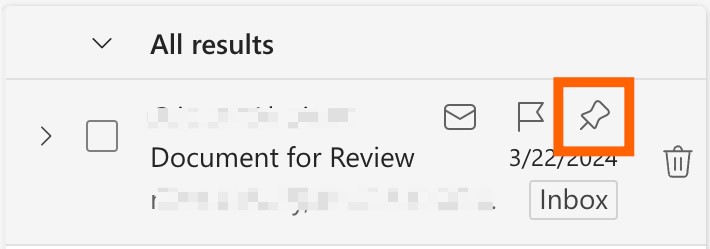
- Hover over the email to be pinned.
- Click the Pin icon (thumbtack symbol).
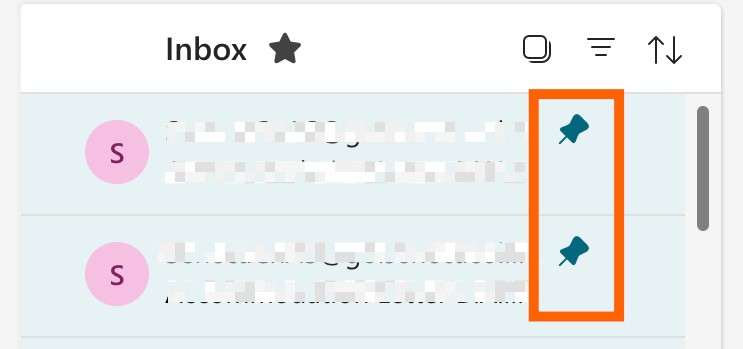
The selected email will appear at the top of the inbox, while all other messages—including new ones—will be listed below the pinned section.
If pinned emails are not visible at the top:
- Click the Sort icon at the top of the email list (displayed as two arrows).
- Select Date to ensure proper sorting.
Once enabled, pinned emails remain fixed at the top, making it easier to keep track of important messages.
How to Flag an Email in Microsoft Outlook
Flagging emails in Microsoft Outlook is a simple way to highlight important messages and quickly access them later.
Follow these steps:
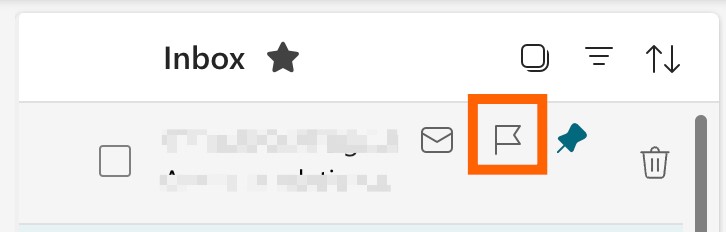
- Hover over the email to be flagged.
- Click the Flag icon.
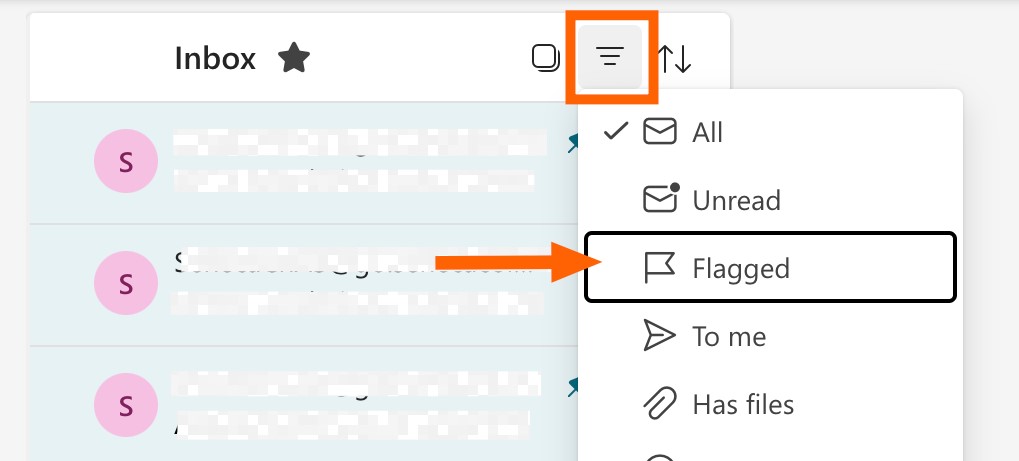
To view only flagged emails:
- Click the Filter icon at the top of the email list (three horizontal lines).
- Select Flagged.
Flagged emails can be used to track tasks, set reminders, or prioritize follow-ups. For additional automation, tools like Zapier can connect Microsoft Outlook with task management apps to turn flagged messages into actionable to-do items.
How to Archive Emails in Microsoft Outlook
Archiving emails in Microsoft Outlook is a safer way to remove messages from the inbox without permanently deleting them. Emails in the Deleted Items folder are automatically removed after a set period, while archived emails remain stored for future access.
Follow these steps to archive an email:
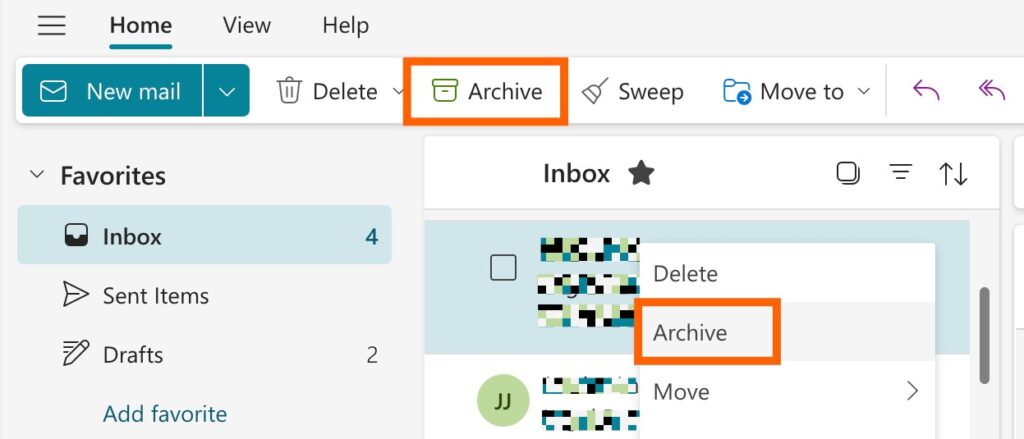
- Right-click the email and select Archive.
- Alternatively, open the email and click Archive in the toolbar.
Archived emails are moved to the Archive folder, where they can be accessed at any time. To find a specific message, browse the Archive folder or use the search bar to locate it quickly.
How to Use Quick Steps in Microsoft Outlook
Quick Steps in Microsoft Outlook streamline repetitive email tasks by combining multiple actions into a single click. This feature is useful for processes like forwarding emails, assigning tasks, or setting reminders.
Follow these steps to create a Quick Step:
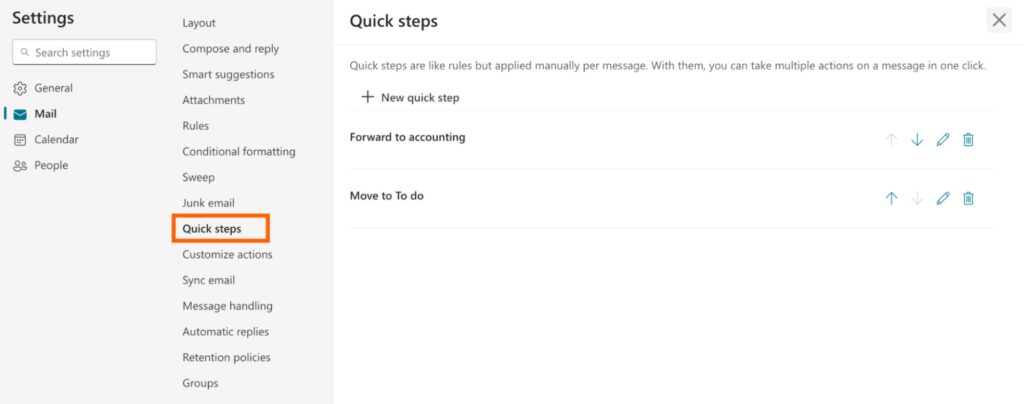
- Click the Settings icon (gear symbol) next to the profile picture.
- In the Settings panel, select Quick Steps.
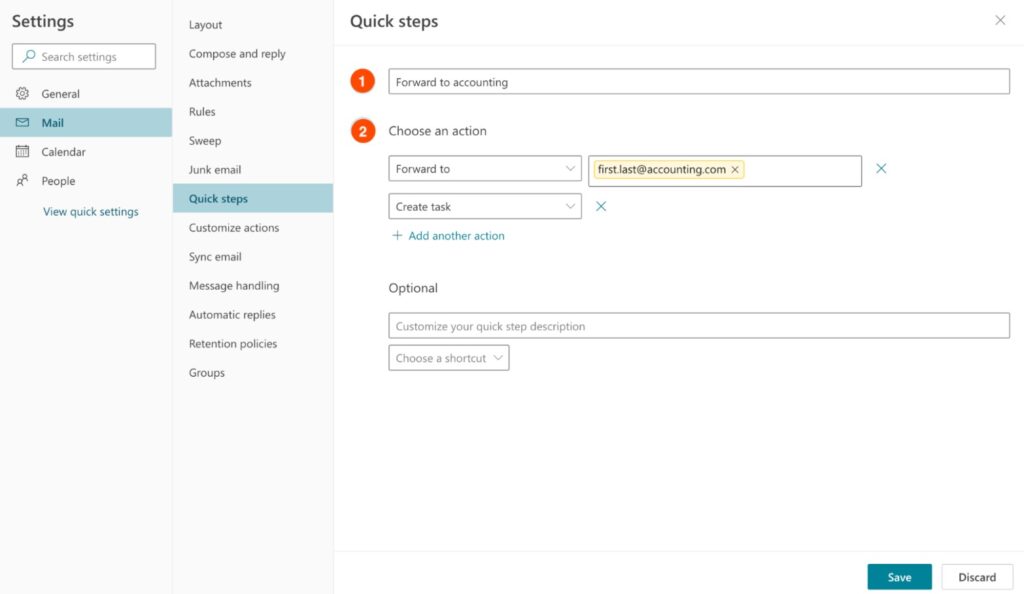
Customize the Quick Step:
- Name: Enter a clear and descriptive name.
- Actions: Choose one or more actions to apply to selected emails (e.g., forward, move, categorize, or create a task).
- Click Save to create the Quick Step.
To use a Quick Step:
- Go to the Home tab in the ribbon.
- Click the dropdown (⋁) next to Quick Steps.
- Select the desired Quick Step to apply it to an email.
Once set up, Quick Steps reduce manual work and improve efficiency by automating common email actions.

How to Create Categories in Microsoft Outlook
Categories (labels or tags) in Microsoft Outlook make it easier to organize emails and quickly identify their purpose or priority. A simple and consistent labeling system improves search and overall inbox management.
Follow these steps to create a new category:
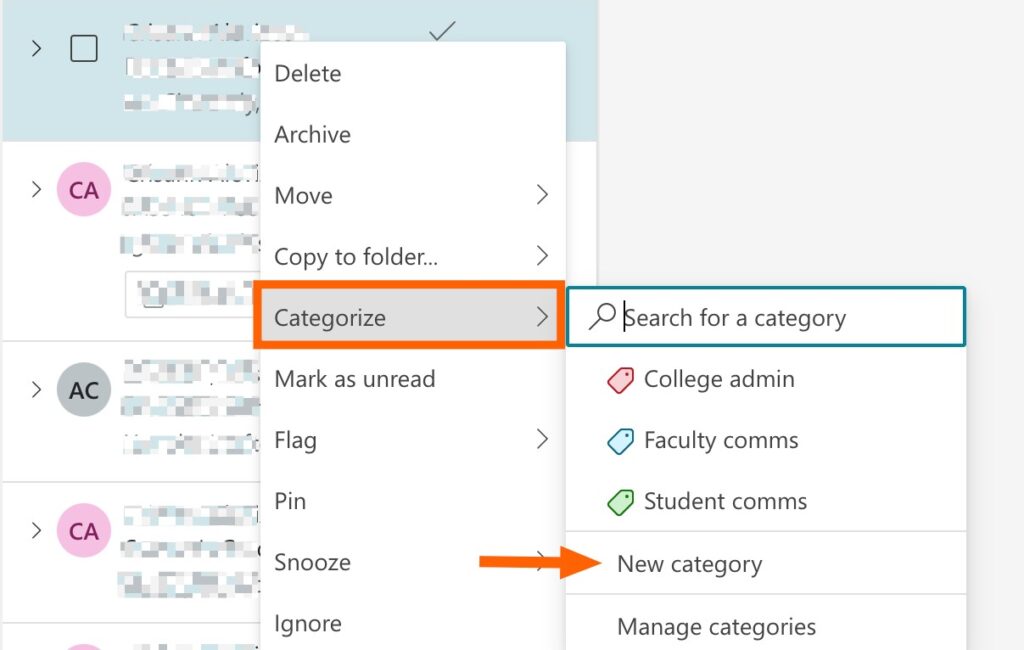
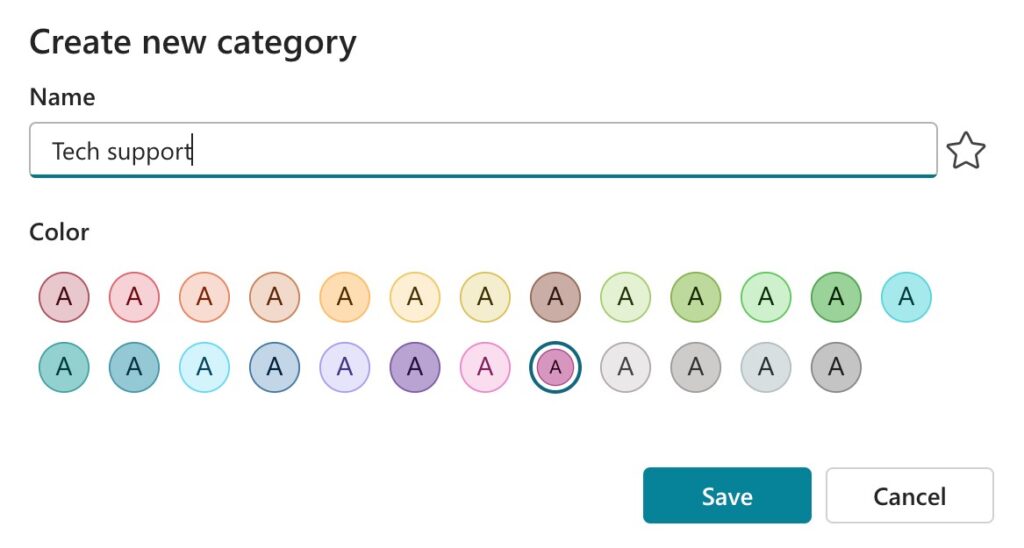
- Right-click the email.
- Select Categorize, then click New Category.
- Enter a name for the category.
- Choose a color label.
- Click Save.
To apply an existing category:
- Right-click the email.
- Select Categorize.
- Choose the desired category from the list.
Categories can also be automated using rules, allowing emails to be labeled automatically based on defined conditions.
How to Use Microsoft To Do in Microsoft Outlook
Microsoft To Do integrates seamlessly with Microsoft Outlook, allowing emails to be turned into actionable tasks and reminders directly from the inbox.
Note: These steps apply to Microsoft 365. The experience may differ slightly in Outlook.com.
Add an Email as a Task
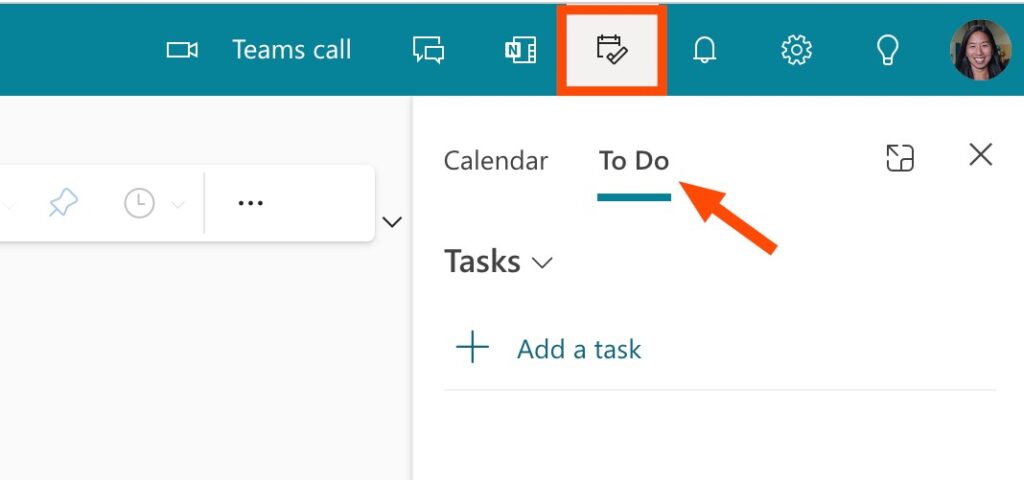
- In the Outlook toolbar, click the My Day icon (calendar with a check mark).
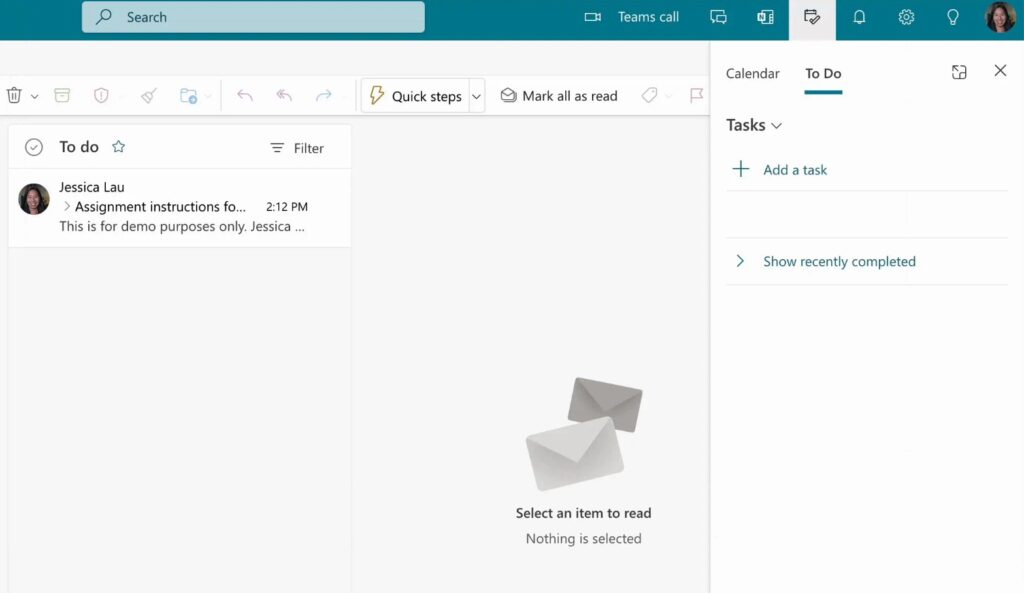
- The To Do pane will open on the side.
- Drag and drop an email into the Add as a task section.
- To create a calendar event instead, drop the email into Add as an event.
Manage and Edit Tasks
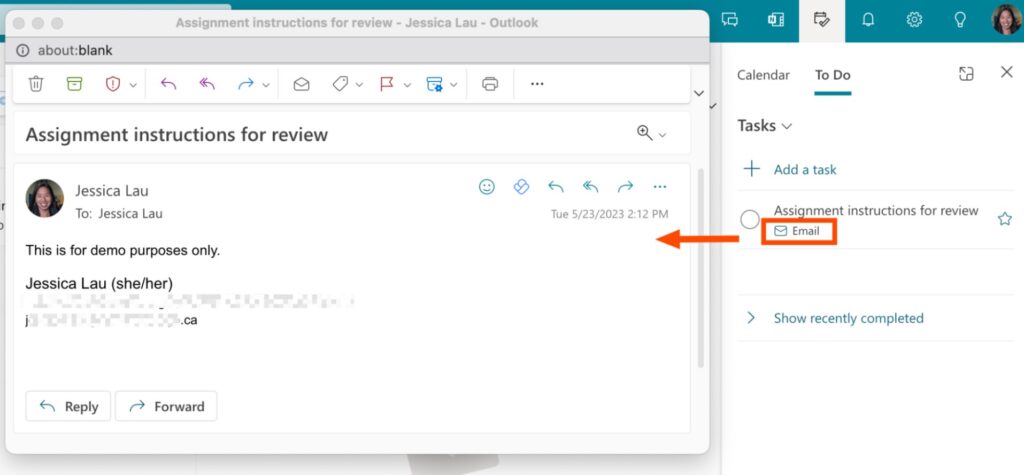
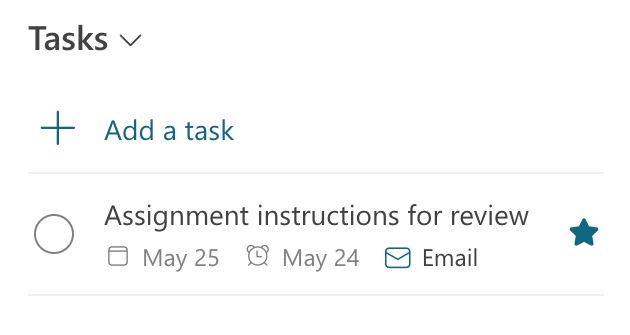
- The email subject becomes the task name by default and can be edited anytime.
- Click the View Email icon (envelope) to open the original message.
- Right-click the task to access options such as:
- Set reminder
- Set due date
Reminders and due dates will appear directly under the task once added.
Mark and Organize Tasks
- Click the star icon to mark a task as important.
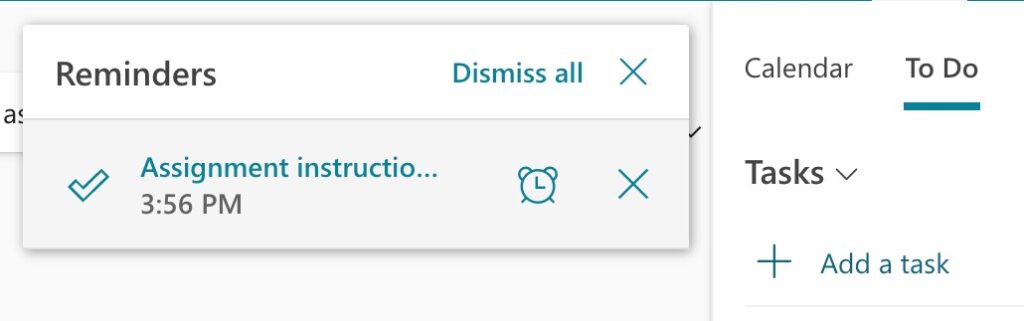
- Use the reminder notification to stay on track. If needed, snooze reminders using the alarm clock icon.
- Mark tasks as complete by clicking the circle icon next to the task.
This integration helps turn emails into structured tasks, improving productivity and ensuring important actions are not missed.
How to Automatically Add Flagged Emails to Microsoft To Do in Microsoft Outlook
Flagged emails in Microsoft Outlook can be automatically converted into tasks in Microsoft To Do, helping streamline task management and follow-ups.
Enable Flagged Email Integration
- Go to to-do.office.com.
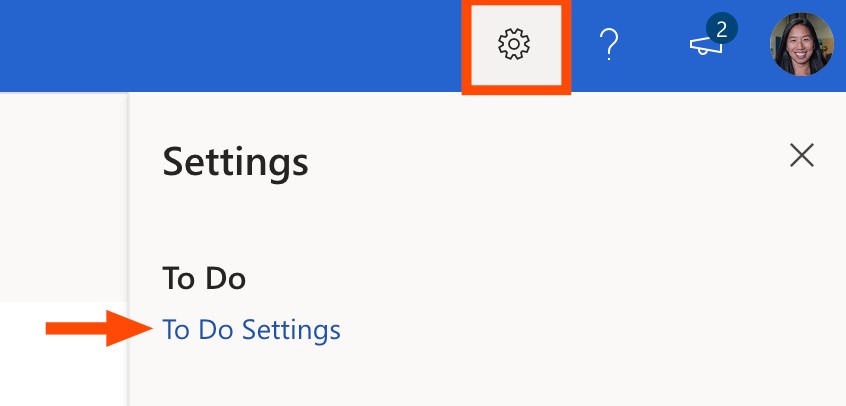
- Click the Settings icon (gear symbol) in the toolbar.
- Select To Do Settings.
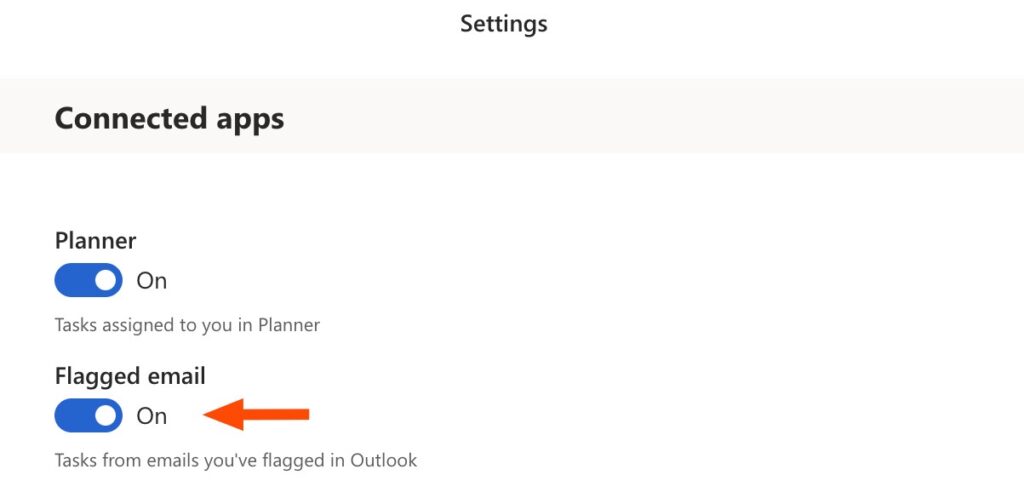
- Under Connected Apps, enable the toggle for Flagged Email.
Once enabled, any flagged email in Microsoft Outlook will automatically appear as a task in Microsoft To Do.
View Flagged Emails as Tasks in Outlook
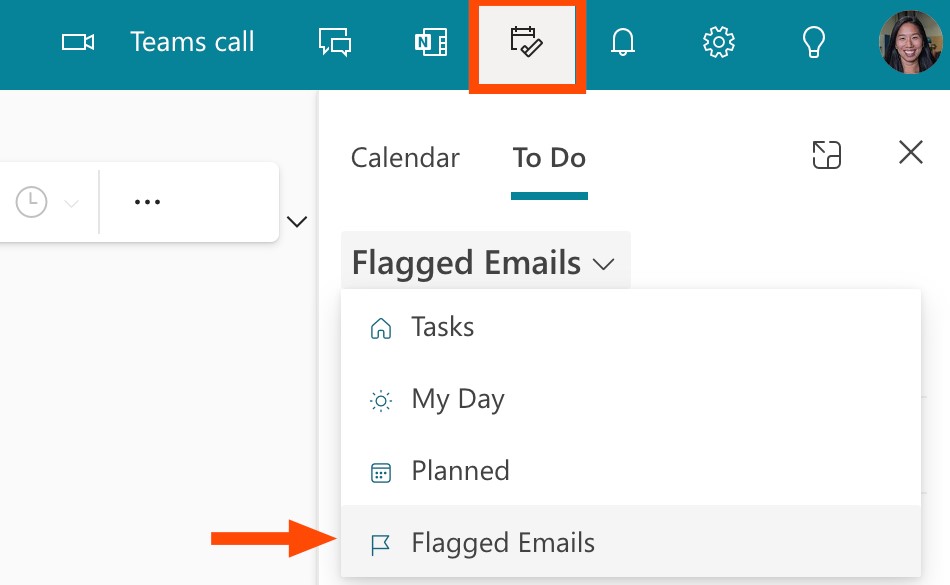
- In Outlook, click the My Day icon in the toolbar.
- Click the dropdown (⋁) next to Tasks.
- Select Flagged Emails.
This setup ensures important emails are automatically tracked as tasks, making it easier to manage priorities and stay organized.