


Snap Your Excel Data into Focus Instantly
Ever navigate to the right section of a massive Excel spreadsheet, only to find the view is all wrong? Maybe a 20-column table cuts off before the totals, or you’re squinting at tiny text because your zoom was set for a bird’s-eye view.
The standard zoom slider isn’t smart—it doesn’t know which cells matter. That’s where Excel’s “Zoom to Selection” comes in. Think of it like a camera’s autofocus: it automatically calculates the exact bounding box of your selected cells and adjusts your view to fit them perfectly on the screen.
Whether it’s a compact 4×4 block or a sprawling financial report, Excel handles the math for you. Your view can scale from 10% up to 400%, making sure your selection is framed perfectly while maximizing your screen space—no more guessing the right zoom level.
How to Use Zoom to Selection
- Select the cells you want to focus on.
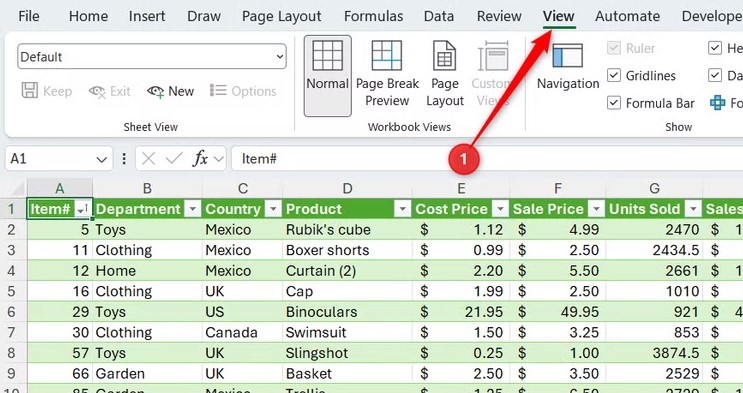
- Go to the View tab on the ribbon.
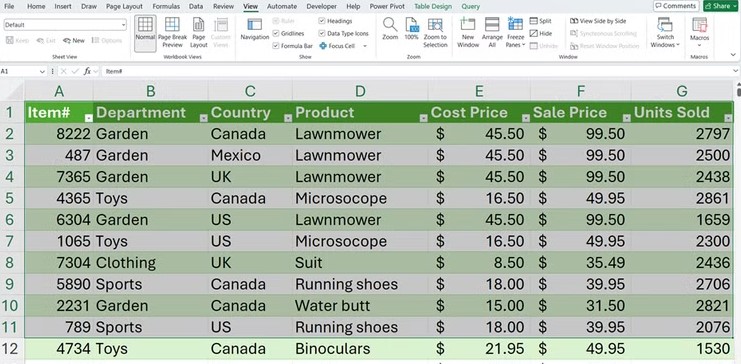
- In the Zoom group, click Zoom to Selection.
Just like that, your selected data is front and center, ready for analysis. Save time, reduce scrolling, and work smarter in Excel.
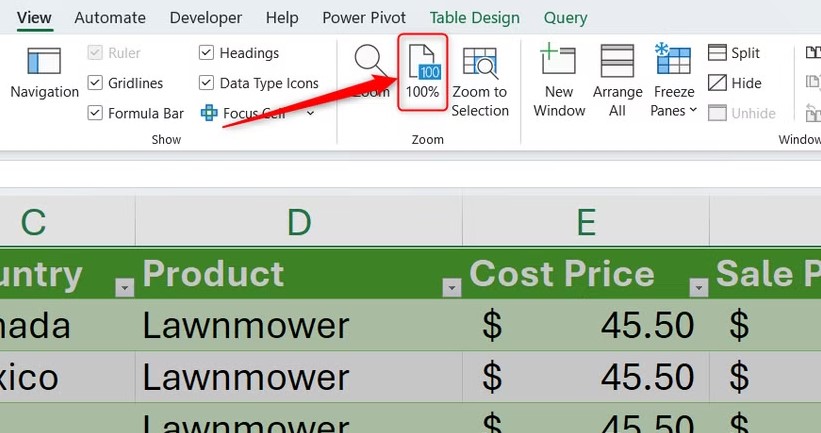
To reset your view, skip the zoom slider! Unlike data edits, Excel doesn’t treat zoom changes as undoable with Ctrl+Z, because they only affect the view, not your data. The fastest way back? Just click the 100% button next to the Zoom tool, and your worksheet will instantly return to a normal perspective.
Add Zoom to Selection to the Quick Access Toolbar
Put Excel on Autopilot
One of the biggest barriers to using Zoom to Selection is that it’s tucked away in the ribbon. If you’re busy entering or reviewing data, navigating to the View tab just to adjust your view can slow you down.
The solution: move the Zoom to Selection button to the Quick Access Toolbar (QAT) at the top of Excel. This keeps it accessible no matter which tab is open. Here’s how:
- Open the View tab.
- Right-click the Zoom to Selection button.
- Select Add to Quick Access Toolbar.
The icon will now appear in your QAT for instant access. If your QAT isn’t visible, right-click any ribbon tab and choose Show Quick Access Toolbar to bring it back.
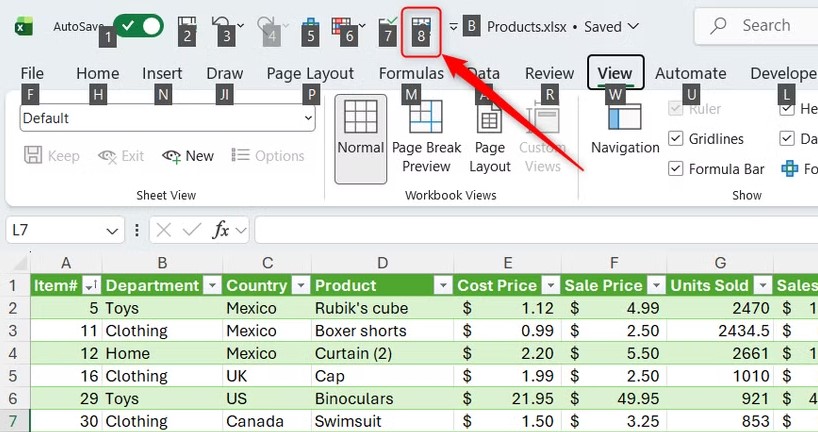
Now the tool is always visible—but here’s a pro tip for power users: adding Zoom to Selection to the Quick Access Toolbar also creates a custom keyboard shortcut. It’s easier to remember than the standard Alt + W + G ribbon sequence.
Press Alt, and Excel will display the number assigned to the shortcut (for me, it’s 8; yours may differ depending on the other QAT tools). Remember this number, and next time, just select the range you want to focus on and press Alt + [number] to instantly zoom. You can use the same method with the 100% button to quickly reset your view.
Best Uses for High-Speed Zooming in Excel
You might think Zoom to Selection is just about resizing text, but in a professional workflow, it’s really about context switching. Here are a few scenarios where this trick beats the manual zoom slider every time:
Presentation Mode Savior
We’ve all endured meetings where a shared spreadsheet looks like a wall of gray cells. Instead of fumbling with the slider and asking, “Can everyone see this?”, simply highlight the table and hit your Zoom to Selection shortcut. Instantly, your audience focuses on the data, not your navigation skills.
Dashboard Hopping
If you work with complex dashboards, your workbook probably has multiple “islands” of data—a summary table here, a trend chart there. After scrolling to a new section, Zoom to Selection locks it into view, letting you jump between areas effortlessly. Because zoom levels are unique per worksheet, you can navigate without visual clutter.
Laptop vs. Monitor Struggle
Moving from a 32-inch 4K monitor to a 13-inch laptop screen can make your spreadsheet unreadable. Zoom to Selection automatically adjusts to your window size, giving you instant clarity regardless of screen resolution. Stop fighting zoom levels and focus on analyzing data instead.
Once you’ve added Zoom to Selection to your Quick Access Toolbar, consider enabling Focus Cell (View > Focus Cell). This feature highlights your active row and column, helping you track data without losing context.
In short, customizing how you view your Excel sheets reduces mistakes, speeds up your workflow, and makes your spreadsheets more reliable.







