

Strikethrough formatting is a simple but powerful way to show edits, mark completed tasks, or highlight changes without deleting text. Whether working in Microsoft Office, Google Docs, or Gmail, knowing the right shortcuts can save time and keep workflows smooth.
This guide covers the exact strikethrough shortcuts across these platforms, along with practical tips for using them efficiently in everyday work.
Why Use Strikethrough Formatting
Strikethrough is commonly used in professional documents and communication for:
- Tracking edits without removing original content
- Marking completed items in lists
- Showing revisions during collaboration
- Comparing old vs new information
- Cleaning up drafts before finalizing
Instead of deleting text and losing context, strikethrough keeps everything visible and organized.
Strikethrough Shortcuts in Microsoft Office
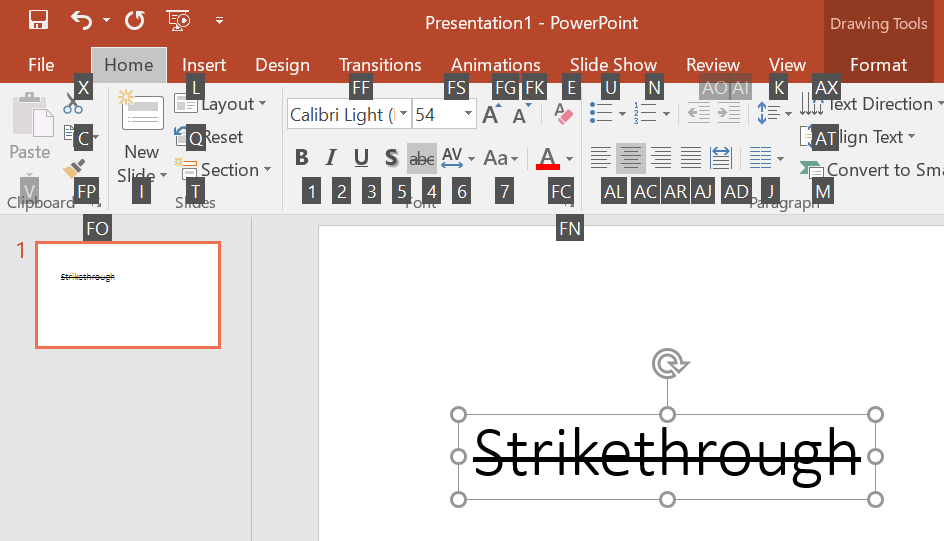
In Microsoft Office apps like Word, Excel, and Outlook, the strikethrough shortcut is consistent and easy to use.
Windows Shortcut
- Ctrl + D, then press Alt + K
This opens the Font dialog and applies strikethrough instantly.
Excel Direct Shortcut
- Ctrl + 5
This is the fastest method in Excel and works directly without opening menus.
Mac Shortcut
- Command + Shift + X
This applies strikethrough in Word and Excel on macOS.
Pro Tip: In Word, strikethrough can also be added from the Home tab, but using shortcuts is much faster when editing large documents.
Strikethrough Shortcut in Google Docs
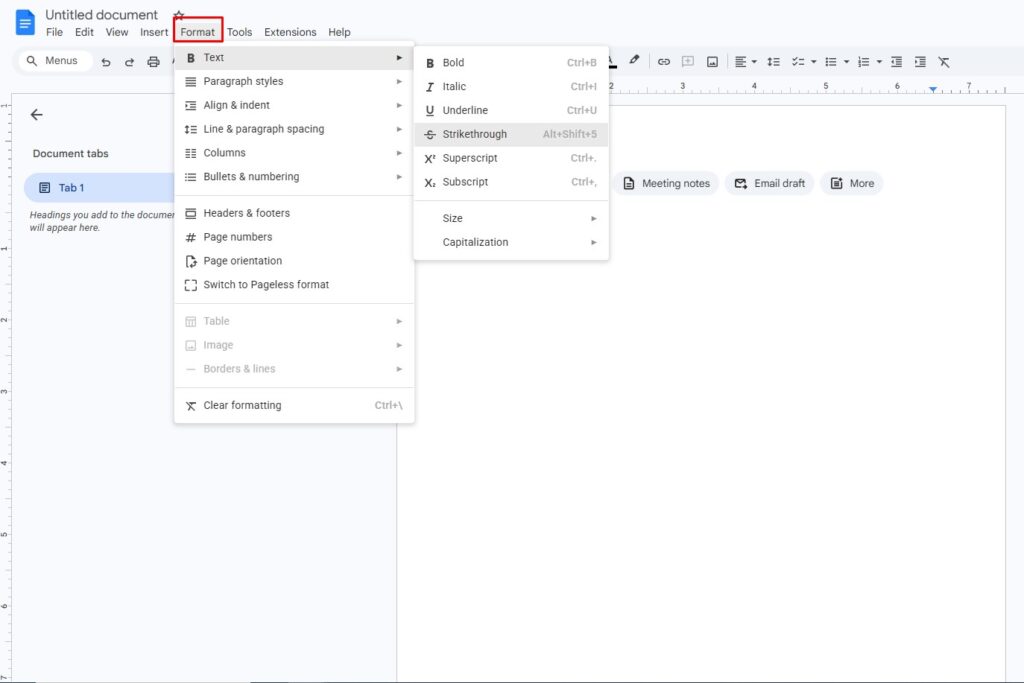
Option 1:
Format > Text > Strikethrough
Option 2:
Google Docs offers a clean, direct shortcut without needing menus.
Windows Shortcut
- Alt + Shift + 5
Mac Shortcut
- Command + Shift + X
This shortcut works instantly on selected text and is widely used when collaborating in shared documents.
Why it matters: Since Google Docs is built for real-time editing, strikethrough is often used during reviews to suggest changes without deleting original content.
Strikethrough in Gmail
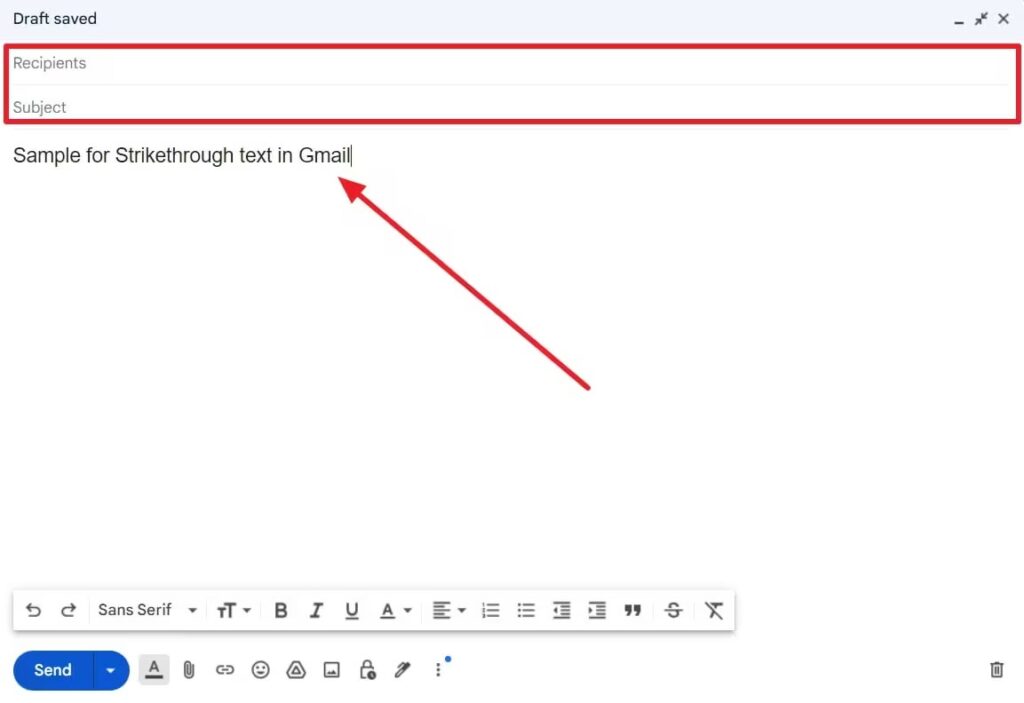
Gmail does not provide a dedicated keyboard shortcut for strikethrough, but it can still be applied quickly.
Method 1: Formatting Menu
- Compose a new email
- Select the text
- Click the Formatting (A) icon
- Choose Strikethrough
Method 2: Use Google Docs Shortcut Trick
In some browsers, Alt + Shift + 5 may work if formatting shortcuts are enabled, but this is not officially consistent across all setups.
Because Gmail is primarily an email platform, formatting options are slightly more limited compared to document editors.
When to Use Strikethrough Effectively
Using strikethrough correctly improves clarity rather than cluttering the document.
Best Practices
- Use it for edits, not final content
- Avoid overusing it in formal documents
- Combine with comments for better collaboration
- Keep formatting consistent across the document
Real-World Example
Instead of deleting outdated pricing:
€100€85
This keeps the original value visible while clearly showing the update.







