


Creating a reusable table template in Microsoft Word is one of the simplest ways to standardize documents, improve efficiency, and maintain a professional layout across reports, invoices, or data sheets. Instead of rebuilding tables from scratch every time, a well-designed template allows consistent formatting, branding, and structure with just a few clicks.
This guide walks through the exact process, from building your first table to saving it as a reusable template that fits real-world workflows.
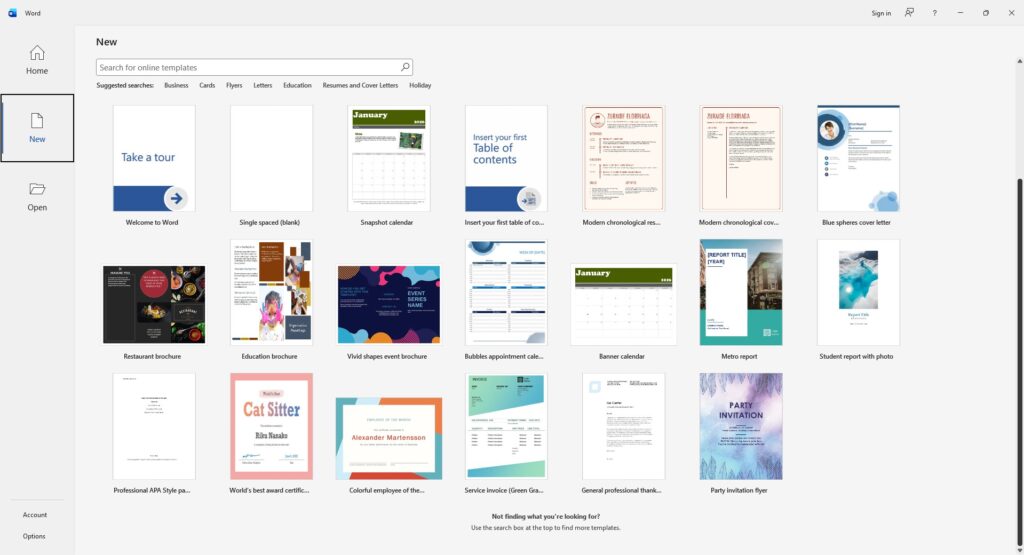
Why Use a Table Template in Word
A table template is not just about saving time. It also ensures consistency across documents, especially when working with structured content such as:
- Financial reports
- Product listings
- Client records
- Project tracking sheets
- Invoices and quotations
Using templates reduces formatting errors and keeps documents clean and professional, particularly in business environments.
Step 1: Create Your Base Table
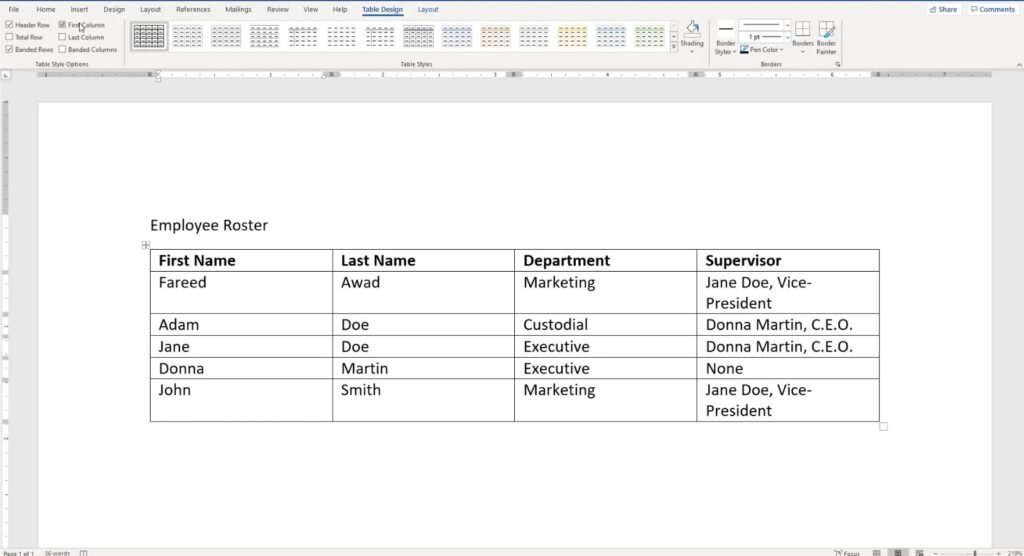
Start by opening a blank document in Microsoft Word.
- Go to Insert
- Click Table
- Select the number of rows and columns you need
Keep the structure flexible. You can always adjust columns and rows later.
Tip: Think ahead about how the table will be used. For example, if it’s for invoices, include columns like Item, Description, Quantity, Price, and Total.
Step 2: Format the Table Professionally
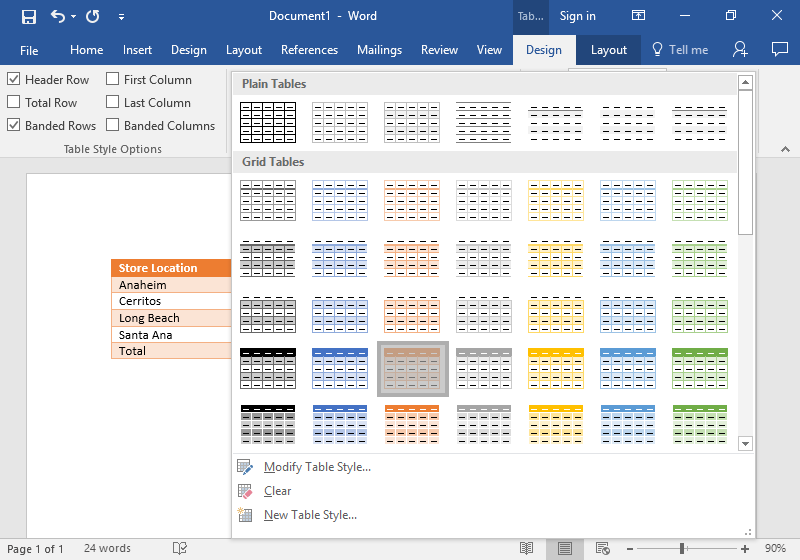
Once the table is created, the next step is styling.
Apply Table Design
- Click inside the table
- Go to the Table Design tab
- Choose a style or customize colors manually
Customize Borders and Shading
- Use Borders to define clean outlines
- Apply Shading for headers or key sections
Adjust Layout
- Set column widths evenly
- Align text properly (left, center, right depending on content)
- Use bold text for headers
A well-formatted table should be easy to read at a glance.
Step 3: Add Placeholder Content

To turn your table into a reusable template, replace real data with placeholders such as:
- “Enter Name”
- “Date”
- “Amount”
- “Description”
This makes it clear how the table should be filled out when reused.
Step 4: Save as a Template File
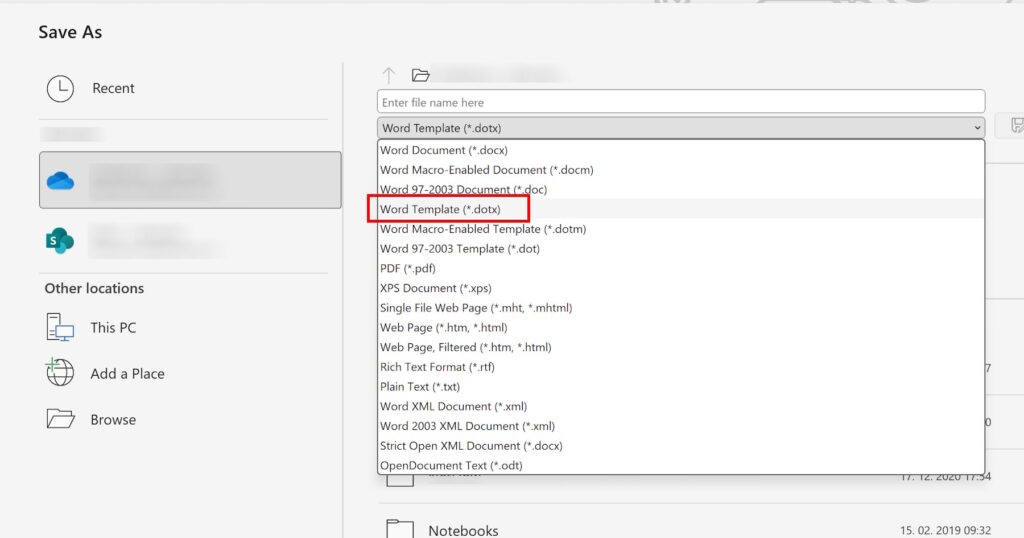
This is the most important step.
- Click File
- Select Save As
- Choose location
- In “Save as type”, select Word Template (.dotx)
- Give it a clear name (e.g., “Invoice Table Template”)
Saving as a .dotx file ensures that each time it’s opened, a new document is created without altering the original template.
Step 5: Reuse the Table Template
To use your template:
- Open Microsoft Word
- Go to File > New
- Select your saved template
Alternatively, double-click the .dotx file directly.
This instantly loads your pre-designed table, ready for use.
Advanced Tips for Better Table Templates
1. Use Styles for Consistency
Define heading styles and text formatting so your tables match the rest of your document automatically.
2. Lock Layout Structure
Avoid resizing issues by setting fixed column widths in Table Properties.
3. Add Form Controls (Optional)
For more advanced templates, enable the Developer tab and insert dropdowns or date pickers for structured input.
4. Include Branding
Add a logo, header, or footer to match company identity, especially for business templates.
5. Save Multiple Variations
Create different templates for different use cases instead of trying to make one universal table.
Common Mistakes to Avoid
- Overcomplicating the table with too many columns
- Using inconsistent font sizes and colors
- Not testing the template before saving
- Saving as a regular document instead of a template file
Keeping things clean and functional always produces better results.
When to Use Table Templates
Table templates are ideal when working with repetitive data structures. Instead of manually formatting each document, templates allow a standardized workflow that improves speed and reduces mistakes.
They are especially useful for freelancers, eCommerce sellers, administrative staff, and anyone managing structured information regularly.







