


Knowing the exact word count is essential for essays, blog posts, reports, and professional documents. Whether working on a school assignment or preparing SEO content, tracking word count ensures the text meets required limits and stays properly structured. Fortunately, Google Docs provides simple and accurate ways to check word count in seconds.
This guide explains every method, including shortcuts, advanced tips, and ways to track word count while writing.
Why Word Count Matters
Word count is more than just a number. It helps maintain quality and structure:
- Meets assignment or publishing requirements
- Improves readability and clarity
- Supports SEO content length goals
- Keeps documents concise and focused
Writers, students, and professionals rely on accurate word count to stay within limits without sacrificing quality.
Method 1: Use the Built-In Word Count Tool
The easiest way to check word count in Google Docs is using the built-in feature.
Steps:
- Open your document in Google Docs
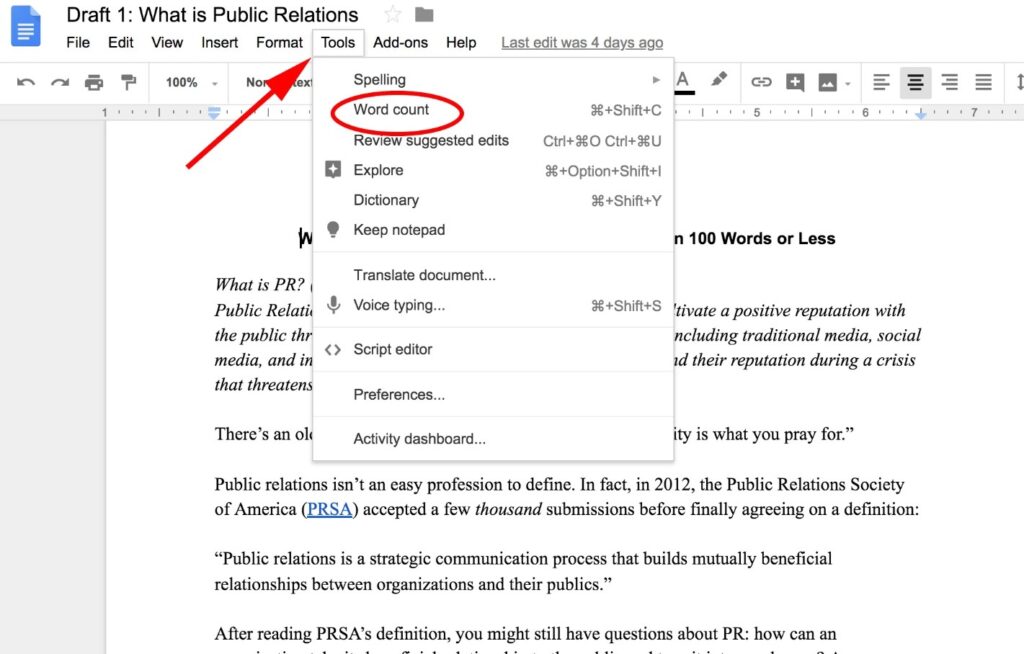
- Click Tools in the top menu
- Select Word count
- A popup will display:
- Total words
- Characters (with and without spaces)
- Pages
This method works instantly and provides all key statistics in one place.
Method 2: Use Keyboard Shortcut (Fastest Way)
For quick access, use a keyboard shortcut.
Shortcut:
- Windows:
Ctrl + Shift + C - Mac:
Command + Shift + C
This opens the same word count window without navigating through menus, making it ideal for fast workflow.
Method 3: Show Word Count While Typing
Google Docs allows real-time tracking while writing.
Steps:
- Open Tools > Word count
- Check the option Display word count while typing
- Click OK
A small counter will appear at the bottom-left corner of the document, updating automatically as text is added or removed.
Method 4: Check Word Count for Selected Text
Sometimes only part of a document needs to be measured.
Steps:
- Highlight the specific text
- Open Tools > Word count
- View the count for the selected section
This is useful for checking paragraph limits, summaries, or sections within larger documents.
Method 5: Use Mobile App (Android & iOS)
Word count is also available in the mobile version of Google Docs.
Steps:
- Open the document in the Google Docs app
- Tap the three-dot menu (top right)
- Select Word count
The app displays words, characters, and other details, making it easy to track content on the go.
Tips for Better Word Count Management
- Set a target word count before starting
- Use real-time tracking for long documents
- Break content into sections for better control
- Avoid unnecessary filler words
- Review and trim content after writing
Consistent monitoring leads to cleaner and more professional results.
Common Mistakes to Avoid
- Forgetting to enable live word count
- Counting the entire document instead of selected text
- Ignoring character limits when required
- Overwriting content just to reach a word target
Accuracy is more important than simply increasing numbers.







