


Working with messy data in Microsoft Excel is a common challenge, especially when datasets contain multiple header rows. These extra headers often appear when exporting reports from systems, combining files, or copying tables from PDFs. The result is a dataset that breaks sorting, filtering, formulas, and pivot tables.
This guide explains how to clean and fix Excel datasets with multiple header rows using practical, reliable methods.
Why Multiple Header Rows Cause Problems
Before fixing the issue, it’s important to understand the impact:
- Filters do not work correctly
- Pivot tables fail to recognize proper columns
- Formulas reference incorrect rows
- Power Query imports become inconsistent
- Data analysis becomes unreliable
Excel requires one clean header row to interpret data properly.
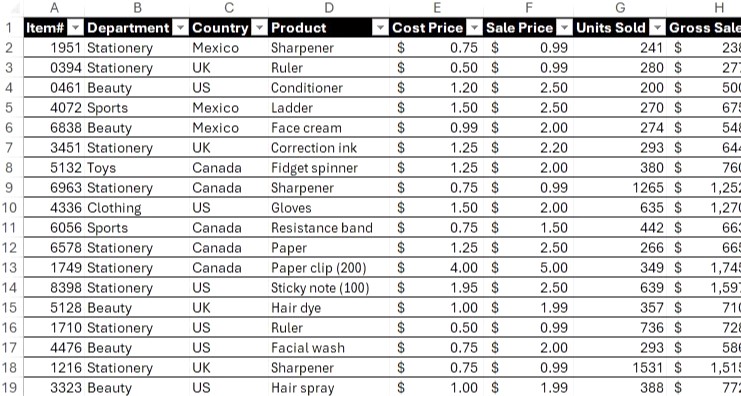
Method 1: Manually Remove Extra Header Rows
This is the quickest solution for small datasets.
Steps:
- Open your dataset in Microsoft Excel
- Identify repeated or unnecessary header rows
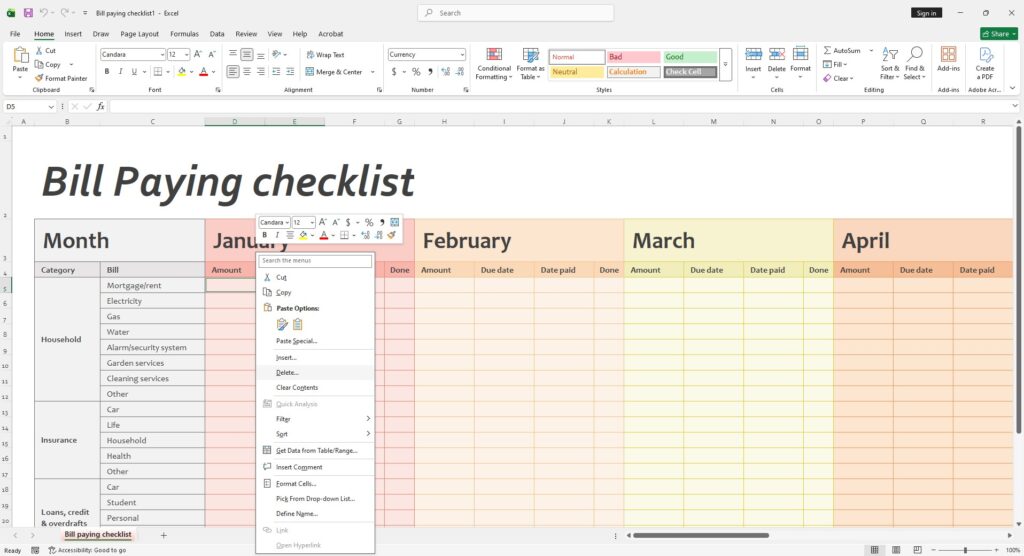
- Select the rows you want to remove
- Right-click and click Delete
- Ensure only one header row remains at the top
When to use:
- Small files
- One-time cleanup
- Simple datasets
Method 2: Use Filters to Identify Duplicate Headers
For larger datasets, repeated headers may appear throughout the sheet.
Steps:
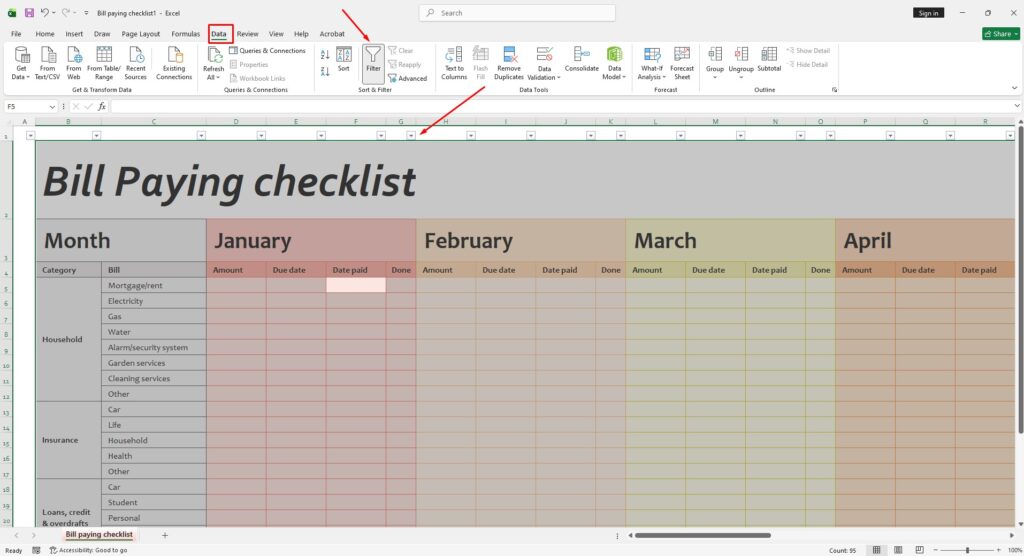
- Select the entire dataset
- Go to Data > Filter
- Click the filter dropdown on a column (for example, “Name” or “Date”)
- Look for repeated header values (e.g., “Name”, “ID”)
- Filter them out and delete those rows
This method helps quickly locate hidden header duplicates inside long datasets.
Method 3: Convert Data into a Table
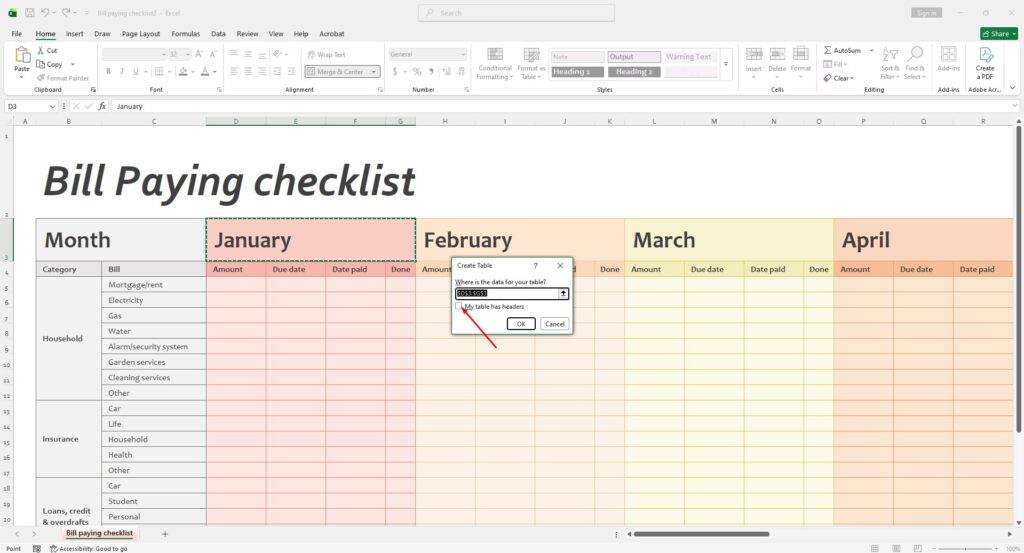
Excel tables enforce a single structured header.
Steps:
- Select your dataset
- Press Ctrl + T
- Check My table has headers
- Click OK
If multiple header rows exist, Excel will only treat the first one as valid. You can then remove the extra rows manually.
Benefits:
- Enables structured references
- Improves sorting and filtering
- Makes formulas cleaner
Method 4: Use Power Query for Automated Cleanup
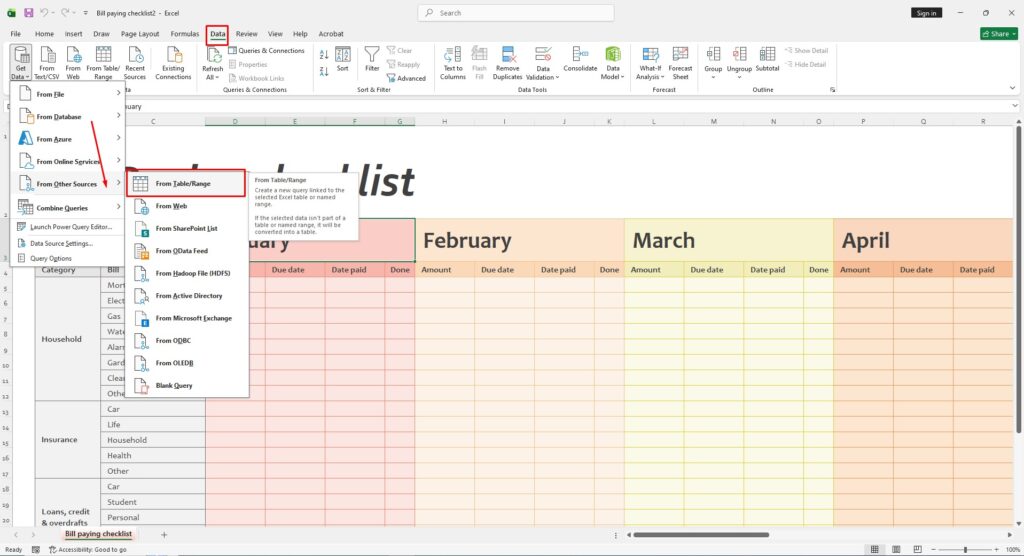
For large or recurring datasets, Power Query is the most powerful solution.
Steps:
- Go to Data > Get & Transform Data > From Table/Range
- Load the dataset into Power Query
- Use Remove Rows > Remove Top Rows (if headers repeat at the top)
- Use filtering to remove rows that match header names
- Click Close & Load to return clean data to Excel
Why use Power Query:
- Automates cleanup
- Handles large datasets efficiently
- Ideal for repeated imports
Method 5: Use Formulas to Skip Extra Headers
If deletion is not an option, formulas can extract clean data.
Example:
Use formulas like FILTER or INDEX to exclude rows containing header text.
This approach is useful when:
- Data updates frequently
- Original dataset must remain unchanged
- You need a dynamic clean version
Best Practices to Avoid Multiple Header Issues
- Always ensure exported files have a single header row
- Avoid copying data directly from PDFs without cleaning
- Standardize templates across systems
- Validate datasets before analysis
- Use Power Query for repeated workflows







