


Microsoft has expanded control over the Copilot experience in Windows 11, making it possible to remove the AI assistant across both personal and enterprise environments. This change marks a significant shift in how Copilot is deployed and managed, especially for users on restricted or company-managed systems.
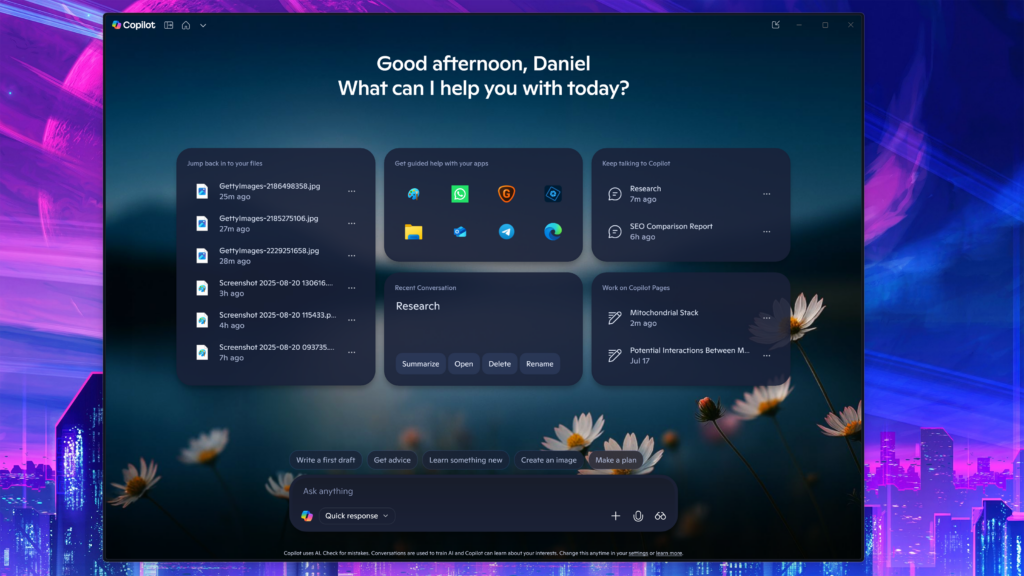
Copilot Removal Now Available on Managed Devices
A new policy setting called RemoveMicrosoftCopilotApp has been introduced, enabling administrators to uninstall the Copilot application from enterprise devices. This capability was delivered as part of the April 2026 Patch Tuesday cumulative update.
The policy is available through:
- Policy CSP
- Group Policy
It applies to devices managed via:
- Microsoft Intune
- System Center Configuration Manager (SCCM)
Using this setting, administrators can remove Copilot across an organization without disrupting system stability or workflows.
How IT Administrators Can Remove Copilot
To activate the policy, administrators can navigate to:
User Configuration > Administrative Templates > Windows AI > Remove Microsoft Copilot App
Once enabled, the Copilot application is removed from targeted systems in a controlled and non-disruptive manner.
Access to this configuration is restricted to IT administrators. Users working on company-managed devices must request changes through their internal IT department.
Requirements and Limitations
Copilot removal on managed devices is subject to several conditions:
- Devices must be running Windows 11 version 25H2
- Both Microsoft 365 Copilot and Microsoft Copilot must be installed
- The Copilot app must not have been manually installed by the user
- The app must not have been launched within the past 28 days
These restrictions ensure that policy-based removal applies only in supported and controlled scenarios.
Standard Users Can Also Uninstall Copilot
For personal systems running Windows 11 Home or Pro, Copilot can now be removed directly through system settings.
Steps:
- Open Settings
- Go to Apps > Installed apps
- Search for Copilot
- Click Uninstall
This method is the safest and most straightforward way to remove the app on non-managed devices.
Additional Methods for Advanced Users
More experienced users can take further steps to limit or disable Copilot, including:
- Hiding the Copilot icon via taskbar settings
- Adjusting system configurations through advanced tools
Some approaches involve modifying the Windows Registry, which carries risk and is not recommended unless fully understood.
A Shift in Microsoft’s Copilot Strategy
Copilot was initially rolled out aggressively as a core part of the Windows 11 experience. Expectations around adoption were high, but real-world feedback has led to a more flexible approach.
Recent updates reflect a more balanced strategy:
- Greater user control over AI features
- Slower and more targeted deployment timelines
- Expanded administrative control in enterprise environments
The ability to fully uninstall Copilot across all device types signals a clear move toward user choice rather than forced integration.







