


Working in Microsoft Word can sometimes feel slow, especially when handling large documents or repetitive tasks. Fortunately, there are practical ways to speed up your workflow, save time, and boost productivity. Here are seven easy strategies you can implement today.
1. Use Keyboard Shortcuts
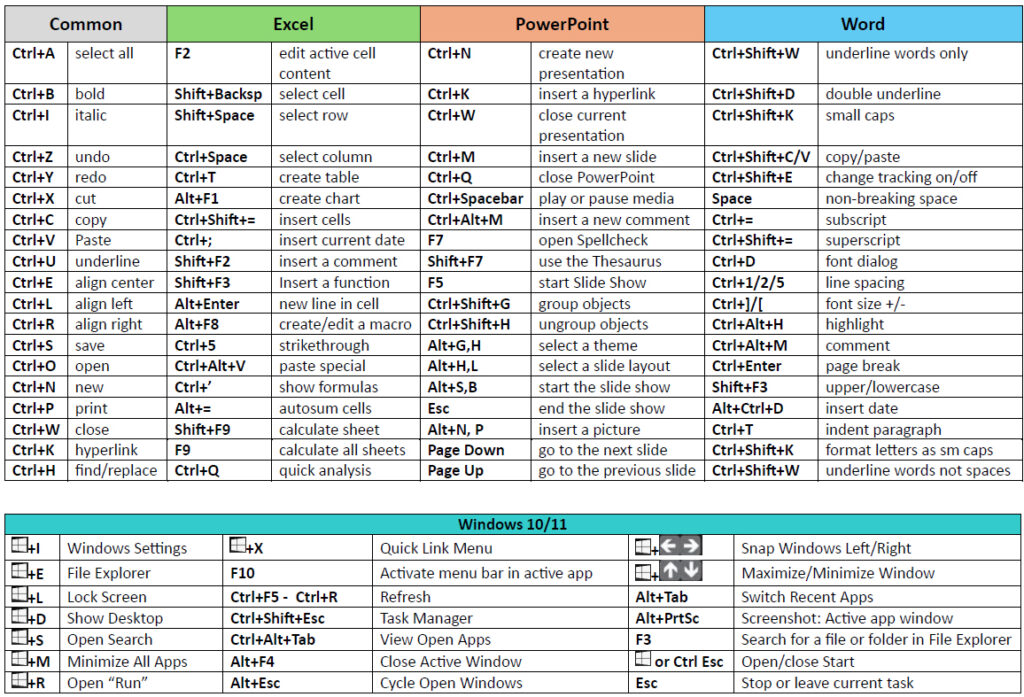
Keyboard shortcuts are one of the fastest ways to navigate Word without relying on menus. Common shortcuts like Ctrl + C (copy), Ctrl + V (paste), Ctrl + Z (undo), and Ctrl + S (save) save seconds on every action. Memorizing a few more, like Ctrl + Shift + L for bullets or Ctrl + Home/End to jump to the start or end of a document, can significantly improve efficiency.
2. Customize the Quick Access Toolbar
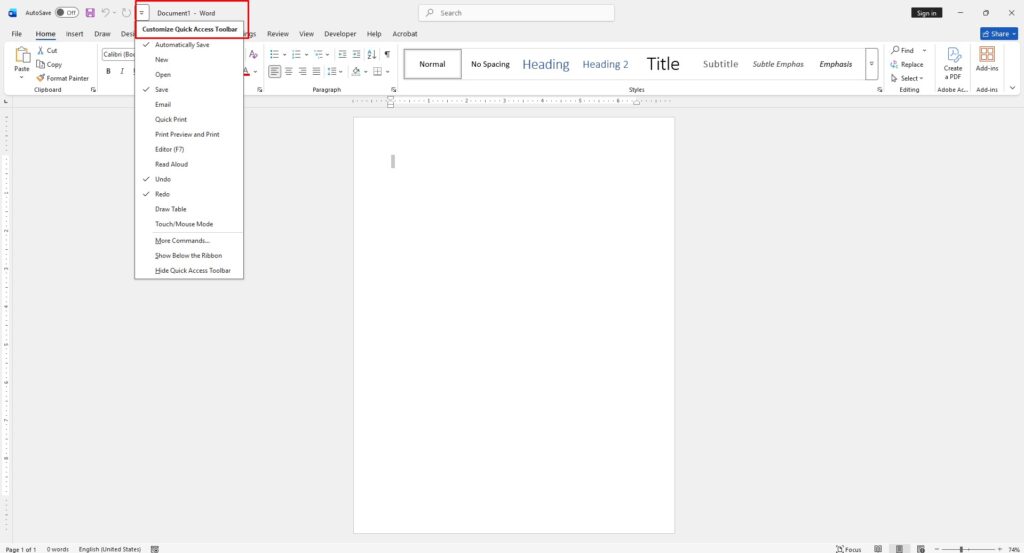
The Quick Access Toolbar lets you add frequently used commands for instant access. By adding tools like Save As, Print Preview, or Track Changes, you reduce the time spent searching menus, making your workflow smoother and faster.
3. Use Styles and Templates
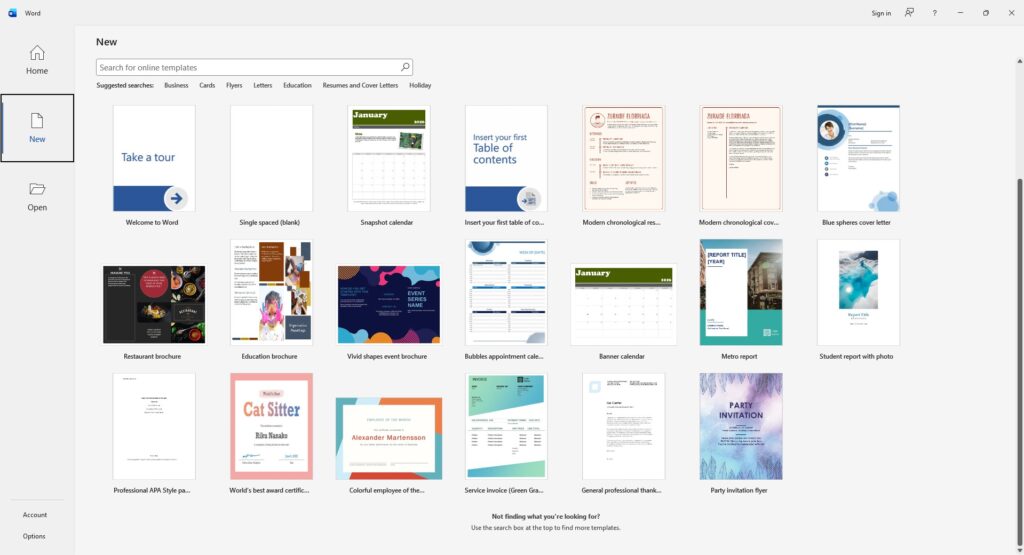
Formatting each section manually can be time-consuming. Word’s built-in Styles and custom templates help maintain consistent formatting and layout automatically. Using a template for reports, letters, or presentations ensures consistency and reduces repetitive formatting tasks.
4. Utilize AutoCorrect and AutoText
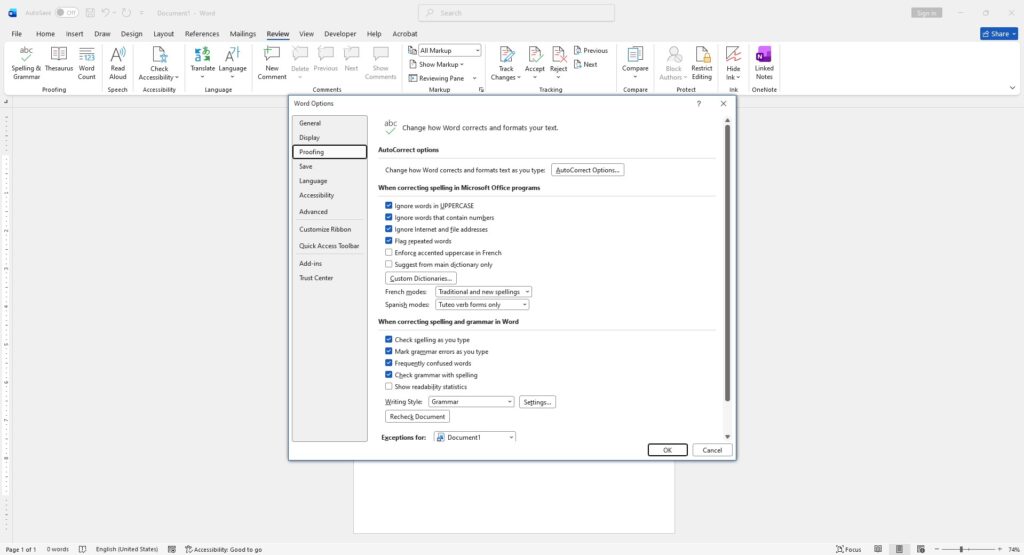
Word’s AutoCorrect and AutoText features allow you to expand abbreviations into full text automatically. For example, typing “addr” could automatically expand to your full address. This tool reduces repetitive typing and speeds up document creation.
5. Take Advantage of Navigation Pane
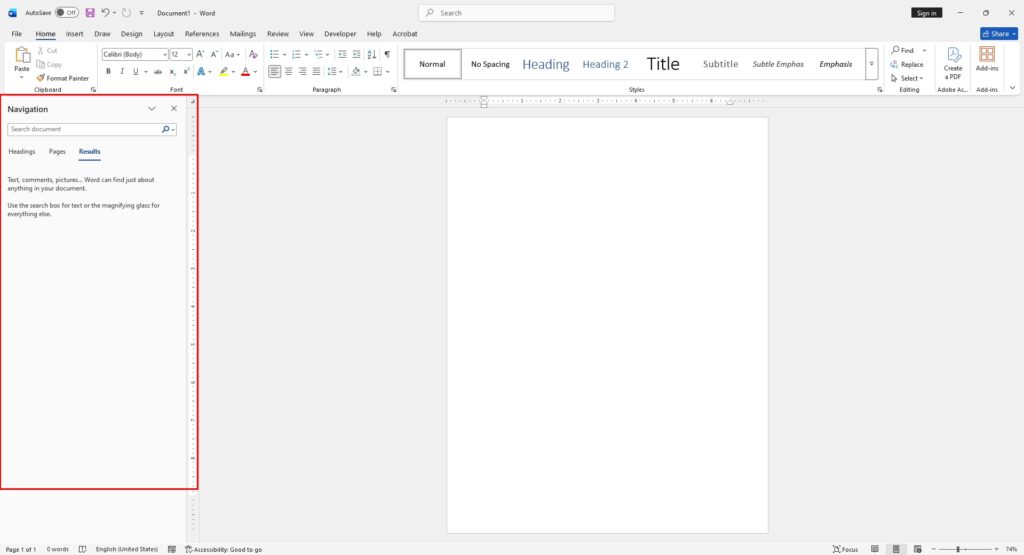
The Navigation Pane helps quickly move between headings, pages, or search results. It is especially useful for long documents, allowing you to locate sections instantly without scrolling endlessly.
6. Use Find and Replace Effectively
Instead of manually editing repeated text, Find and Replace lets you make bulk changes in seconds. Combining it with formatting options ensures you can adjust styles or correct mistakes across the entire document quickly.
7. Disable Unnecessary Add-ins
Some Word add-ins slow down performance. Reviewing and disabling unused add-ins in File > Options > Add-ins helps Word run faster, especially with large documents.







