

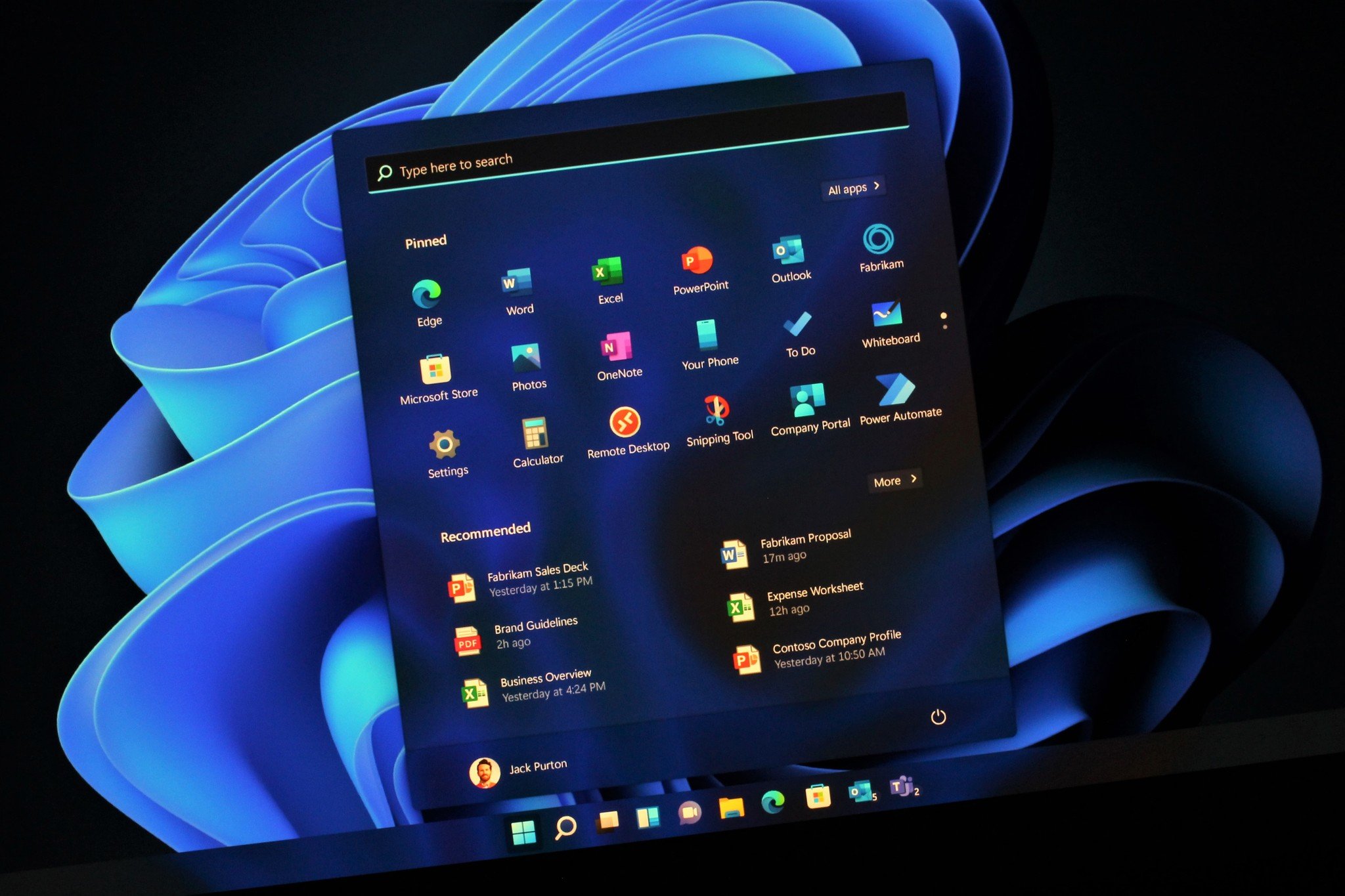
Windows comes packed with hidden features that can dramatically improve productivity, security, and overall ease of use. Yet, most users stick to the basics and never explore what their operating system can really do. Enabling just a few of these lesser-known tools can save time, protect your data, and make your daily workflow much smoother. Here are four powerful Windows features most users never enable—but should.
1. Virtual Desktops
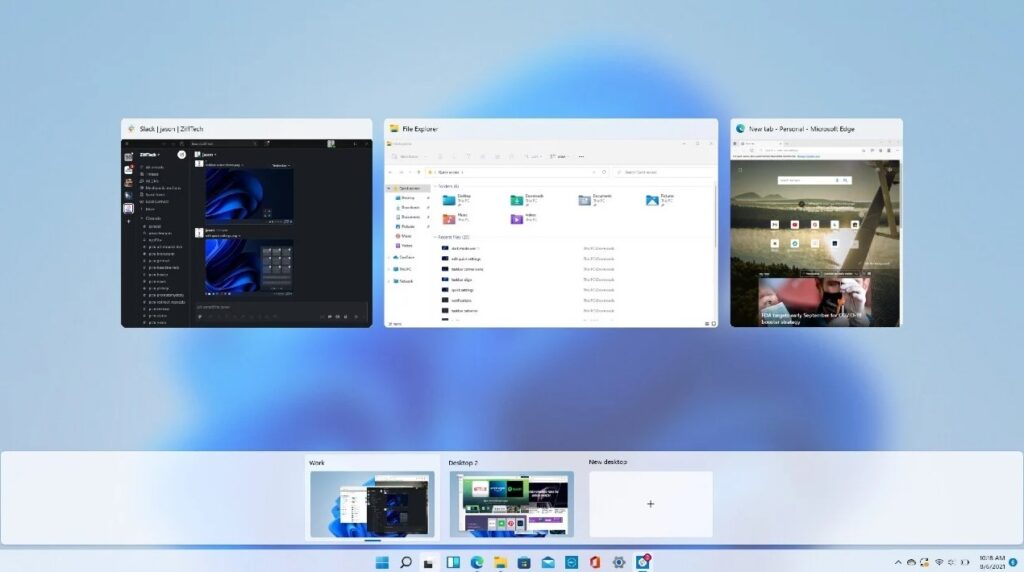
If you often have multiple programs or projects open, Virtual Desktops can help you stay organized. This feature allows you to create separate desktops for different tasks, keeping work, personal projects, and entertainment neatly separated.
To enable Virtual Desktops, press Windows + Tab and click New Desktop. You can switch between desktops using Ctrl + Windows + Left/Right Arrow, which helps reduce clutter and makes multitasking more efficient. Despite its usefulness, many Windows users never explore this feature.
2. Storage Sense
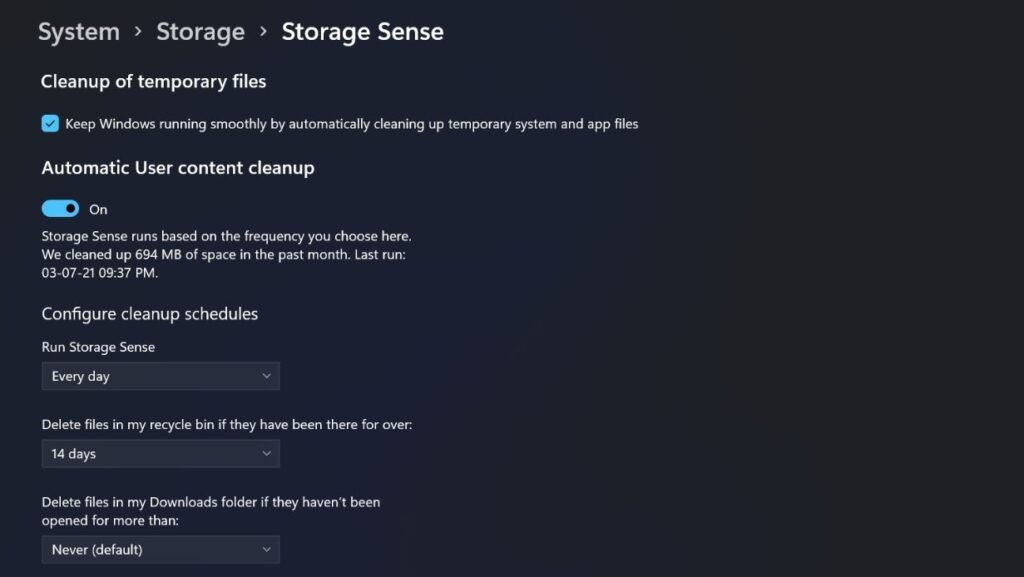
Running out of storage is a common issue, but Windows has a tool that automatically manages it: Storage Sense. This feature deletes temporary files, empties the Recycle Bin, and removes old system files you no longer need.
To enable Storage Sense, go to Settings > System > Storage and turn on Storage Sense. You can even customize how often it runs and what types of files it cleans. Enabling this feature keeps your PC running smoothly without constant manual cleanup.
3. Focus Assist
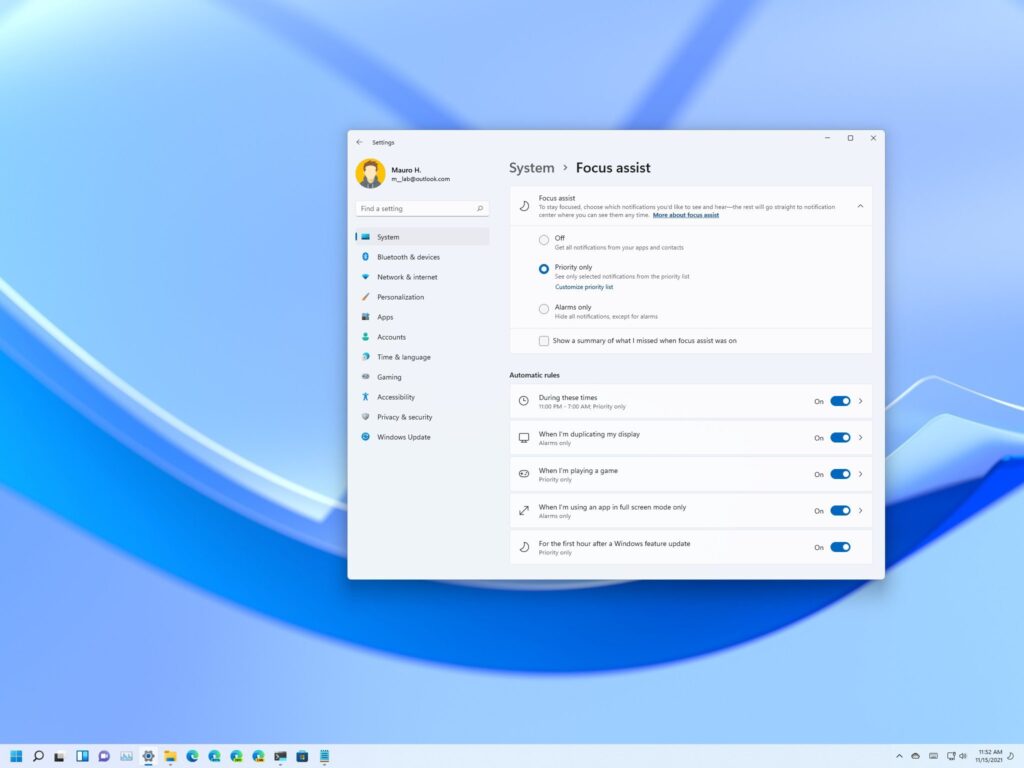
Distractions can significantly reduce productivity. Focus Assist helps you stay focused by controlling notifications while working, gaming, or giving presentations.
You can turn it on by going to Settings > System > Focus Assist and choosing priority levels or automatic rules. For example, you can allow only alarms or notifications from specific apps. Most users ignore this feature, but it’s a game-changer for concentration and workflow.
4. Windows Sandbox
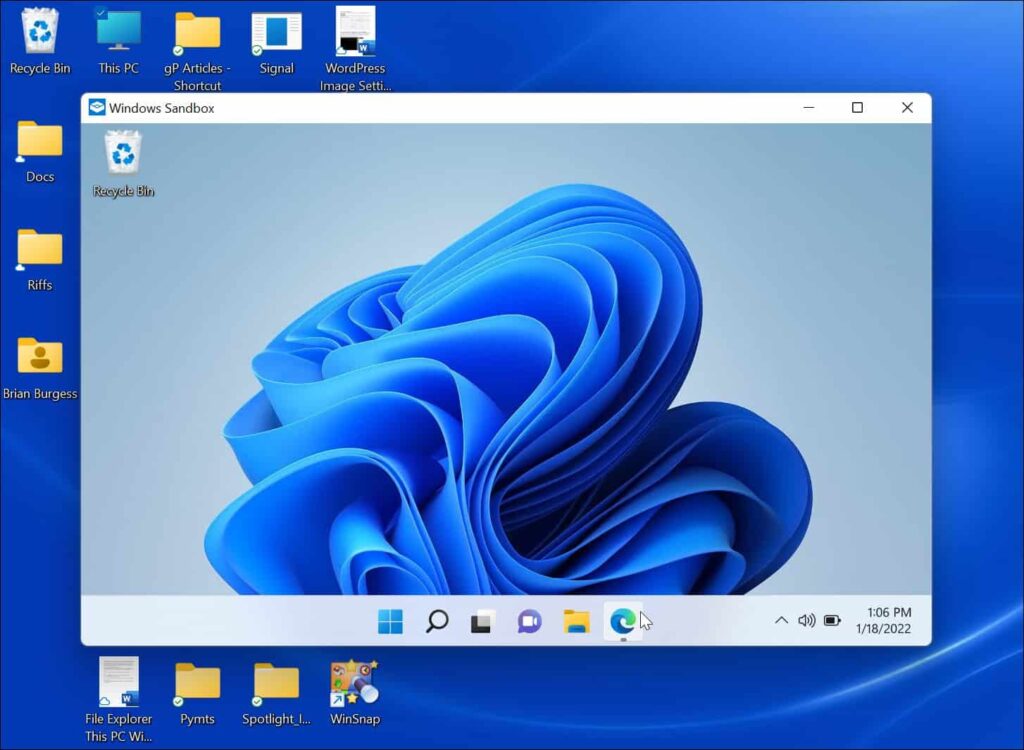
For anyone who tests unknown software, downloads files from the internet, or frequently experiments with programs, Windows Sandbox is a lifesaver. It allows you to run apps in a temporary, isolated environment, preventing malware or unsafe programs from affecting your main system.
Windows Sandbox can be enabled via Control Panel > Programs > Turn Windows features on or off > Windows Sandbox. Once enabled, you can open the sandbox, install and run software, and safely close it—all without risking your main system.
Why You Should Enable These Features
Enabling these hidden Windows features not only enhances productivity but also improves system safety and organization. Many users never discover them, yet they can make everyday tasks easier, faster, and more secure. From managing notifications to isolating potentially dangerous programs, these tools are powerful allies for anyone using Windows.







