

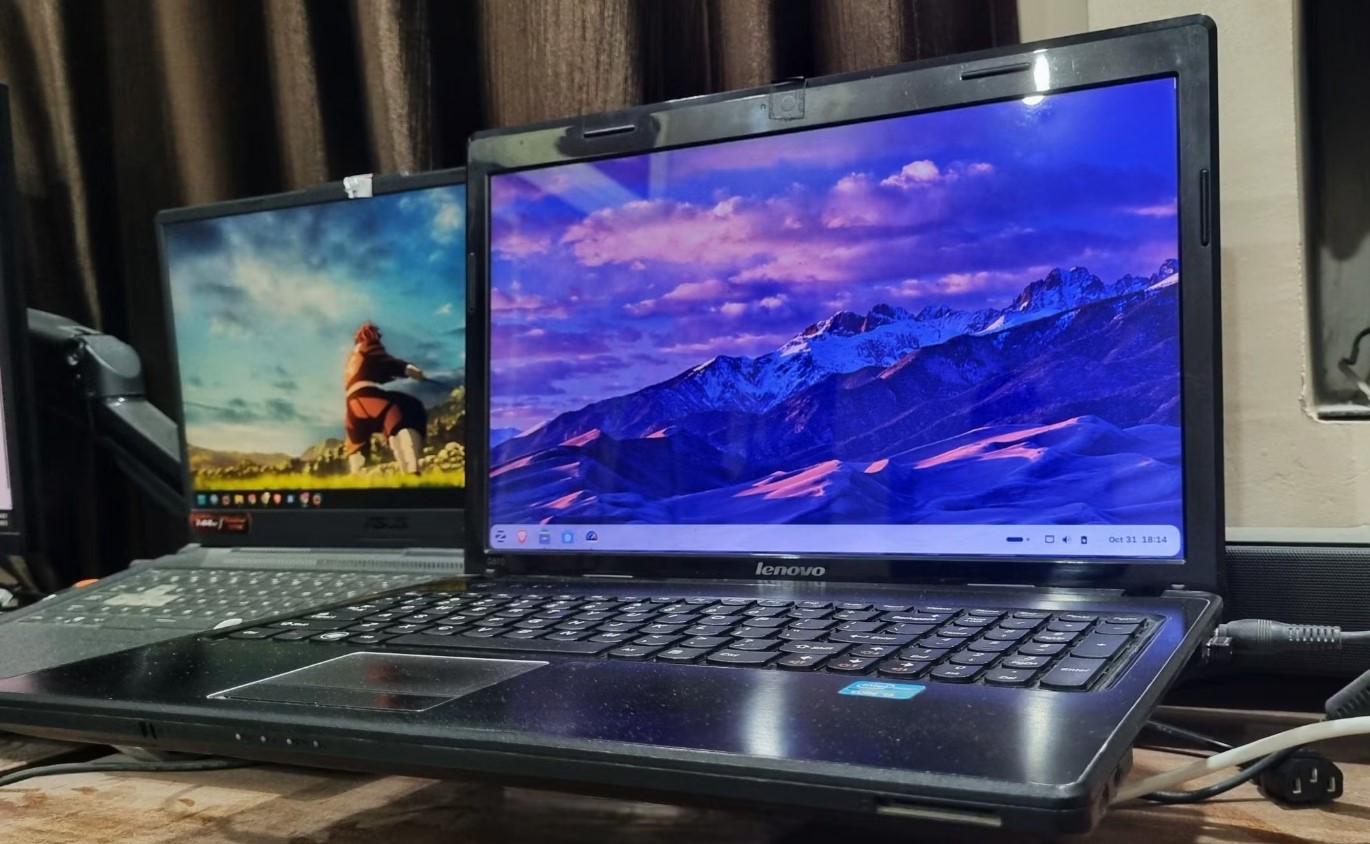
An old Windows laptop doesn’t have to feel slow and unusable. Over time, systems naturally lose performance due to background processes, outdated software, and cluttered storage. The good news is that with a few simple tweaks, you can significantly improve speed and make your laptop feel responsive again.
1. Disable Startup Programs
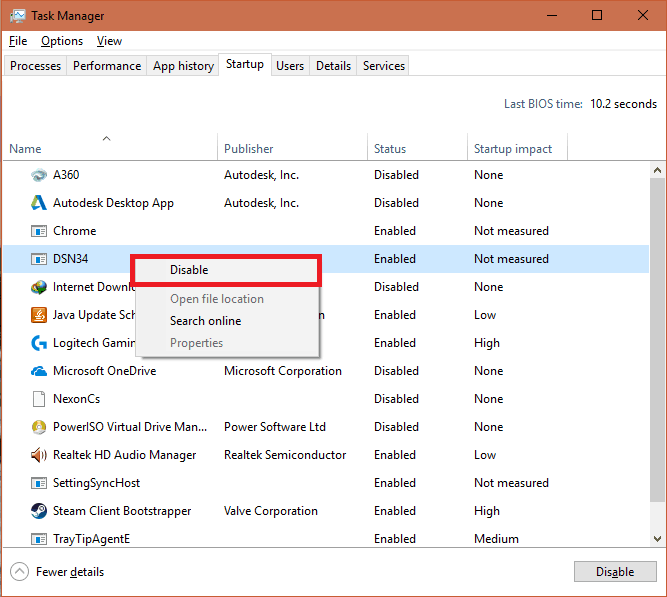
One of the biggest reasons laptops slow down is too many programs launching at startup. These apps run in the background and consume memory before you even start using your device.
Open Task Manager (Ctrl + Shift + Esc), go to the Startup tab, and disable any unnecessary apps. Focus on programs you don’t need immediately after booting.
2. Free Up Disk Space
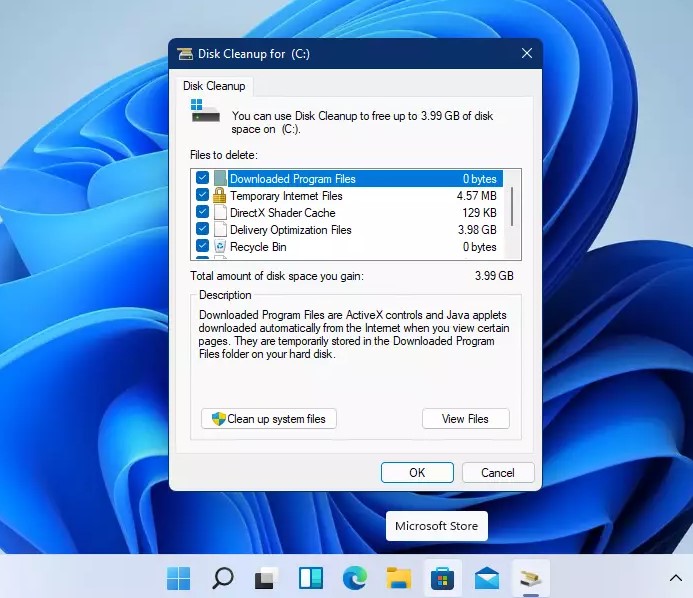
A nearly full hard drive can slow down your entire system. Delete unused files, uninstall programs you no longer need, and empty the Recycle Bin.
You can also use Disk Cleanup to remove temporary files, system cache, and old update files that take up valuable space.
3. Turn Off Visual Effects
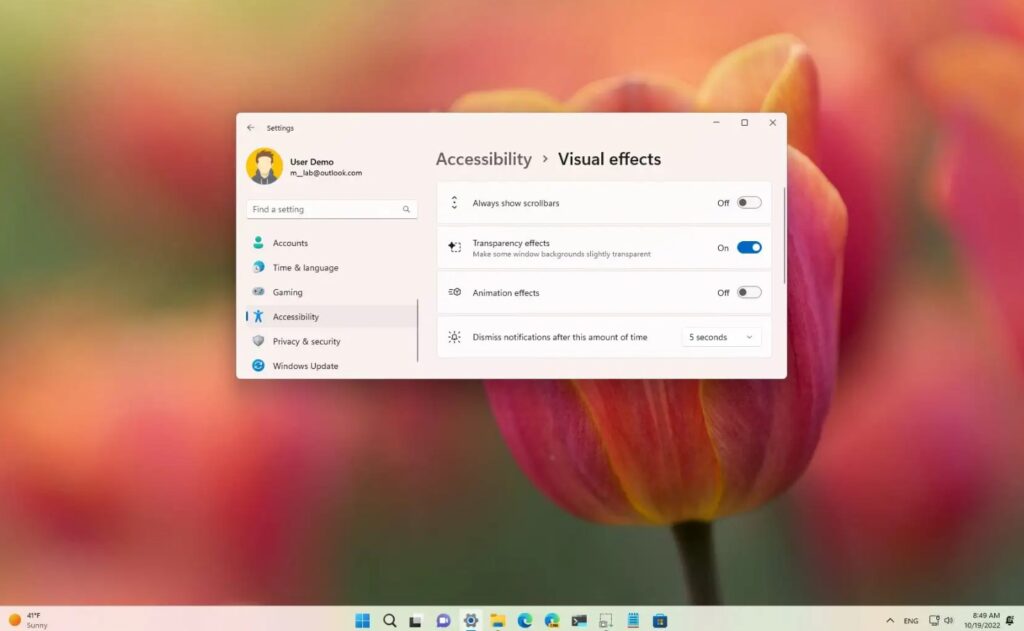
Windows includes visual animations that look nice but can reduce performance on older hardware. Disabling these effects can make your laptop feel faster.
Go to System Properties > Advanced > Performance Settings and select Adjust for best performance. This removes unnecessary animations and improves responsiveness.
4. Update Windows and Drivers
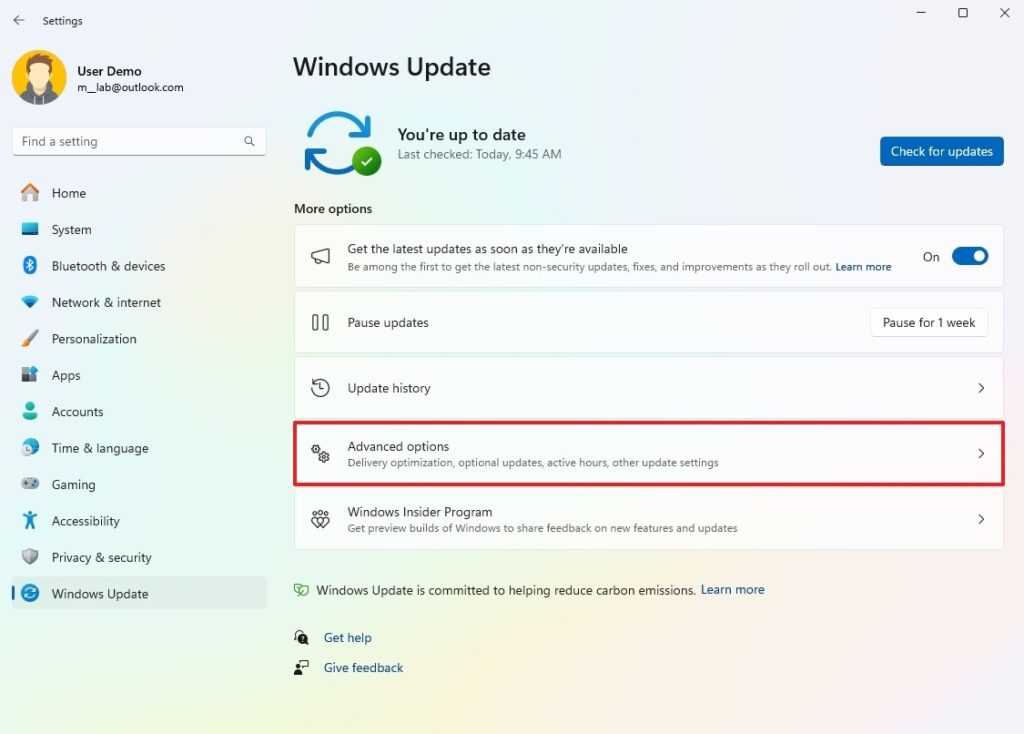
Keeping your system updated ensures better performance and security. Updates often include bug fixes and optimizations that can improve speed.
Check for updates in Settings > Windows Update, and make sure your drivers, especially graphics and chipset drivers, are up to date.
5. Scan for Malware
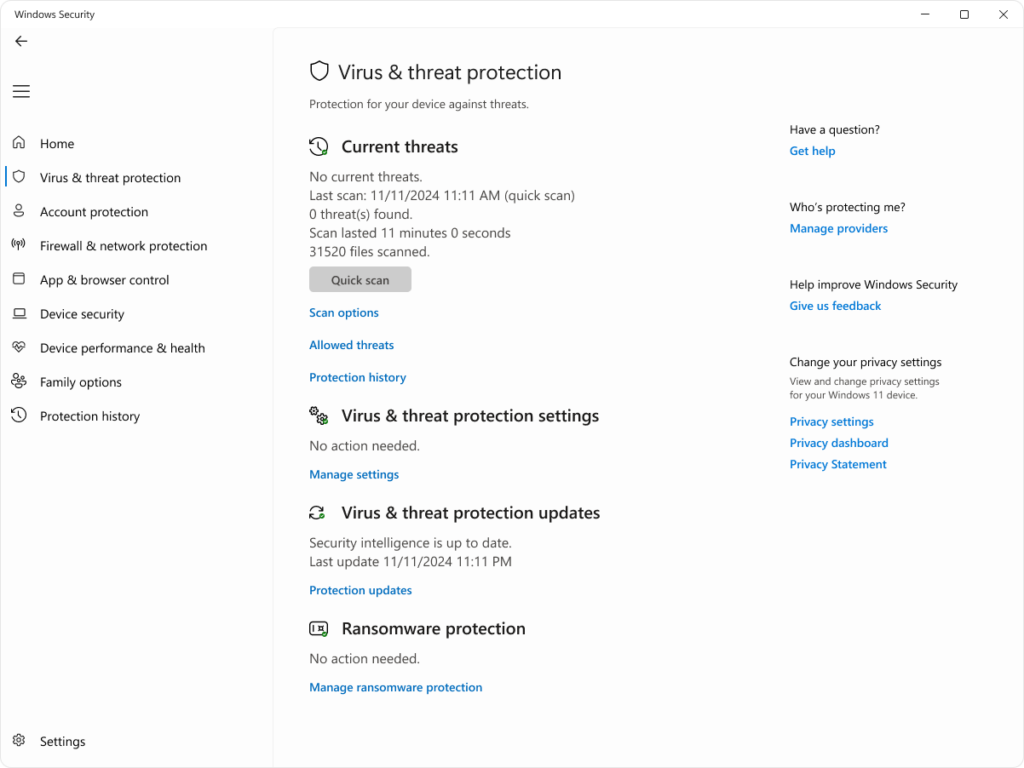
Malware and unwanted programs can silently slow down your laptop. Run a full system scan using Windows Security or another trusted antivirus tool.
Removing harmful software can instantly improve performance and stability.
6. Upgrade to an SSD
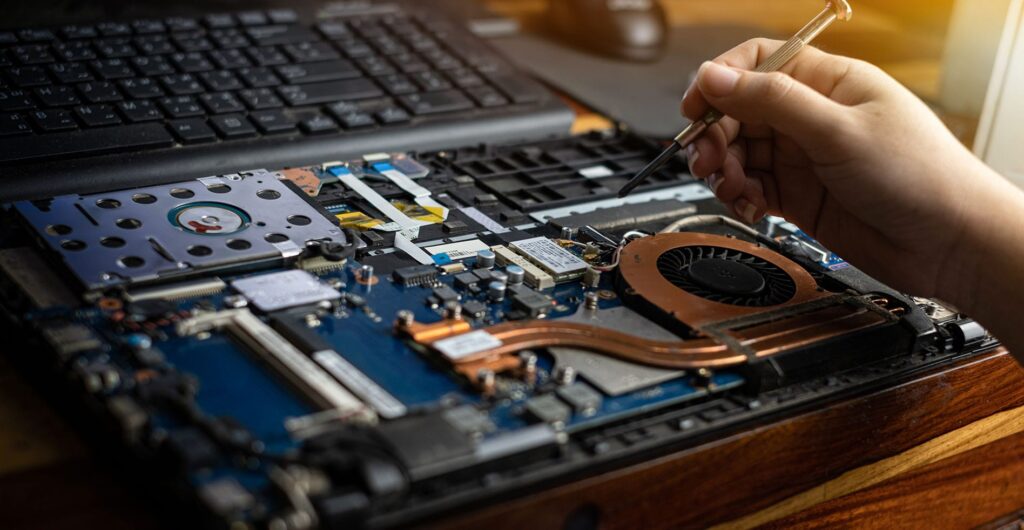
If your laptop still uses a traditional hard drive (HDD), upgrading to a Solid State Drive (SSD) is one of the best improvements you can make. SSDs are significantly faster and can reduce boot times from minutes to seconds.
Even older laptops benefit greatly from this upgrade.
7. Increase RAM if Possible
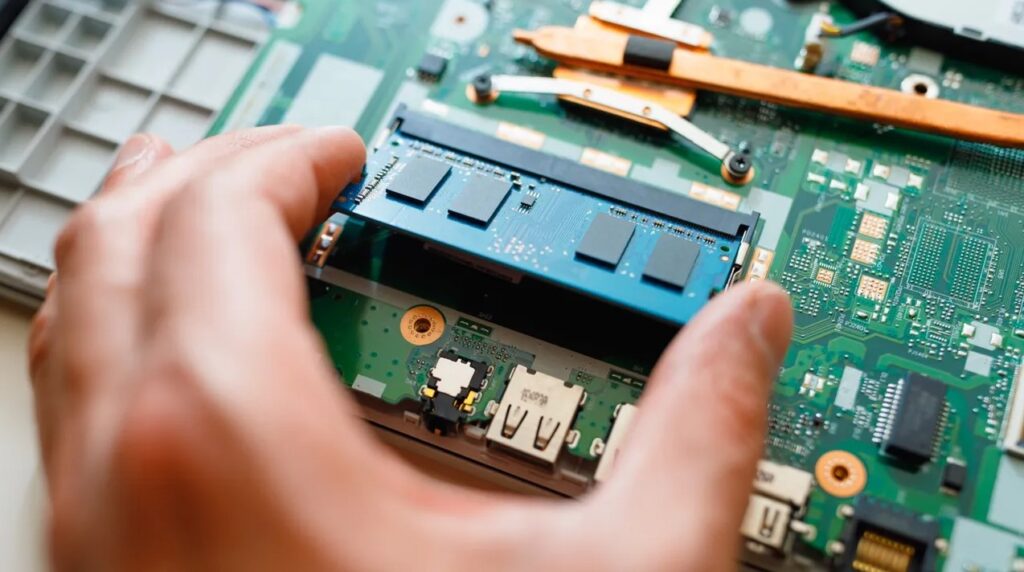
If your laptop struggles with multitasking, upgrading the RAM can help. More memory allows your system to handle multiple applications without slowing down.
Check your laptop’s specifications to see if a RAM upgrade is supported.
8. Restart Regularly
Many users rarely restart their laptops, which can lead to performance issues over time. Restarting clears memory, closes background processes, and refreshes the system.







