


Taking notes is easy, but turning them into a professional, well-formatted document in Microsoft Word can be challenging. Whether you’re a student, professional, or writer, formatting your notes properly improves readability, makes your work look polished, and saves time when sharing with others. Luckily, Word has powerful tools that make this process simple and efficient.
Step 1: Organize Your Notes
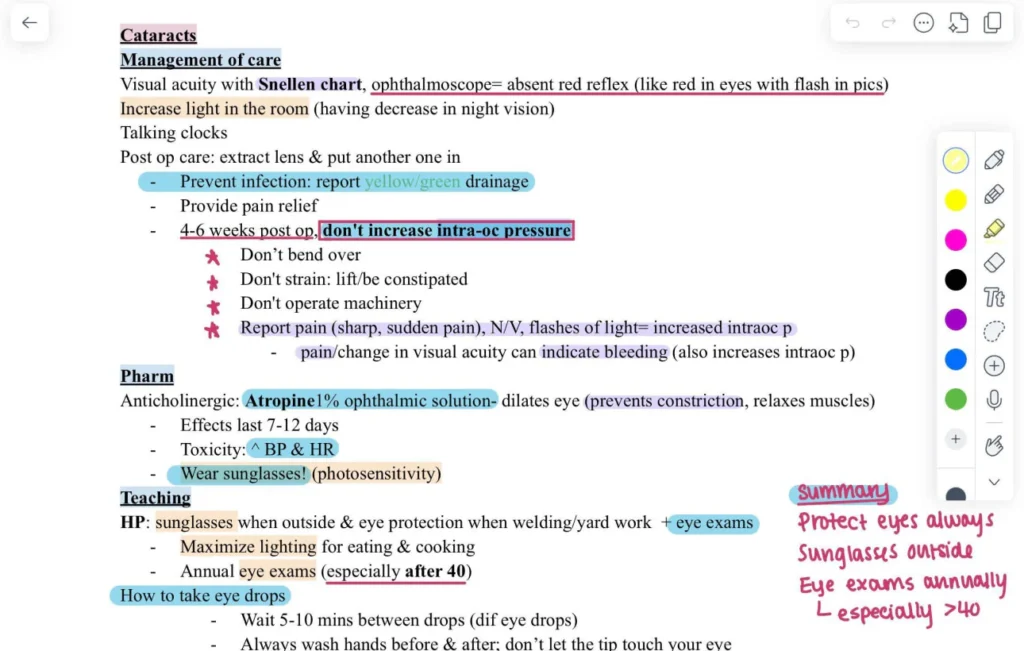
Before opening Word, review your notes and group related ideas together. Break down your content into sections or headings, and decide what needs emphasis, like key points, examples, or references. Organized notes make it easier to apply consistent formatting later.
Consider using bullet points or numbered lists for items that require structure. This step ensures you won’t need to constantly rearrange paragraphs while formatting your document.
Step 2: Create a Structured Document in Word
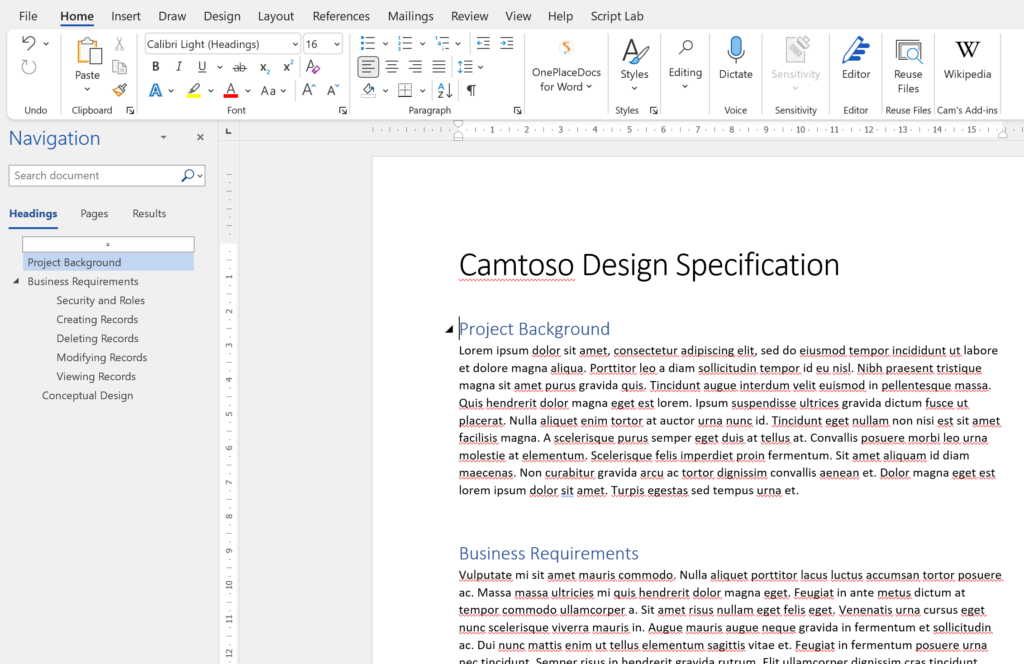
Open Microsoft Word and start a new document. Use Heading styles to organize sections, such as Heading 1 for main topics, Heading 2 for subtopics, and Heading 3 for details. Heading styles not only improve readability but also allow Word to generate a Table of Contents automatically.
You can also apply paragraph styles for body text, quotes, or captions. Using consistent styles throughout the document ensures your formatting remains professional and uniform.
Step 3: Use Lists and Tables for Clarity
Word allows you to convert notes into bulleted or numbered lists quickly. Highlight your text and select the list format that fits best.
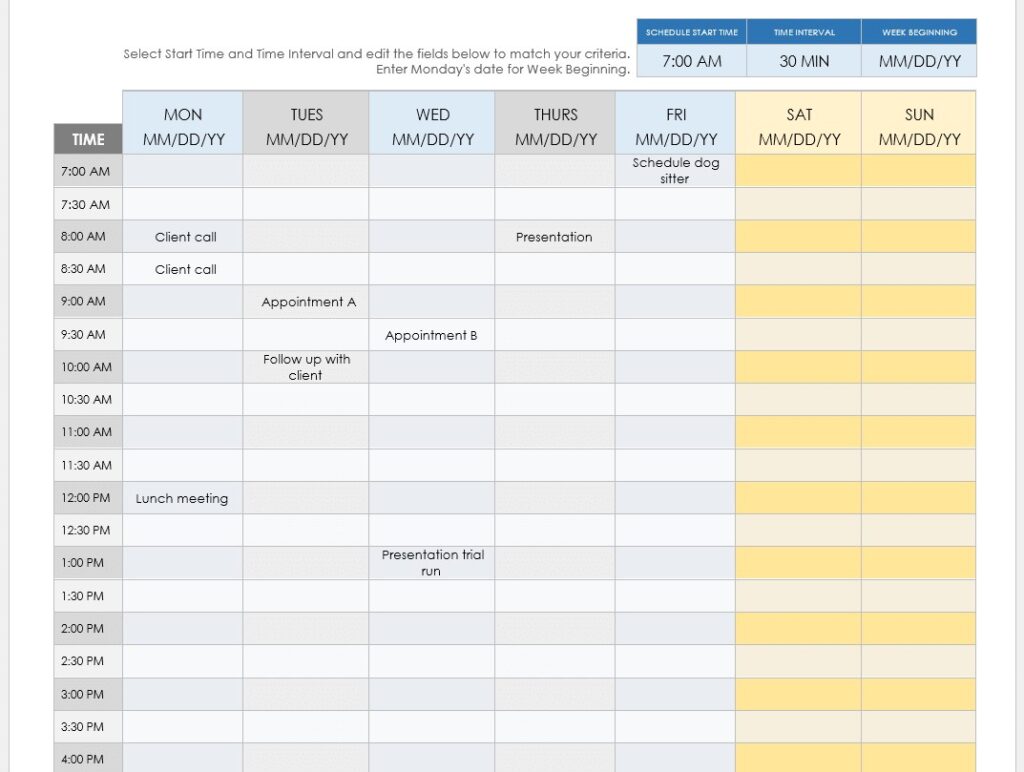
For structured information like data, schedules, or comparisons, use Word’s Table feature. Tables help make your content visually organized and easy to follow, which is especially useful for reports or academic papers.
Step 4: Apply Formatting and Visual Enhancements
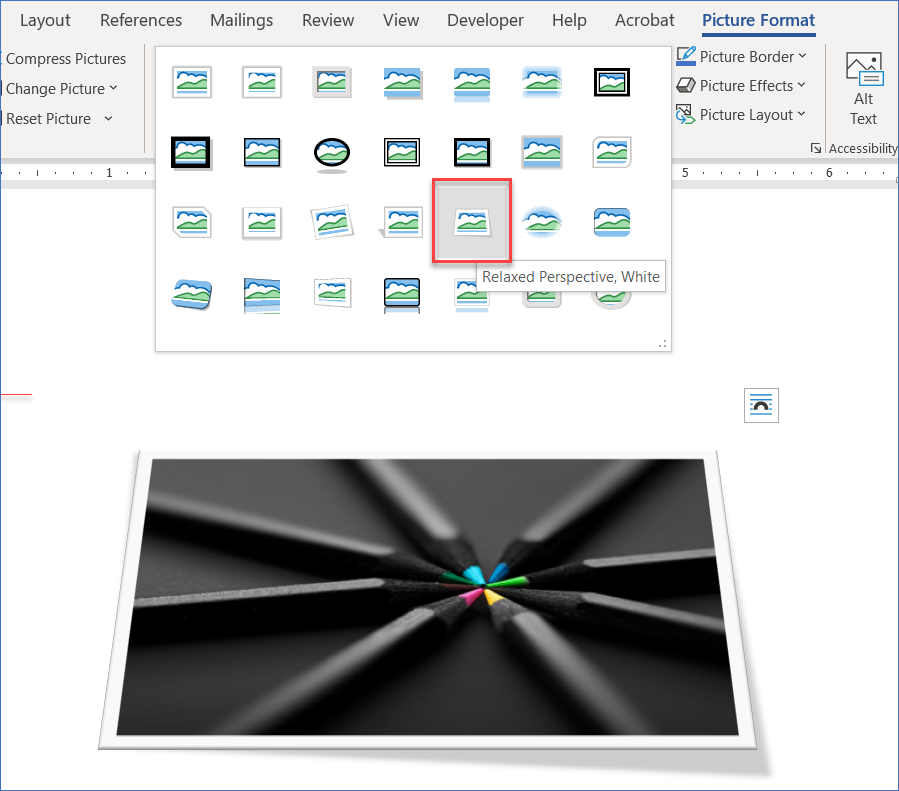
Formatting is key to making your document professional. Use bold or italics to emphasize important points, and choose a clear, readable font such as Calibri, Arial, or Times New Roman. Adjust line spacing to 1.15 or 1.5 for better readability.
Add page breaks, headers, and footers to create a clean structure, especially for longer documents. If your notes include images or diagrams, insert them using Word’s Insert > Pictures or SmartArt tools for professional visuals.
Step 5: Review and Polish Your Document
Finally, proofread your document. Use Word’s Spelling & Grammar check to catch errors, and ensure your headings and lists are consistent. If necessary, adjust margins and alignment for a balanced layout.
Turning your notes into a formatted Word document doesn’t have to be complicated. By organizing your notes, using heading styles, lists, tables, and proper formatting, you can create a professional document ready to share or submit.







