

If you’ve ever struggled with strange spacing, broken formatting, or text that just won’t align properly in Microsoft Word, you’re not alone. Many of these issues happen because of hidden elements in your document. That’s where nonprinting characters come in.
Nonprinting characters, also known as formatting marks, show you what’s really happening behind the scenes in your document. They include things like spaces, paragraph breaks, tabs, and line breaks. Turning them on can completely change how you work in Word and help you fix problems much faster.
What are nonprinting characters?
Nonprinting characters are symbols that represent formatting in your document but don’t appear when you print it. For example:
- Dots show spaces between words
- Paragraph symbols show where each paragraph ends
- Arrows indicate tab spaces
- Line break symbols show manual line breaks
These marks give you a clear view of how your document is structured, making it easier to spot mistakes that are otherwise invisible.
Fix formatting issues quickly
One of the biggest reasons to use nonprinting characters is troubleshooting. If your text looks uneven or something feels off, these marks can help you identify the problem immediately.
For example, extra spaces between words or lines are easy to miss when formatting marks are hidden. Once you turn them on, you can quickly see where the issue is and fix it without guessing.
This is especially useful when working on long documents, reports, or anything with complex formatting.
Improve document consistency
Consistency is key when creating professional documents. Nonprinting characters help ensure that your spacing, alignment, and formatting stay uniform throughout the entire file.
Instead of pressing the spacebar multiple times to align text, you can use proper tools like tabs and indentation. With formatting marks visible, it becomes obvious when something is not aligned correctly.
This leads to cleaner, more polished documents that look professional and are easier to read.
Avoid common Word mistakes
Many common Word mistakes come from improper formatting habits. These include:
- Using spaces instead of tabs
- Adding extra paragraph breaks for spacing
- Misaligned bullet points or lists
When nonprinting characters are enabled, these issues are much easier to spot and correct. Over time, you’ll naturally start using better formatting practices without even thinking about it.
Save time when editing
Editing documents becomes much faster when you can clearly see how everything is structured. Instead of guessing where a break or space is coming from, you can identify it instantly.
This is particularly helpful when reviewing documents created by other people. You can quickly clean up inconsistent formatting and make the document more professional.
How to turn on nonprinting characters
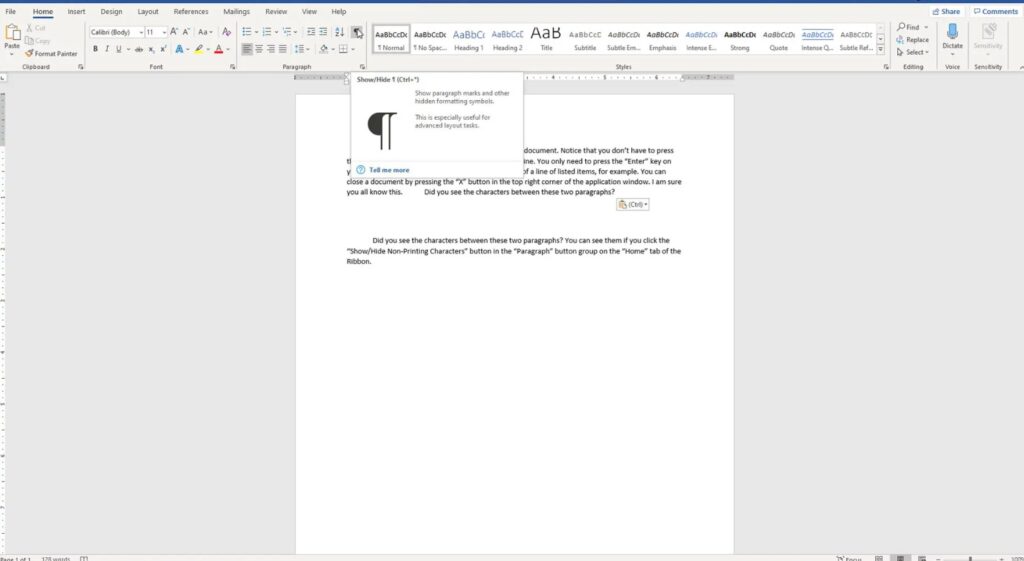
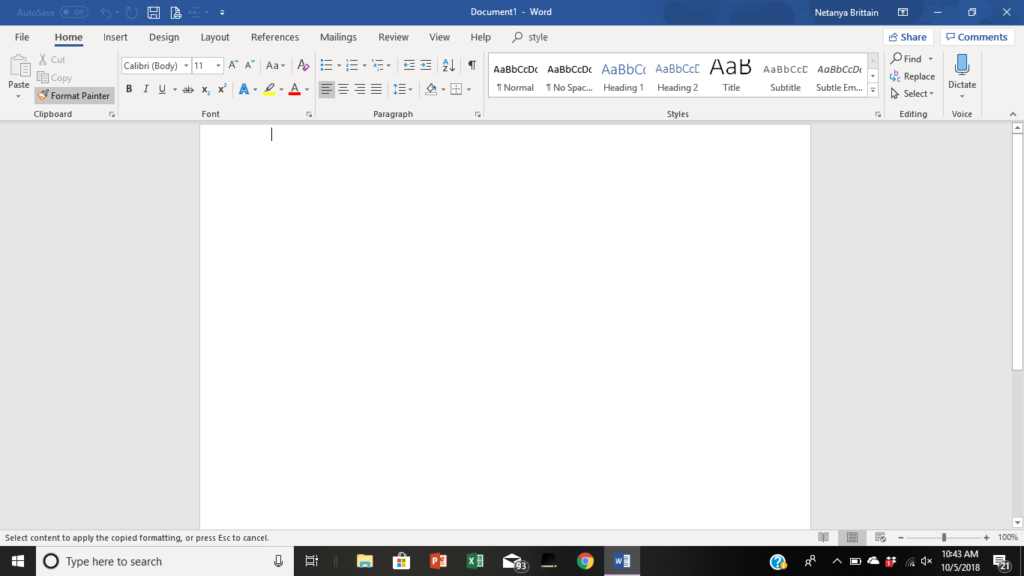
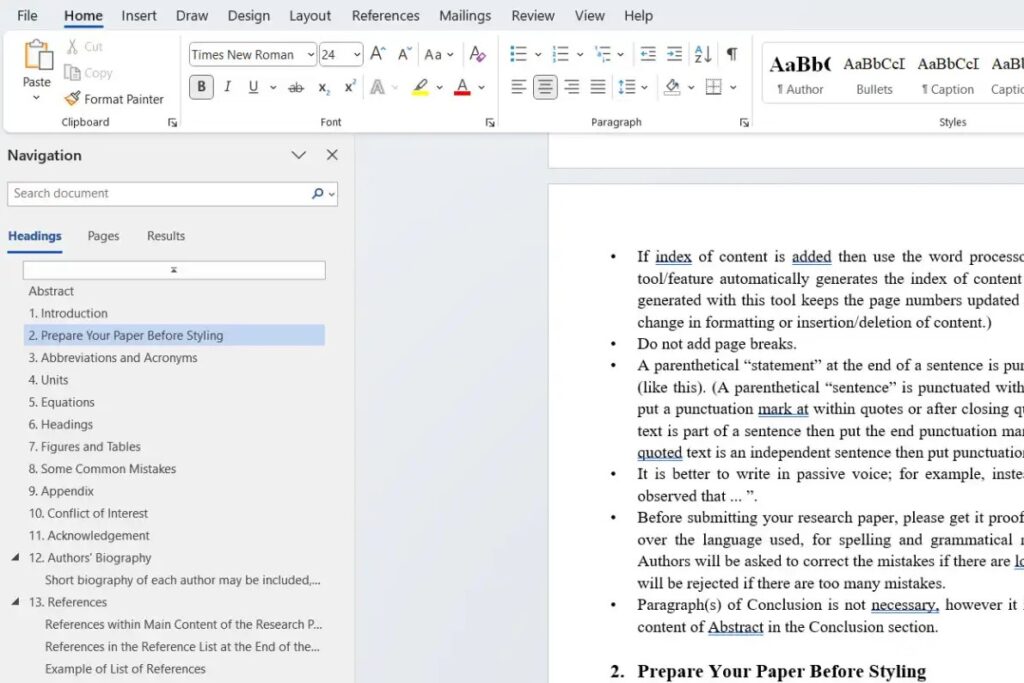
In Microsoft Word, you can enable nonprinting characters by clicking the ¶ (paragraph symbol) in the toolbar. You can also use the shortcut:
Ctrl + Shift + 8
Once activated, you’ll see all formatting marks in your document. You can toggle them on or off at any time.
Why it’s worth using them
Nonprinting characters might seem unnecessary at first, but they are one of the most useful tools in Microsoft Word. They help you understand your document better, fix formatting issues faster, and create cleaner, more professional results.
If you regularly work with Word, turning on formatting marks is a simple habit that can save you time and frustration. Once you get used to it, you’ll wonder how you ever worked without them.







