

Using Windows 10 comes with many advantages, including speed, flexibility, and compatibility with modern software. However, it is also a frequent target for hackers. Cyber threats like malware, ransomware, spyware, and phishing attacks are constantly evolving, making it essential to secure your PC. Fortunately, with the right strategies, you can significantly reduce your risk of getting hacked, even if you are a beginner.
1. Keep Windows 10 Updated
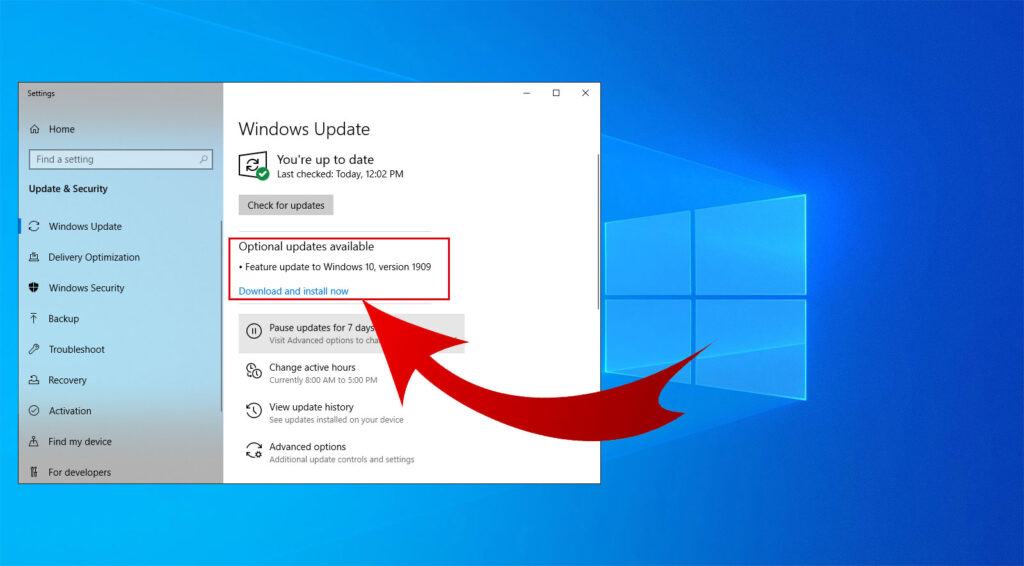
One of the simplest and most effective ways to protect your PC is by keeping it up to date. Microsoft regularly releases security patches that fix vulnerabilities hackers can exploit. To make sure you’re always protected:
- Enable automatic updates in Settings → Update & Security → Windows Update.
- Install updates as soon as they are available, including optional updates.
- Restart your PC after updates to ensure changes take effect.
Failing to update Windows 10 is one of the most common reasons PCs get hacked.
2. Use Strong Passwords and Two-Factor Authentication
Weak passwords are an easy entry point for hackers. To secure your accounts:
- Use complex passwords combining letters, numbers, and symbols.
- Avoid using the same password across multiple accounts.
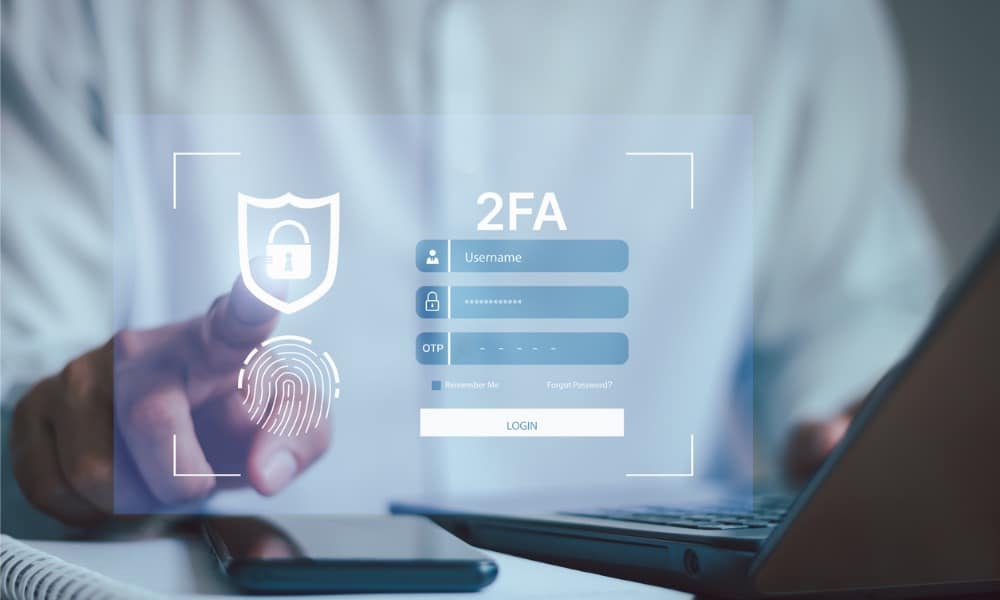
- Enable two-factor authentication (2FA) on your Microsoft account and any other services you use regularly.
Two-factor authentication adds a layer of security by requiring a verification code in addition to your password. This makes it much harder for hackers to access your accounts, even if they steal your password.
3. Enable Windows Defender and Firewall
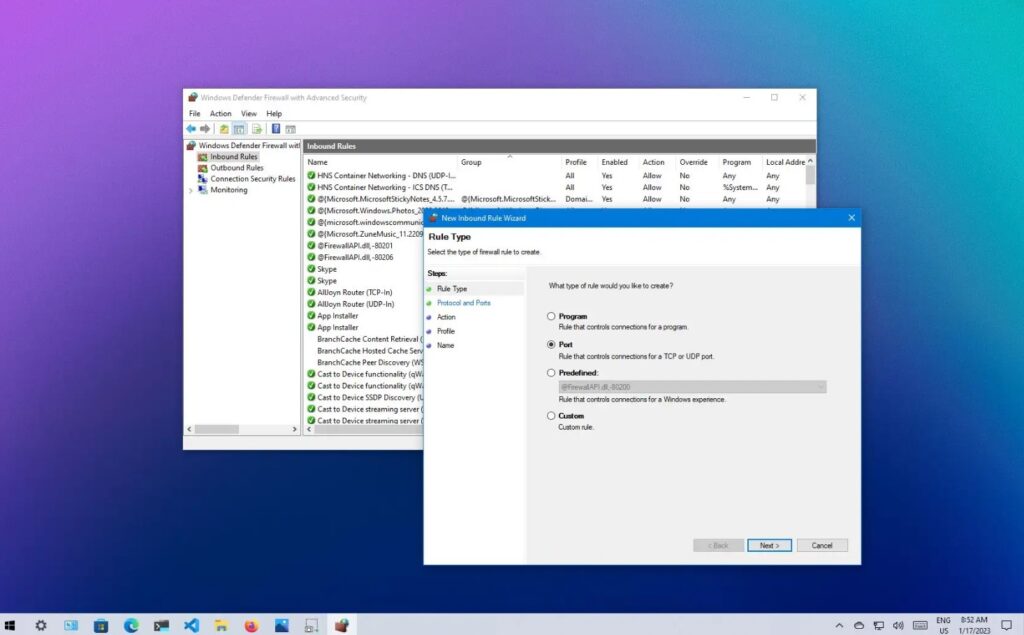
Windows Defender is built into Windows 10 and offers real-time protection against malware, viruses, and spyware. To maximize protection:
- Make sure Windows Defender is always active.
- Use the Windows Firewall to block unauthorized access to your PC.
- Run full system scans regularly to detect hidden threats.
For users who need extra security, consider pairing Windows Defender with reputable third-party antivirus software.
4. Be Cautious with Downloads, Links, and Email Attachments
Most hacking attacks start with a simple click. To avoid this:
- Only download software from trusted websites or the Microsoft Store.
- Avoid opening emails or attachments from unknown senders.
- Never click on suspicious links on social media, email, or pop-up ads.
Hackers often use phishing emails and fake websites to steal login information. Being careful online is one of the easiest ways to prevent a breach.
5. Use a VPN on Public Wi-Fi
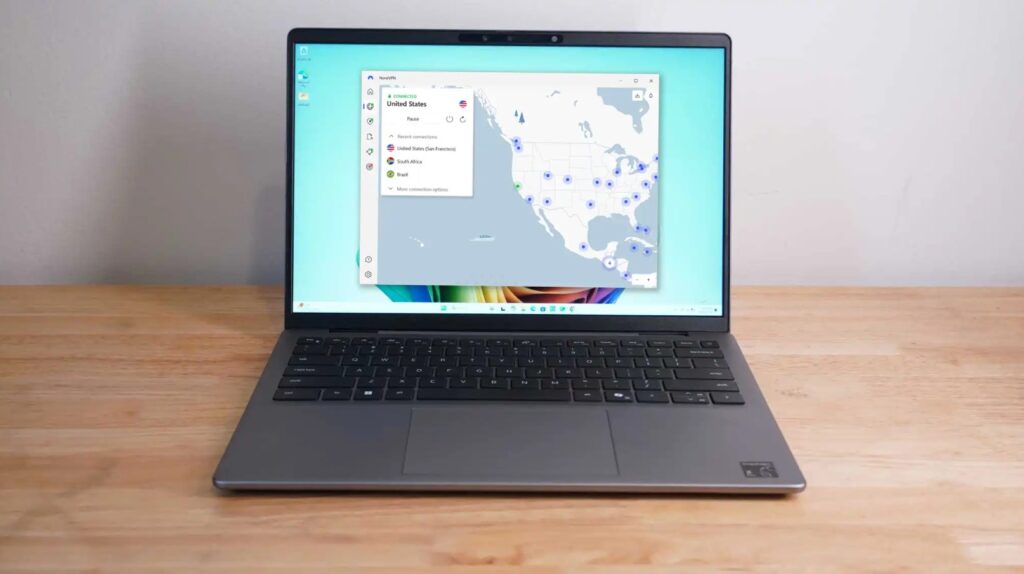
Public Wi-Fi networks, like those in cafes or airports, are usually unsecured. Hackers can intercept data transmitted over these networks. To protect yourself:
- Use a reliable VPN (Virtual Private Network) when connecting to public Wi-Fi.
- A VPN encrypts your internet connection, keeping your passwords, files, and personal information safe.
- Avoid accessing sensitive accounts on public networks without a VPN.
Using a VPN is especially important for Windows 10 laptops that travel frequently.
6. Regularly Back Up Your Files
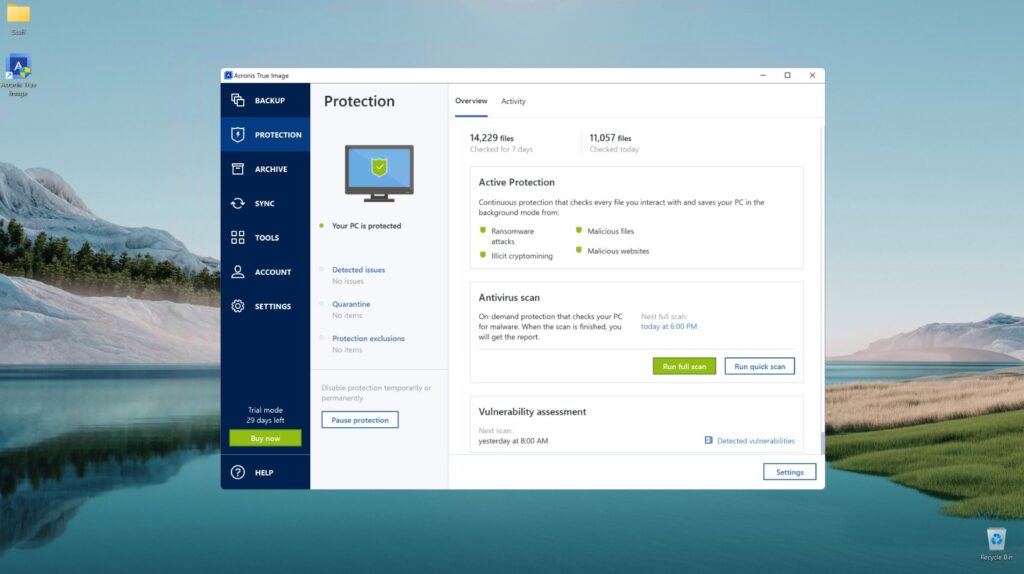
Even with strong security, accidents can happen. Hard drives can fail, malware can corrupt files, or ransomware can lock your PC. Regular backups ensure you can restore your data quickly.
- Use cloud storage services like OneDrive or Google Drive for automatic backups.
- Keep an external hard drive for offline backups.
- Test your backups periodically to make sure files can be restored correctly.
Following these steps ensures that even in the worst-case scenario, your important documents, photos, and work files remain safe.
7. Limit Administrator Access and Install Software Carefully
Limiting admin privileges reduces the risk of malware installing itself on your PC.
- Use a standard user account for daily activities.
- Only log in as an admin when necessary.
- Review software permissions carefully before installation.
This simple practice can stop malicious programs from taking control of your system.
8. Enable BitLocker Encryption
Windows 10 offers BitLocker, a built-in tool that encrypts your hard drive. Encryption protects your data in case your laptop or PC is stolen.
- Enable BitLocker in Settings → Update & Security → Device Encryption.
- Use a strong recovery key and store it safely.
Even if someone gains physical access to your device, BitLocker makes it extremely difficult for hackers to access your data.







